Plesk control panel guide: where to find email, files, databases, PHP and backups
Published on November 9, 2026 6 min read
New to Plesk? See how the Plesk control panel is laid out and where to find email, files, databases, the PHP version, backups and DNS.

Plesk is the control panel where you manage the website and email of your hosting package. You always start on Websites & Domains: the menu sits on the left, and in the middle you see your domain with a card full of tiles. Almost everything for your website is on that card, spread over four tabs; mail, files and databases also have their own entry in the left-hand menu.
This guide shows how the Plesk screen is laid out, what each menu item does and where to find the tasks you need most, each with a link to a step-by-step guide.
How do you open Plesk?
You open Plesk from the customer portal: click Plesk or Log in to Plesk next to your site. You do not need a separate password. The details are in open Plesk from the customer portal. If you have several websites, you open Plesk per site with the button next to that site. If you have a reseller package, the Plesk reseller guide explains how to open Plesk and give your clients their own login.
Plesk runs in English, so the names in this guide match the buttons you see on screen.
The Plesk dashboard of your website
On Websites & Domains you see your domain with a card below it. On the left of that card, Statistics shows how much disk space and traffic your website uses. On the right are the tabs with the tiles. The numbers in the screenshot match the list below it.
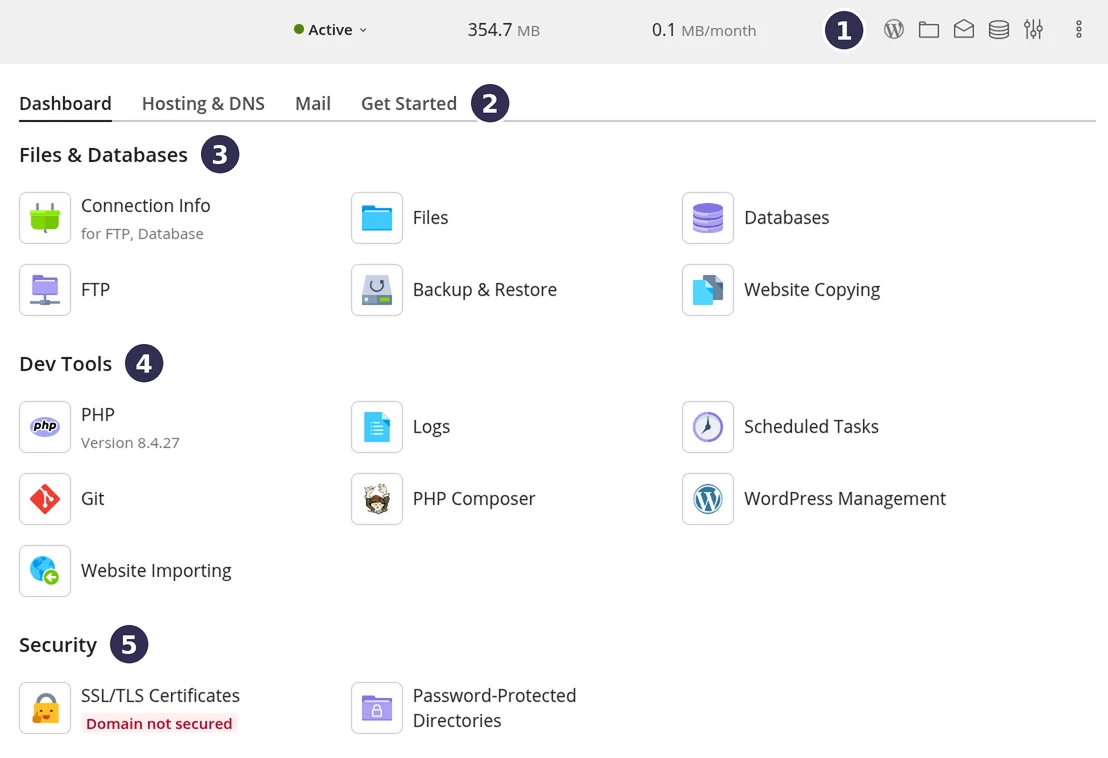
- Shortcuts in the row of your domain: WordPress Management, your website files (File Manager, in the
httpdocsfolder), Mail Accounts, Databases and Hosting Settings. - Tabs: Dashboard (with the tiles below), Hosting & DNS, Mail and Get Started. The table further down shows what the other tabs contain.
- Files & Databases: Connection Info (your FTP and database details), Files (the file manager), Databases, FTP (FTP accounts), Backup & Restore (create and restore backups) and Website Copying (copy your website files to another website).
- Dev Tools: PHP with the version your website runs, Logs (your website's log files, including error messages), Scheduled Tasks (cron jobs), Git, PHP Composer, WordPress Management and Website Importing (move a website over from another server).
- Security: SSL/TLS Certificates (the certificate for https) and Password-Protected Directories (protect a folder with a password). Under SSL/TLS Certificates you see straight away whether your domain is secured. If it says Domain not secured in red, your domain has no certificate yet; Let's Encrypt: set up a free SSL certificate shows how to add one.
What is on the other tabs?
| Tab | What you find there |
|---|---|
| Hosting & DNS | Hosting (your website settings, such as the site folder and the redirect to https), DNS (your DNS records), DNS check and the status of your DNS zone on our name servers. The web server settings are here too. |
| Mail Accounts (your email addresses), Mail Settings (the mail settings for this domain), Limit Outgoing Messages (how much mail may go out per hour) and Premium spamfilter. | |
| Get Started | A quick start for a new website: upload files, install WordPress, import an existing site, or start with Joomla!, Laravel or Node.js. |
The DNS check and the zone status are explained in point a domain at another provider to LJPc hosting. What the premium spam filter does for you is covered in the LJPc premium spam filter.
The menu on the left
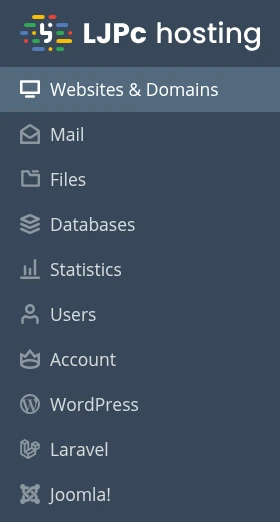
The left-hand menu stays on every page in Plesk. Click Websites & Domains to get back to the overview of your website at any time.
| Menu item | What you find there |
|---|---|
| Websites & Domains | Your domain with the card and tiles shown above. This is where you start. |
| All email addresses on your domain, with the Create Email Address button. Click an address to change its password, forwarding (Forwarding), aliases (Email Aliases) or an out-of-office reply (Auto-Reply). | |
| Files | The file manager (File Manager). Your website files live in the httpdocs folder. |
| Databases | Your databases, with phpMyAdmin, Import dump and Export dump. |
| Statistics | Disk space and traffic, split into your website, mail, databases, log files and more. |
| Users | The accounts that can log in to Plesk. Your own account is listed with the Owner role. |
| Account | The details of your hosting subscription: how much space you use (Resources tab) and everything your package includes (Permissions tab). |
| WordPress | WP Toolkit, to install, update and manage WordPress. |
| Laravel and Joomla! | Tools for websites built with Laravel or Joomla!. |
Where do I find...?
The tasks you need most, where they are in Plesk and the guide that walks you through them:
| What do you want to do? | Where in Plesk | Guide |
|---|---|---|
| Create an email address | Mail, Create Email Address button | Create an email address in Plesk, or faster in the portal: create an email address in the customer portal |
| Forward mail or add an alias | Mail, click the address, Forwarding or Email Aliases tab | Email forwarding and aliases |
| View or upload files | Files (httpdocs folder) or FTP | Plesk File Manager guide or upload files with FTP, FTPS and SFTP |
| Create a database or open phpMyAdmin | Databases | Create a database in Plesk |
| Change the PHP version | Dashboard, Dev Tools, PHP | Change the PHP version in Plesk |
| Change PHP settings such as memory_limit or the upload size | Dashboard, Dev Tools, PHP | Change PHP settings in Plesk |
| View the error messages of your website | Dashboard, Dev Tools, Logs | View error logs in Plesk |
| Create or restore a backup | Dashboard, Files & Databases, Backup & Restore | Back up your website |
| Set up a cron job | Dashboard, Dev Tools, Scheduled Tasks | Set up cron jobs in Plesk |
| Set up an SSL certificate | Dashboard, Security, SSL/TLS Certificates | Set up Let's Encrypt |
| Install or update WordPress | WordPress in the left-hand menu | Install WordPress in Plesk and update WordPress safely |
| Change DNS records | Hosting & DNS, DNS | Manage DNS records |
| Create a subdomain | Websites & Domains, Add Subdomain button above the list | Create a subdomain |
| Check your sending limit | Mail, click the address | Email sending limit |
What do you manage in the customer portal?
Plesk is for your hosting: your website, email, databases and DNS. Everything about your domain name and your subscriptions lives in the customer portal:
- Your domain name: under Services and Domains you see your domains, with their name servers and transfer code. See change your name servers and get your transfer code.
- Invoices and subscriptions: under Financial. See pay invoices in the customer portal.
- The storage of your package: on the page of your site, in the Site overview block. That figure counts your website, email and databases. Plesk counts differently and includes log files, for example; for your package, the figure in the portal is the one that applies. More in check your storage usage.
- Access for colleagues or your IT partner: with a sub-account, someone gets their own portal login and opens Plesk from there. See sub-accounts in the customer portal.
A tile or menu item is missing
The tiles and menu items you see depend on your hosting package. Click Account in the left-hand menu: the Permissions tab lists everything your package includes, and the Resources tab shows how much space, email addresses and databases come with it. Need something that is not on the list? Get in touch and we will look at what fits your website.
Still stuck? Call us on +31 85 130 6429, email support@ljpc.nl or create a support ticket. We are happy to help.
Frequently asked questions
Can I see in Plesk whether my domain name is registered with LJPc?
You find that in the customer portal under Services and Domains. Plesk is for your hosting: your website, email, databases and DNS. Your domain registration, name servers and transfer code are in the portal.
Why is Plesk in English?
Plesk runs in English at LJPc hosting. Our guides use the same English names for menus, tabs and buttons, so you recognise them straight away.
Who is listed under Users in Plesk?
Users lists the accounts that can log in to Plesk, including your own account with the Owner role. If you tick Can be used to log in to Plesk when you create an email address, that address gets its own login as well. The box is unticked by default.
Why does Plesk show a different storage figure than the customer portal?
Plesk counts everything in your hosting space, including log files. For your hosting package the figure in the customer portal applies, on the page of your site in the Site overview block: it counts your website, email and databases.
I cannot find Backup & Restore or Scheduled Tasks. Why?
The tiles you see depend on your hosting package. Click Account in Plesk and open the Permissions tab to see everything your package includes. Need something that is not listed? Get in touch with us.
I have several websites. How do I open Plesk for the right one?
You open Plesk per website from the customer portal: click Plesk or Log in to Plesk next to the site you want to manage. That way you always work in the environment of that website.