Get your EPP code and transfer your domain to another provider
Published on November 9, 2026 7 min read
Find the EPP or auth code of your domain in the customer portal, switch off the transfer lock and move your domain, in the right order for website and email.

To move your domain to another provider, you need its transfer code, also called an auth code or EPP code (for .nl domains: a transfer token). You find it in the customer portal on the page of your domain, in the Authorization code box; for a .nu domain you request it there with one click. For .com and most other international extensions, also switch off the transfer lock, then give the code to your new provider, who starts the transfer.
A domain transfer only moves the registration of your domain name. Your website and mailboxes stay with us for as long as your hosting plan runs. This guide shows where to find the code, what differs per extension and in which order to move everything without downtime for your website or email.
Is your domain registered with LJPc?
Check this first: you get the transfer code from the company your domain is registered with, which is not always the company that hosts your website.
- In the customer portal. In the Services menu, choose Domains. The list shows the domains registered with us on your account. If your domain is in that list, you get the transfer code from us.
- For a .nl domain, also in WHOIS. Look up your domain in the SIDN WHOIS. If the Reseller field shows LJPc, the domain is registered with us.
- Not in Plesk. Plesk shows your hosting: websites, mailboxes and DNS settings. A domain can be set up in Plesk while its registration is with another company.
Is your domain missing from your list of domains? Then it is registered with another company, or on someone else's account, such as your web designer's. Ask them for the code.
Using a sub-account and no Domains option in the menu? Ask the main user to give you the View domains permission under My account, on the Sub-accounts tab.
How to get your transfer code in the customer portal
- Log in at portal.ljpc.nl.
- In the Services menu, choose Domains and click the domain you want to transfer.
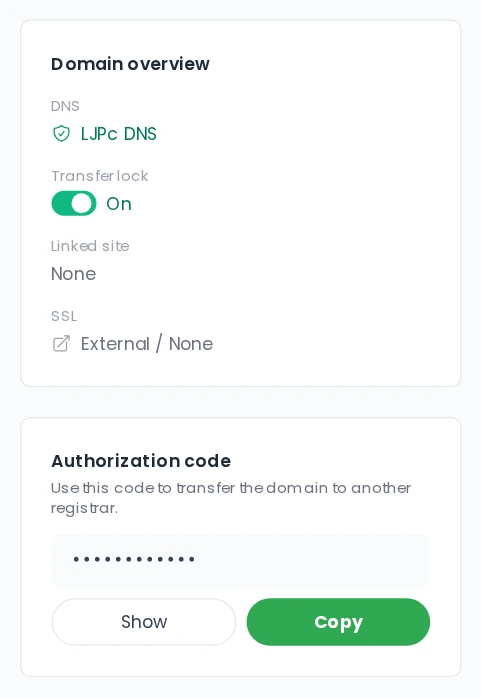
- Find the Authorization code box. On a computer it sits on the right, below the domain overview; on your phone it is at the top of the page.
- Click Show to see the code, or Copy to put it on your clipboard straight away.
- Does the box show a Request transfer code button? Then no code has been created for this domain yet. Click the button and the code is ready within a few seconds. An existing code is never replaced, so a transfer that already uses it carries on.
No Authorization code box on the page? Our team arranges the code for you. Create a support ticket and mention the domain. When we prepare a code for you, we send it as a one-time link, so it does not stay readable in your mailbox. For a .be domain, you request the code yourself from DNS Belgium: switch off Transfer lock first; the code arrives in your Inbox in the portal. Read how that works in our article about DNS Belgium.
Treat the transfer code like a password: anyone who has it can move your domain to another provider. Only give it to the provider your domain is moving to.
Transfer code and transfer lock per extension
Every extension has its own registry with its own rules. This is what you see in the portal:
| Extension | Transfer code | Transfer lock |
|---|---|---|
| .nl | Shown under Authorization code | No lock to switch off |
| .com, .net, .org and most other international extensions | Shown under Authorization code | Set Transfer lock to Off |
| .nu | Request transfer code button, then shown | No lock to switch off |
| .be | Request it yourself from DNS Belgium, the email arrives in your portal Inbox | Set Transfer lock to Off |
| .eu, .de and other extensions without an Authorization code box | Through a support ticket | No lock to switch off |
How to switch off the transfer lock
The transfer lock protects your domain against a transfer you did not start yourself. For extensions that have one, it is usually on. To switch it off:
- Open the page of your domain in the portal.
- In the Domain overview box, find Transfer lock.
- Click the switch so it shows Off. You see the message Domain updated.
If you see Update failed, try again in a few minutes or create a support ticket. No Transfer lock on your domain page? Then the extension has no lock and you can skip this step. If the transfer does not go ahead after all, switch the lock back on to keep your domain protected.
Start the transfer at your new provider
You request the transfer at the provider your domain is moving to. Enter your domain name and the transfer code there, and the new provider submits the request to the registry. Nothing else is needed on our side.
- Keep the registrant's email address up to date. For some extensions, the domain holder receives an email to confirm the transfer. Check that address beforehand in your WHOIS data.
- How long it takes. A .nl domain often moves within minutes, because SIDN processes the transfer straight away. For .com and other international extensions it can take a few days. Your new provider tells you when it is done.
- Your domain subscription. Once the transfer is complete, we end the registration subscription for that domain. There is no need to cancel it yourself, and renewals then run through your new provider. Already cancelled the domain? Transfer it before the end date; what happens on that date is explained in cancel a subscription. To see what else to cancel, read domain name or website: what to cancel and when it stops.
What happens to your website and email
Your website and mailboxes do not move with the registration. Where they live after the transfer depends on the nameservers and DNS records of your domain. Pick your situation below.
| Your situation | What to do |
|---|---|
| Website and email stay with LJPc hosting | Ask your new provider to keep the nameservers ns1.ljpc.network, ns2.ljpc.network and ns3.ljpc.network. Your website and email then keep working as before. After the transfer, check that DNSSEC is still active, as described in what is DNSSEC. |
| Website and email move to your new provider too | Set them up at your new provider first and transfer the domain after that. The order is below. |
| Only your website or only your email moves | Keep the LJPc nameservers and change only the records that should point to the new company, such as the A record for your website or the MX records for your email. See manage DNS records. |
Moving everything to another provider: the right order
Moving your domain, website and email together? Follow this order to keep your website and email online and every message safe.
- Set up your website. Make a backup of your website and restore it at your new provider.
- Move your email. Create the same mailboxes at your new provider and copy your messages over IMAP, as described in migrate email to a new server. The settings of your mailbox with us are in set up email on your phone and computer. New mail arrives wherever your MX records point; your existing messages stay in your mailbox with us until you move them or your hosting plan ends.
- Change the nameservers. In the portal, set the nameservers of your new provider on your domain, as described in change your nameservers. If DNSSEC is on, we remove the DS record at the registry automatically. Then check that your website and email work at the new provider; a new setting does not show up everywhere at once, see DNS propagation.
- Transfer the domain. Get the transfer code, switch off the transfer lock and give the code to your new provider.
- Cancel your hosting plan. Once everything works at your new provider, cancel the hosting plan in the portal. Your website and mailboxes keep working until the end date; the notice period and steps are in cancel a subscription.
Does your new provider only change the nameservers after the transfer? Then ask them to replace or remove the DS record of your domain as well. An old DS record combined with new nameservers makes your domain unreachable; what is DNSSEC explains why.
When the transfer fails
- The new provider says the code is wrong. Copy the code again with the Copy button, so no space or character goes missing, and check that you enter it for the right domain. Still refused? Create a support ticket.
- The domain is still locked. Check in the Domain overview box that Transfer lock is set to Off, then start the transfer again at your new provider.
- The domain was registered or transferred recently. For .com, .net, .org and many other international extensions, a domain cannot move in the first 60 days after registration or a previous transfer. After that period it can. An international domain can also be locked for 60 days after a registrant change; see how to change the owner of a domain name.
- The domain shows Redemption period or Pending delete. The domain cannot be transferred in that state. Create a support ticket and we will look at the options with you.
Want to bring a domain to LJPc later on? See transfer your domain to LJPc.
Frequently asked questions
How long is an EPP or auth code valid?
That is set by the registry of the extension, and the rules differ per extension. The customer portal shows the code that currently belongs to the domain. Copy it when you start the transfer at your new provider. If your new provider rejects it, check the portal for a different code or create a support ticket and we will sort it out with you.
Can I see in Plesk whether my domain is registered with LJPc?
No, Plesk only shows your hosting: websites, mailboxes and DNS settings. Whether the domain is registered with us is shown in the customer portal under Services, Domains. For a .nl domain, the SIDN WHOIS then lists LJPc as the reseller.
Why is there no transfer code for my .nu domain?
For .nu, the registry only creates a code when someone asks for one. That is why the page of your domain shows a Request transfer code button. Click it and the code appears in the Authorization code box within a few seconds.
Does my email move when I transfer my domain?
No, a transfer only moves the registration. New mail arrives wherever the MX records of your domain point. Your existing messages stay in your mailbox with us for as long as your hosting plan runs. To keep them, copy them over IMAP to your new mailbox before you cancel the plan.
Do I need to cancel my domain at LJPc when I transfer it?
There is no need. Once the transfer is complete, we end the registration subscription for that domain and renewals run through your new provider. A hosting plan is a separate subscription: cancel it yourself in the portal once your website and email work at your new provider.
Can I ask you for the transfer code?
Yes. The quickest route is the customer portal, where you see or request the code right away. If that does not work, or your domain has no Authorization code box, create a support ticket with the domain name and we send you the code as a one-time link.