Change the owner of a domain name: how a registrant change works
Published on November 9, 2026 7 min read
Moving a domain to your company or a new owner? Change the registrant in the LJPc customer portal and see which emails to expect per extension.

A registrant change puts your domain name in someone else's name, for example your new limited company, your foundation or the buyer of the domain. If the domain stays in your LJPc account, you handle it yourself in the customer portal: create a WHOIS contact for the new owner and select that contact on the domain's page. A .nl domain then moves to the new name right away; for .com and other generic extensions you first approve the change through an email in your portal inbox.
Below you find which route fits your situation, how to change the registrant, which emails to expect per extension and how to hand a domain over to someone with another provider.
What is a registrant change?
The registrant is the legal owner of a domain name. Their name or organisation is recorded by the registry of the extension, such as SIDN for .nl. A registrant change replaces that person or organisation with another one. What WHOIS is and which details are public is explained in how to manage WHOIS data for your domain.
A registrant change is only about ownership. Your website, email, DNS records and nameservers stay as they are, and the domain remains in your LJPc account.
Moved house or got a new phone number? Update that in the WHOIS contact itself. If the name or organisation of the registrant changes, it does count as a registrant change, also when you edit an existing contact.
Which route fits your situation?
| Situation | What to do |
|---|---|
| Your sole proprietorship becomes a limited company, your business name changes or the domain should be in your organisation's name. You keep managing it. | Change the registrant yourself in the customer portal, with the steps below. |
| You are a reseller and put a domain in your client's name while you keep managing it. | Also done in the customer portal: create a WHOIS contact with your client's details and select it for the domain. |
| The domain goes to a new owner who is also an LJPc customer and wants it in their own account. | Contact support. The domain then moves from your account to the new owner's account. |
| The domain goes to a new owner with another provider. | Give the new owner the transfer code. Their provider transfers the domain and puts it in their name. See the steps further down. |
| You take over a domain registered with another provider. | Ask the current owner for the transfer code and transfer the domain to LJPc. Then put it in your name. |
| A .be domain goes to a new owner with another provider. | This works with the transfer code DNS Belgium sends to the registrant. See DNS Belgium explained. |
Change the registrant in the customer portal
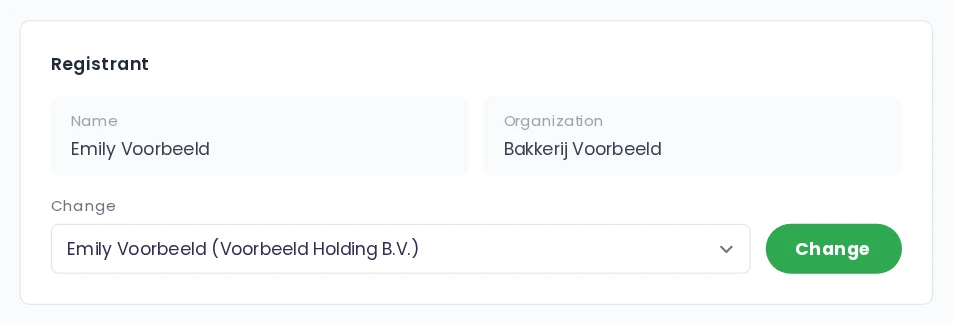
You change the registrant in the Registrant block on the domain's page. That block is visible with the Manage WHOIS contacts permission. If you use a sub-account and do not see the block, ask the main account for that permission. See sub-accounts in the customer portal for how permissions work.
- Log in to the customer portal.
- Create a WHOIS contact for the new registrant. In the Services menu choose WHOIS contacts and click New contact. Enter the full name of the company or organisation under Organization and the contact person under Name, fill in the other details and click Save. The required fields are listed in how to manage WHOIS data.
- In the Services menu choose Domains and click the domain.
- In the Registrant block, pick the new contact from the list under Change.
- Click the green Change button. If the change goes through right away, as with a .nl domain, you see the message Registrant changed. If you have to approve it first, as with .com and other generic extensions, you see Request sent: approve it within 15 days via the email in your Inbox and the block keeps showing the current registrant until the change has gone through after your approval.
If the registry of the extension needs more details about the new registrant, the block Additional details required appears after step 4. Fill in the fields and click Save and change.
Moving all your domains to the new name, for example because your whole business becomes a limited company? Then edit the existing WHOIS contact once with the pencil icon under WHOIS contacts. The change applies to every domain linked to that contact.
What happens next, per extension
For a .nl domain the registrant has changed after step 5. For .com and other generic extensions your request has been sent, and the registrant only changes after you approve. Email about the change arrives under Inbox in the customer portal, because every WHOIS contact you create in the portal uses your portal inbox as its email address. See the customer portal guide for how the inbox works.
| Extension | Approval needed? | Email in your portal inbox |
|---|---|---|
| .nl | No, SIDN processes the change right away. | A bilingual SIDN notice that the registrant of yourdomain.nl has been changed |
| .com, .net, .org, .info, .shop and other generic extensions | Yes, within 15 days. | First the registrant change request for yourdomain.com (in Dutch: Wijziging van registrant voor yourdomain.com), after your approval a notice that the registrant details have been updated |
| Other country extensions, such as .eu, .de and .nu | This depends on the registry of the extension. | If the registry asks you to confirm something, that email also lands in your portal inbox. |
Approving a change for .com and other generic extensions
These extensions follow an ICANN rule: both the current and the new registrant approve before the registrant's name or organisation changes. Because both contacts are in your account, the request comes to you.
- Click Inbox in the portal menu. A red number shows you have an unread message.
- Open the registrant change request for yourdomain.com. It lists the details of the current and the new registrant. If you edited a contact that several domains use, all those domains are in the same email.
- Click the link in the email and approve.
You have 15 days. The deadline in the email is in UTC, which is one hour behind Dutch time in winter and two hours in summer. Without approval the change does not go through and the current registrant stays in place. After you approve, you receive a notice that the registrant details have been updated. Cannot find the approval email or has the deadline passed? Contact support.
Transferring after a registrant change: the 60-day lock
After a registrant change on a generic extension, the domain may be locked against transfers to another provider for 60 days. The notice you receive after approving tells you whether that lock applies to your domain. Does the new owner also want to move the domain to another provider? Transfer it first and let the new provider change the registrant afterwards, as ICANN also recommends. This lock does not apply to .nl.
Handing a domain over to someone with another provider
- Agree on what happens to the website and email on the domain. If they move too, have the new owner set them up with their provider first. The right order is in get your EPP code and transfer your domain.
- Open the domain in the portal. If the domain has a transfer lock, set Transfer lock to Off in the Domain overview block. Copy the transfer code from the Authorization code block.
- Give the transfer code to the new owner. They request the transfer with their own provider and have the domain put in their name there.
- Keep an eye on your portal inbox. For some extensions the registry asks the current registrant to confirm the transfer.
Once the transfer is complete, we end the subscription for that domain's registration, so you do not need to cancel it yourself. What else to cancel, such as your hosting package, is explained in domain name or website: what to cancel and when it stops.
Taking over a domain from someone else
Buying or receiving a domain that is currently with another provider? Ask the current owner for the transfer code. With that code you transfer the domain to LJPc; the steps and how to follow the transfer are in transfer your domain to LJPc. Once the transfer is complete, check who the registrant is in the Registrant block on the domain's page. If it still shows the previous owner, change the registrant with the steps above.
At LJPc you manage the registrant of all your domains yourself in the portal, whenever it suits you, and every message from the registry arrives in one place. Not sure which route fits your situation? Get in touch and we will gladly think it through with you.
Frequently asked questions
How long does a registrant change take?
For a .nl domain SIDN processes the change right away. For .com and other generic extensions the change goes through as soon as you approve it via the email in your portal inbox. You have 15 days to do so.
I cannot find the approval email in my mailbox. Where is it?
In the Inbox of the customer portal. Every WHOIS contact you create in the portal uses your portal inbox as its email address, so messages from the registry arrive there. The main account and its sub-accounts share that inbox.
Does my website or email change when the registrant changes?
No. A registrant change only changes the owner of the domain name. Your website, email, DNS records and nameservers stay as they are.
My sole proprietorship is becoming a limited company. How do I put my domains in the company name?
Create a WHOIS contact in the portal with the company name under Organization and select that contact per domain in the Registrant block. If all your domains move, edit the existing contact instead. For .com and other generic extensions you then approve via the email in your portal inbox.
Can I transfer my domain to another provider after a registrant change?
For .nl, yes. For .com and other generic extensions the domain may be locked against transfers for 60 days after the change. The notice in your portal inbox after approval tells you whether that applies to your domain.
How do I move a domain to someone else's LJPc account?
Contact support for that. The domain then moves from your account to the new owner's account.