Customer portal guide: menu, search, inbox, language and VAT
Published on November 9, 2026 6 min read
Where are your invoices, sites and tickets in the LJPc customer portal? The menu, search with Ctrl+K, the inbox, language and amounts without VAT.

The LJPc customer portal is where you manage everything you have with us: websites and domain names, invoices and subscriptions, support tickets and your own account. The menu at the top of every page holds Dashboard, Inbox, Services, Financial and Support. The magnifying glass or Ctrl+K (Cmd+K on a Mac) searches the whole portal, the flag switches between English and Dutch, and the switch at the bottom chooses whether amounts include VAT.
Not signed in yet? Signing in to the customer portal explains how it works with your password and a code by email.
What is in the portal menu?
Click Services, Financial or Support to open a list of the pages in that section.
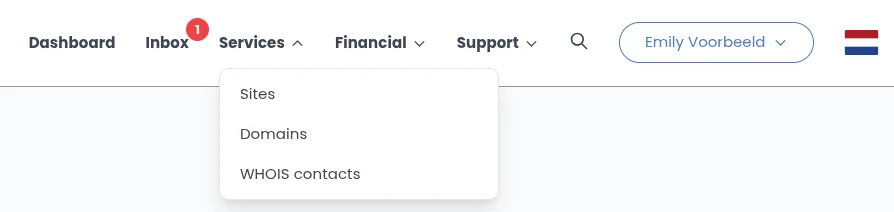
| Menu | What you find there |
|---|---|
| Dashboard | Your start page with unread messages, your sites with a button to Plesk, your domain names, recent tickets and invoices, and quick actions such as New ticket and Set up direct debit. |
| Inbox | Email sent to your account's internal contact address, for example by a domain registry. The red number shows how many messages are unread. |
| Services | Sites (your websites and hosting plans), Domains (DNS, name servers and transfers) and WHOIS contacts (the registrant details of your domains). Depending on your services you also see Servers, Apps, Spam filter, Backorders and My value pack. |
| Financial | Invoices and Subscriptions, plus Quotes as soon as we have sent you a quote. |
| Support | Tickets for your questions to us and Abuse tickets about abuse coming from your website or server. If your account includes an emergency line, the red Emergency Call link for urgent outages outside office hours is here too. How it works is explained in emergency support after hours. |
| Magnifying glass | Search the whole portal and the knowledge base. |
| Your name | My account with your details, security (password, authenticator app and passkeys), sub-accounts and notifications, plus Logout. |
| Flag | Switch the portal to Dutch, or back to English. |
On your phone, the menu sits behind the three lines at the top right. It has the same sections, plus search and the flag.
Where do I find what?
The tasks customers look for most and how to get there. Click a task for the guide that walks you through it step by step.
| You want to | Go to |
|---|---|
| Pay or download an invoice | Financial > Invoices |
| Turn on direct debit | Dashboard > Quick actions |
| View or cancel a subscription | Financial > Subscriptions |
| Open Plesk for your website | Services > Sites, or the Plesk button on your dashboard |
| Create an email address | Services > Sites > your site > Email addresses |
| Change DNS records | Services > Domains > your domain |
| Order a new website or domain name | Dashboard > Find your domain |
| Ask a question or report a problem | Support > Tickets > New ticket |
| Give a colleague or your IT partner access | Your name > My account > Sub-accounts |
| Send invoices to your accountant | Your name > My account > Notifications |
| Change your password or turn on 2FA | Your name > My account > Security |
Why is a menu item missing?
The portal only shows what belongs to your account, which keeps the menu clear.
- The services you have. Servers appears once you have your own server or a reseller package with us, Apps once we host an app for you, Spam filter once one of your domains is in the premium spam filter and your account may manage it, and Quotes once we have sent you a quote. What the server page shows is explained in checking the system status and your server status.
- Your permissions. On a sub-account you see the sections the main account has enabled for you. The Sub-accounts and Notifications tabs under My account are only in the main account. How to grant permissions is covered in sub-accounts in the customer portal.
- An overdue invoice. When an invoice is 9 days or more past its due date, the dashboard shows Services blocked at the top and the pages for your servers, apps, domains and sites stay closed until payment arrives. The Pay expired invoices button gives you full access again.
Search the portal with Ctrl+K or Cmd+K
Click the magnifying glass in the menu or press Ctrl+K (Cmd+K on a Mac). A search window opens. Type at least two characters and results appear right away, grouped by type:
- Pages of the portal, such as Invoices or Subscriptions;
- your own services: domain names and sites with their email addresses, and with your own server also that server;
- invoices, by invoice number or description;
- tickets, including text from the replies;
- Help: articles from this knowledge base.
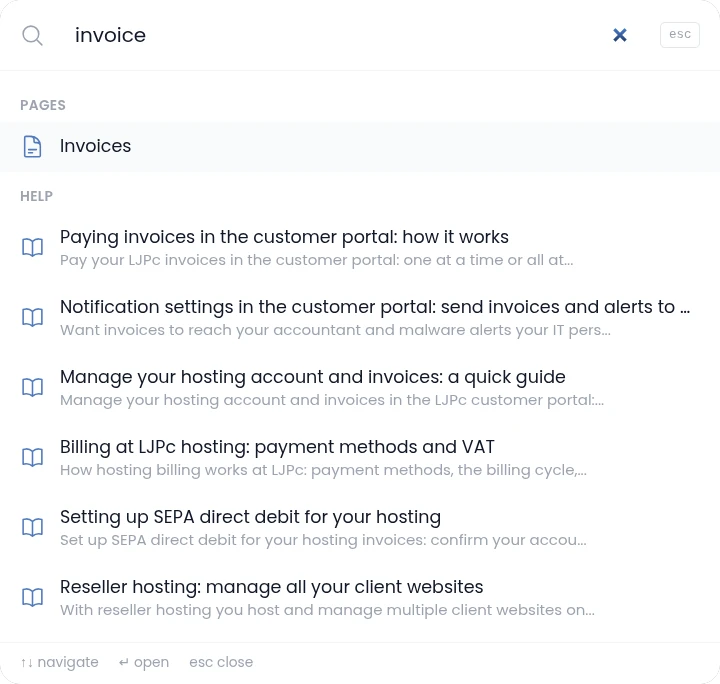
Use the arrow keys to move through the results, Enter to open one and Esc to close the window. Type a domain name you do not own yet, such as yourdomain.com, and if your account can place orders the top result is Order yourdomain.com, which starts the order in one step.
What is the portal inbox?
For domain registrations and hosting plans we use an internal email address of your account as the contact address. Email sent to that address shows up under Inbox, such as verification and approval requests from a registry and reminders about a domain's expiry date. That way these messages always arrive in one place.
- The red number in the menu and the Unread messages card on your dashboard show what you have not read yet.
- Click a message to open it, including any attachments. If a registry asks for your approval, click the link in the message.
- The main account and its sub-accounts share one inbox. When someone opens a message or clicks Mark all as read, it is marked as read for everyone. The To column shows which account the message was meant for.
Your regular email, such as info@yourdomain.com, is in your mail app or in webmail. Which registry emails you can expect and why is covered in managing WHOIS data.
Switch the portal language
Click the Dutch flag at the top right to show the same page in Dutch, and click the British flag to switch back. On your phone the flag is at the bottom of the menu. English pages have addresses starting with portal.ljpc.nl/en, so a link to an English page always opens in English.
Show amounts with or without VAT
At the bottom of every page, in the purple bar, is the Amounts including VAT switch. Click it and the portal shows amounts excluding VAT for your invoices, subscriptions, hosting plans and value pack. Click it again to show amounts including VAT.

The portal remembers your choice for your login, also on another computer, and every sub-account has its own setting. Your invoices themselves stay the same: they always show the amounts both excluding and including VAT. More about VAT on your invoices is in billing at LJPc hosting.
Need help?
If something is unclear, create a ticket under Support > Tickets. Your question goes straight to our team and you follow the reply in the portal. Prefer to call or send a WhatsApp message? Reach us on +31 85 130 6429.
Frequently asked questions
Why can I not see Servers or Quotes in the menu?
The menu only shows what belongs to your account. Servers appears once you have your own server or a reseller package with us, Quotes once we have sent you a quote. On a sub-account, the main account decides which sections you see.
What is in the portal inbox?
Email sent to your account's internal contact address, such as verification and approval requests from a registry and reminders about a domain's expiry date. Your regular email is in your mail app or in webmail.
How do I search the portal quickly?
Press Ctrl+K, or Cmd+K on a Mac, or click the magnifying glass in the menu. Type at least two characters to see pages, your domain names and sites, invoices, tickets and knowledge base articles.
Can I use the customer portal in English?
Yes. On a Dutch page, click the British flag at the top right to show the same page in English. The Dutch flag switches it back.
How do I see amounts excluding VAT?
Click the Amounts including VAT switch at the bottom of the portal. The portal then shows amounts excluding VAT and remembers that choice for your login. Your invoices themselves always show both amounts.
Why are the pages for my sites and domains closed?
When an invoice is 9 days or more past its due date, the dashboard shows Services blocked. Pay the expired invoices with the Pay expired invoices button and you have full access again.