How to order a domain and hosting in the customer portal
Published on November 9, 2026 8 min read
Order a domain name with hosting in the LJPc customer portal: pick a domain, choose a plan, check out and follow live as we set everything up for you.

You order a domain name with hosting in the LJPc customer portal in two steps: pick a domain, then pick a hosting plan. You check everything in your cart and pay. After that, the order page shows live how we register your domain and set up your hosting.
What you need before you order
- A customer portal account. No account yet? Create one first. For help signing in, see how to log in to the customer portal.
- Your company name and address in your account. If anything is missing, the cart tells you and links to your account.
- Ordering with a sub-account? It needs the Place orders permission, and the invoice goes to the main account. See sub-accounts in the customer portal.
Step 1: pick your domain name
- Log in to the customer portal. On the dashboard you will find the Find your domain card: type a name and click Search. You can also open the order wizard directly.
- Choose I am looking for one or want to register one, type a name or keyword and click Check.
- For each extension you see whether the name is available or taken and what it costs per year. Click Register + next to the domain you want.
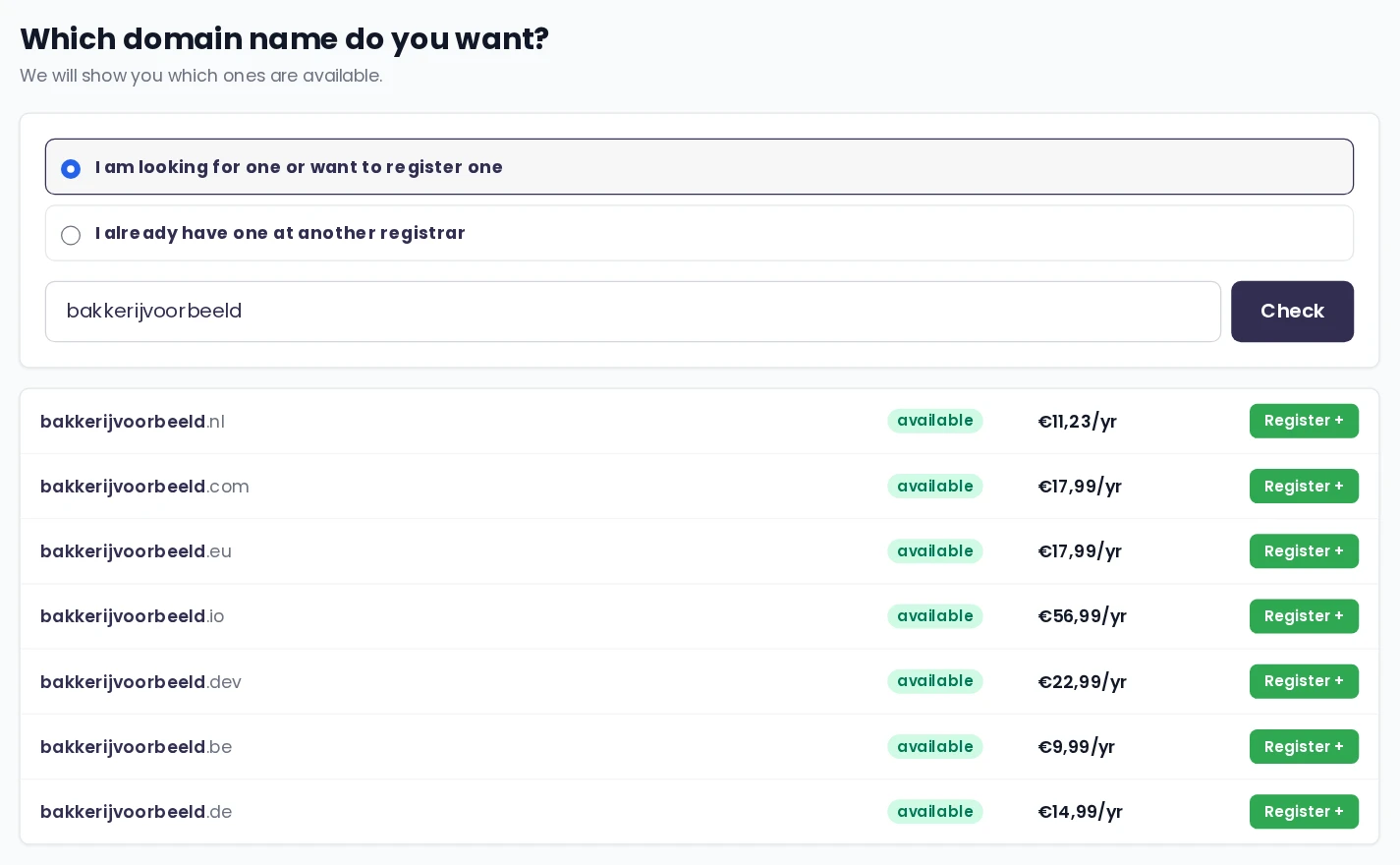
If none of the extensions is available, the wizard suggests a few alternative names. A premium domain shows a button that opens a support ticket instead, so we can arrange it with you.
Already own a domain name?
Choose I already have one at another registrar, enter your domain and click Next. The dashboard link I already have a domain and only need hosting takes you straight there. Then decide what happens to your domain:
- Transfer to LJPc: we manage your domain name completely. You enter the transfer code from your current registrar. See how to get your EPP code.
- Keep domain elsewhere, connect hosting here: the registration stays with your current registrar, and after ordering you change the nameservers there. See how to change your nameservers.
- Website on this subdomain: enter a subdomain such as shop.yourdomain.com to point only that subdomain to us. After ordering you see the two DNS records to add at your DNS provider.
For the full picture of connecting and transferring a domain, read register a domain and link it to your hosting.
Step 2: pick your hosting
Next, the wizard asks which hosting you want for the domain. Click Pick on the plan you want. With a value pack, your discount shows right on the plans.
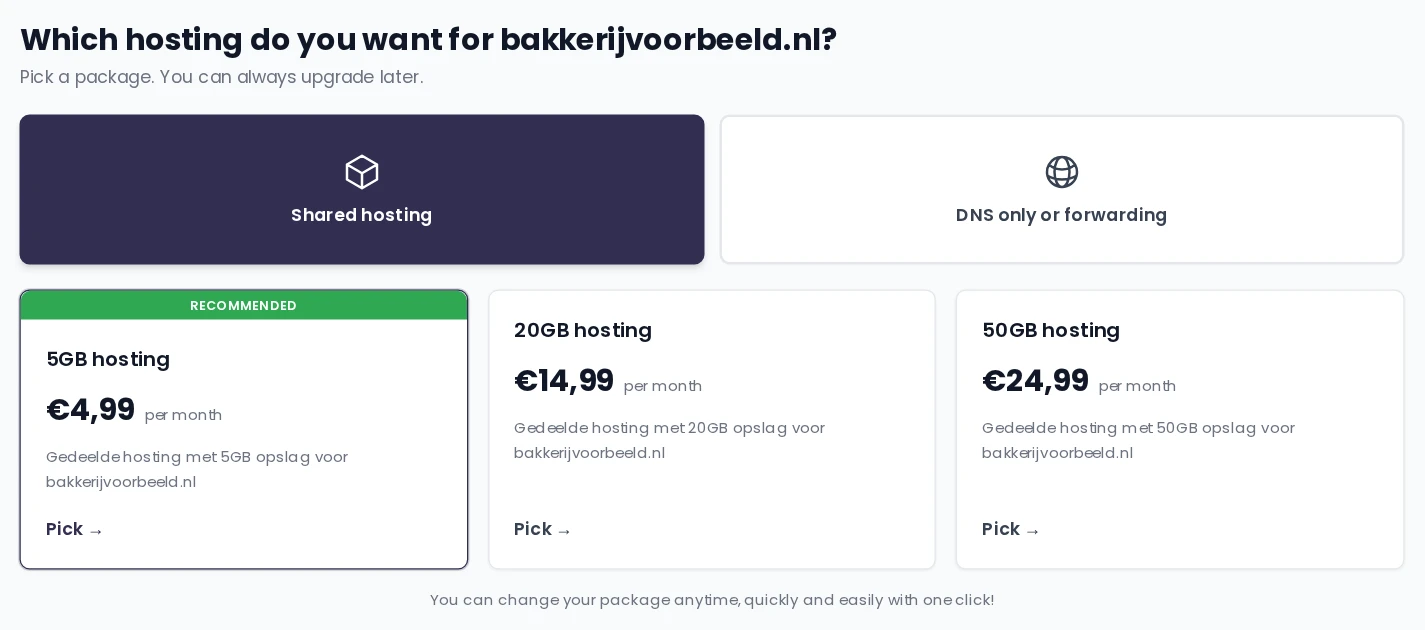
| Option | What you get | Price |
|---|---|---|
| Shared hosting: 5GB, 20GB or 50GB hosting | A hosting plan for your website and email, with 5, 20 or 50 GB of storage | 4.99, 14.99 or 24.99 euros per month |
| DNS only or forwarding: DNS management | Your domain with its DNS hosted by us, no website | Free |
| DNS only or forwarding: forwarding plan | Your domain sends visitors to the web address you enter | 1 euro per month |
| Own server | Only shown if you already have your own server or hosting space with us: the website goes there | No extra hosting costs |
Start with the plan that fits today and move to a bigger one when you need more space; see how to change your hosting plan. For forwarding, see how to redirect a domain to another website.
Step 3: check your cart
After picking a plan you land in Your cart. For each website it lists the domain with its yearly price and the hosting plan with its monthly or yearly price.
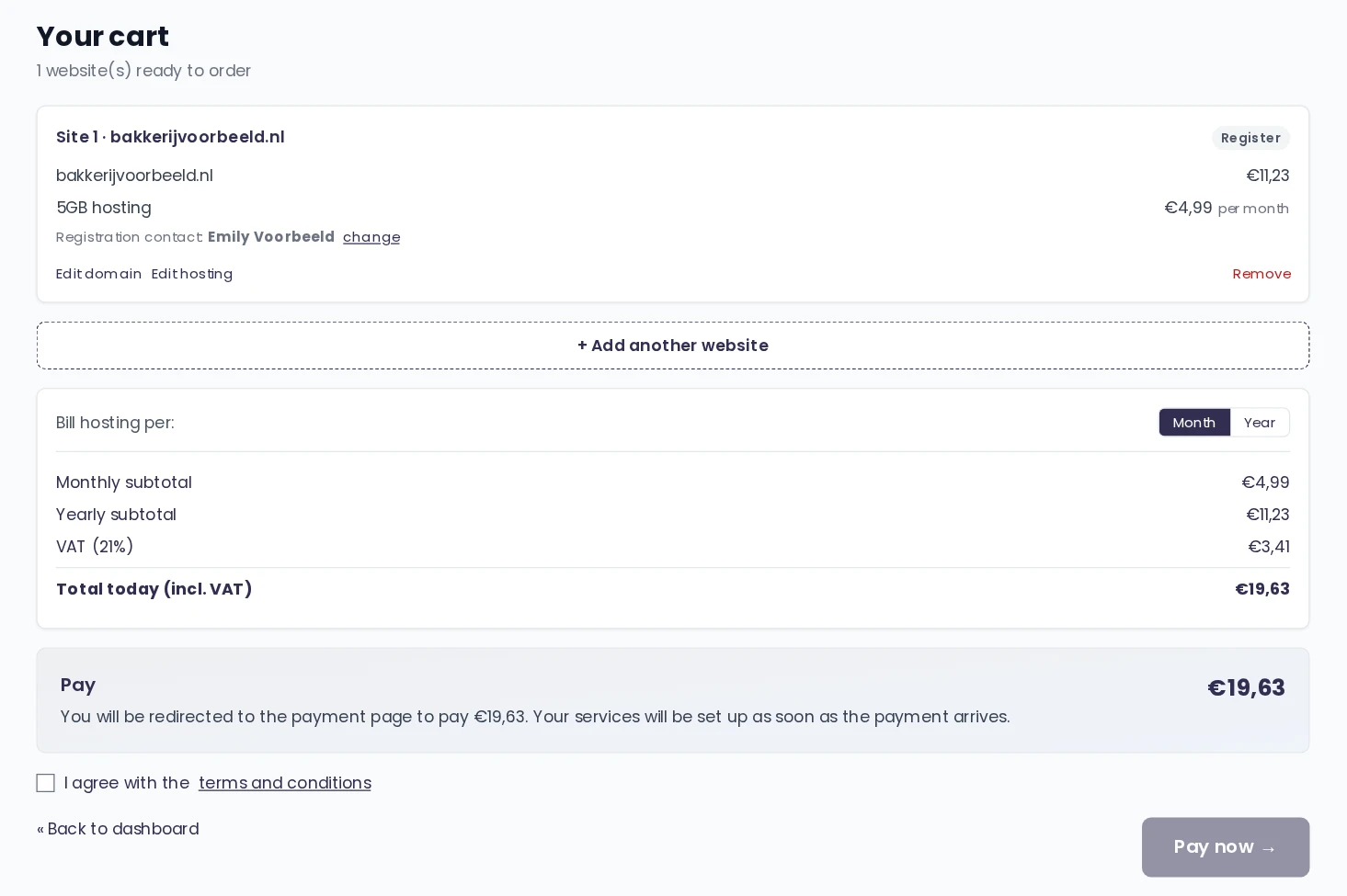
- Registration contact: the owner details registered with your domain. By default this is your account contact. Click change to pick another contact or add a new one. If an extension needs extra details, add them with Fill in. See how to manage your WHOIS data.
- Edit domain, Edit hosting and Remove change a website in your cart.
- + Add another website lets you order several websites at once, with one payment.
- Under Bill hosting per you choose Month or Year. Domains are always billed per year.
- Total today (incl. VAT) is what you pay now: the first year of your domain plus the first month or year of hosting, with 21% Dutch VAT.
Your cart is saved, even if you log out in between: it expires after 30 days without changes. While it holds something, a cart button with the number of websites shows on the right of every portal page.
Step 4: check out
Tick I agree with the terms and conditions and click the button at the bottom right. The box above it shows how you pay, which depends on your account:
| What you see | When | What happens |
|---|---|---|
| Pay, button Pay now | Default | You go to the secure payment page of our payment provider Mollie. We start as soon as your payment arrives. |
| Direct debit, button Place order | You have set up direct debit and the total is 5,000 euros or less | We collect the amount from your bank account and set everything up right away. |
| On account, button Place order | You pay on account, or you use direct debit and the total is above 5,000 euros | You receive an invoice with the payment term shown in the box, and we set everything up right away. |
| No payment needed | Everything in the order is free, such as DNS management for a domain that stays with your registrar | We set everything up right away. |
You also receive the invoice for your order by email, and it is listed in the portal under Financial. To pay automatically from now on, see how to set up direct debit.
What happens after you order?
After checkout you land on your order page. Under Live status you follow every step we take for you: a green check means the step is done, and the spinning circle marks the step we are working on.
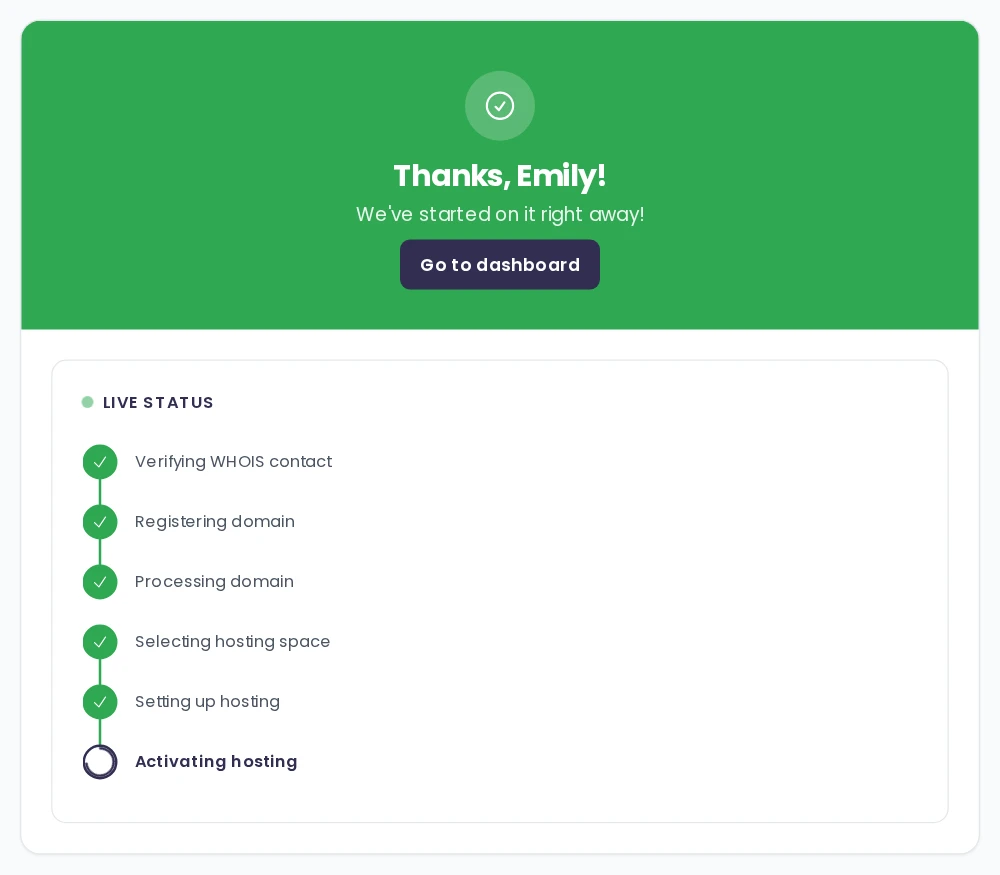
| Step | What we do |
|---|---|
| Verifying WHOIS contact | We check that the registration contact is complete. |
| Registering domain, or Initiating domain transfer | We register the domain in your name, or request the transfer with your transfer code. |
| Processing domain | We add the domain to your account, under Services > Domain names. |
| Selecting hosting space | We choose the server your website will run on. |
| Setting up hosting and Activating hosting | We create your hosting plan in Plesk and switch it on. Your website then appears under Services > Sites. |
With DNS management you see the steps for your DNS zone instead of the hosting steps. When you register the domain with us, we set the nameservers and DNS records for you. If the domain stays with your current registrar, the order page shows the nameservers to set there. The SSL certificate for https works as soon as your domain points to us.
When something needs your attention
- Your payment has not arrived: closed the payment page? The order page shows a Pay button. You can also pay the invoice as described in pay invoices in the customer portal.
- The transfer code is not correct: request a new code from your current registrar, enter it on the order page and click Restart transfer.
- Your domain is still locked: remove the transfer lock at your current registrar, then click The lock is open, transfer now.
In both transfer cases you also get an email with a link to your order. How the transfer continues from there is explained in transfer your domain to LJPc. If a step does not go as planned, the order page shows that too: we pick it up, and the Contact support button lets you ask us anything right away.
After your order: get your website going
- Open your site under Services > Sites and go to Plesk, as described in open Plesk from the customer portal.
- Build your site with install WordPress in Plesk, or bring your existing site over with migrate your website to LJPc.
- Create your mailboxes with create an email address in the customer portal.
All your orders and their status are listed at portal.ljpc.nl/en/orders. Your hosting then continues as a monthly or yearly subscription, your domain per year. Need a hand? Create a support ticket and we will gladly help.
Frequently asked questions
Can I order several websites in one go?
Yes. Click + Add another website in your cart and go through the steps for the next website. You check out once, with a single payment.
I closed the payment page without paying. What now?
Your order then waits for your payment. Open your order page via portal.ljpc.nl/en/orders and click Pay, or pay the invoice under Financial > Invoices. As soon as the payment arrives, we get to work.
Why is the Find your domain card missing from my dashboard?
The card only shows for accounts that can place orders. On a sub-account, ask whoever manages the main account to give you the Place orders permission.
Can I order a domain name without a website?
Yes. In the hosting step choose DNS only or forwarding and then DNS management, which is free. To send visitors to another website instead, pick the forwarding plan.
Can I move to a bigger hosting plan later?
Yes. Open your site under Services > Sites and choose a bigger plan in the Hosting package card. Start with what fits today and grow when you need more space.
Is my cart saved?
Yes. Your cart stays when you log out and only expires after 30 days without changes. Sub-accounts of the same account share one cart.