Open Plesk from the customer portal: how it works
Published on November 4, 2026 3 min read
Open Plesk with one click from the LJPc customer portal, without a separate password. Where to find the button and what you manage in Plesk.

In Plesk you manage everything around your website: files, databases, PHP settings, WordPress and email. From the customer portal you get there with one click, without a separate password. This article shows where to find the button, what happens when you click it and what you see in Plesk.
Open Plesk from the dashboard
After signing in to the portal, the dashboard shows the Sites block with your websites. Click Plesk next to your site.

Open Plesk from your site's page
- In the menu, choose Services and then Sites.
- Click the site you want to manage.
- In the Site overview block on the right, click Log in to Plesk.
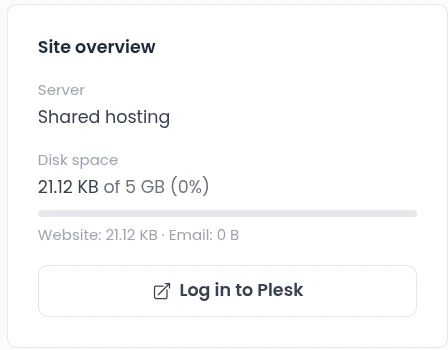
The same block shows how much disk space your website and your email use. More about that in check your storage usage.
What happens when you click
Plesk opens in a new tab. You briefly see Logging in to with the name of your site, and after a few seconds you are signed in. The portal arranges the sign-in for you, so you do not need a separate Plesk password.
The sign-in link is valid for 10 minutes. If you see Link expired, close the tab and click the button in the portal again.
What you see in Plesk
You land on Websites & Domains with your site. On the left is the menu with Mail, Files, Databases, WordPress and more. Plesk is in English by default, which is why the knowledge base uses the English names too.
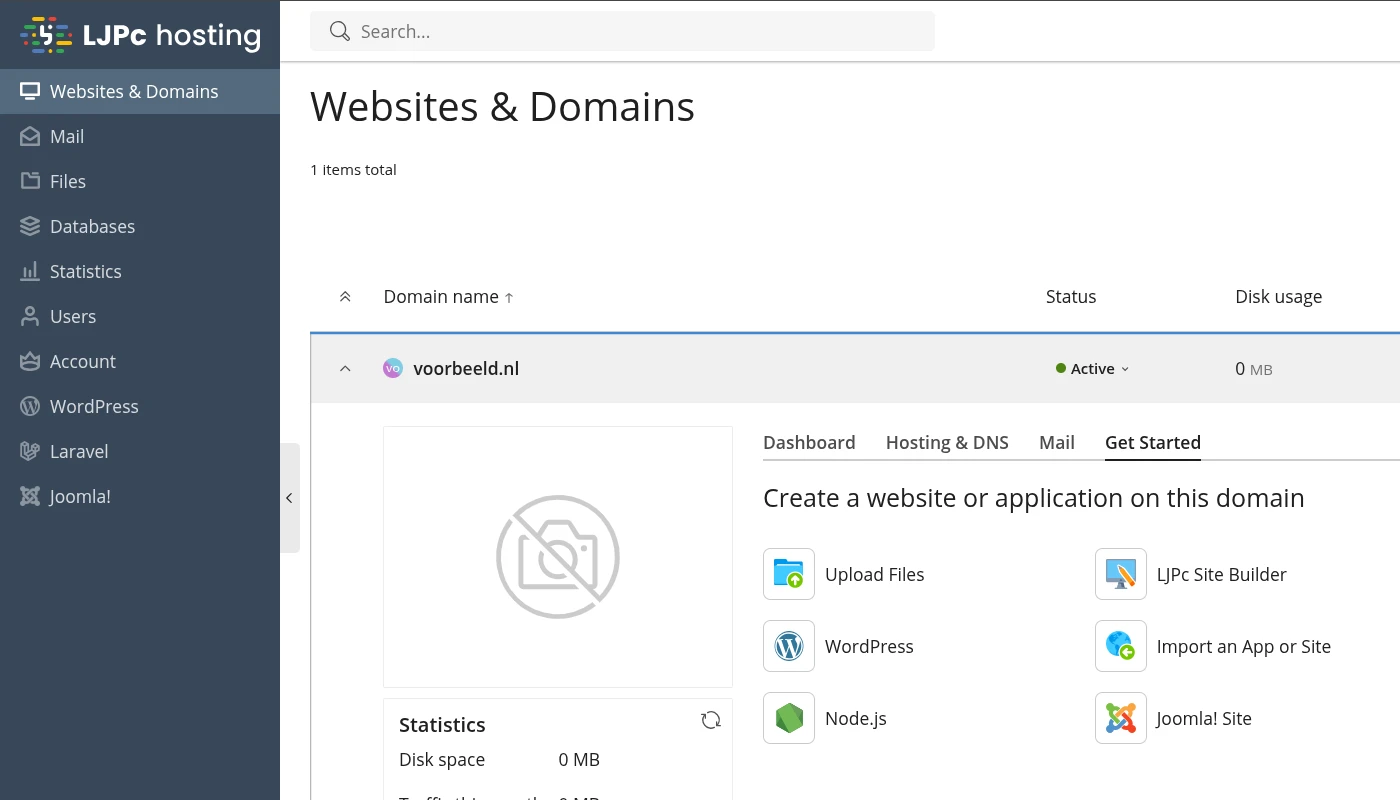
The address bar of the Plesk tab shows the name of your server, ending in .space.ljpc.systems. You need that name when you upload files with an FTP program, see upload files with FTP, FTPS and SFTP.
What you arrange in Plesk
Guides for the parts used most:
- Install WordPress in Plesk
- Create a database in Plesk
- Change the PHP version in Plesk
- Set up email forwarding and aliases
The quickest way to create a new email address is in the portal itself: see create an email address in the customer portal.
Not working?
- Logging in did not succeed: close the tab and click the button in the portal again.
- You do not see a button next to your site: the button is there for websites with hosting on our servers. If you have your own server or a reseller package, sign in via Services and Servers.
Still stuck? Call us on +31 85 130 6429, email support@ljpc.nl or create a support ticket. We are happy to help.
Frequently asked questions
Do I need a separate password for Plesk?
No. From the customer portal you sign in to Plesk with one click; the portal arranges the sign-in for you.
Where is the button to open Plesk?
On the dashboard in the Sites block, next to your site, and on the page of your site in the Site overview block under Log in to Plesk.
I see Link expired. What now?
The sign-in link is valid for 10 minutes. Close the tab and click the button in the portal again.
Why is Plesk in English?
Plesk is in English by default. That is why the knowledge base uses the English names of the menu items too.