Create an email address in the customer portal
Published on November 4, 2026 3 min read
Create an email address on your own domain in a minute in the LJPc customer portal. Including passwords, changing and removing addresses.

An email address on your own domain, such as name@yourcompany.com, takes a minute to create in the customer portal. This article shows how to create a mailbox, change its password and remove an address, and where to read about setting it up on your phone and computer.
Create an email address
- Sign in to the customer portal and choose Services and then Sites in the menu.
- Click the site with the domain you want an address for.
- In the Email addresses block, click Add email address.
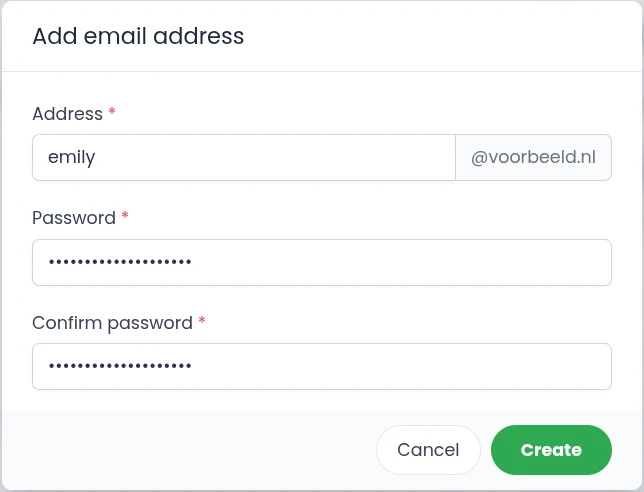
- Under Address, enter the part before the @. The domain is already filled in behind it.
- Choose a password, enter it again under Confirm password and click Create.
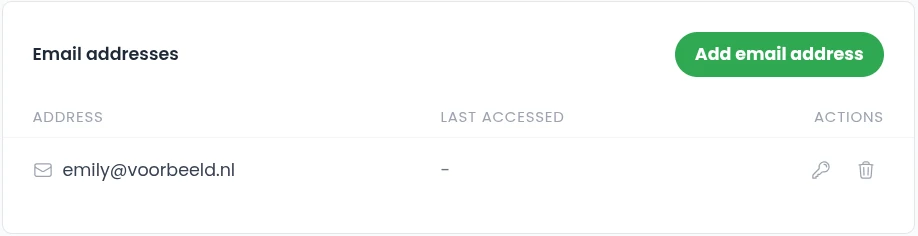
The new address then appears in the list and is ready to use right away.
Choose a strong password
The password needs at least 8 characters, but the mail server also refuses passwords that are too easy to guess. If you get the message Your password is not strong enough or Your login cannot be used in the password, choose a longer password without your address or name in it. With 12 characters or more and a mix of letters, digits and punctuation you are on the safe side. A password manager creates and remembers such a password for you.
In the address itself you can use letters, digits and the characters dot, underscore, percent, plus and hyphen.
Change the password of a mailbox
- In the Email addresses block, click the key icon under Actions next to the address.
- Enter the new password twice and click Save.
- Then update the password on all your devices, otherwise they can no longer fetch mail.
Remove an email address
Click the bin icon next to the address and confirm. The mailbox and all mail in it are then removed from the server. To keep the mail, first move it to another address or make a backup with your mail program.
What else you see
- Last accessed shows when the mailbox was last used.
- Your mail counts towards the disk space of your hosting package. The Site overview block on the same page shows how much space your website and your email use.
Use your new address
Set up the address on your phone, tablet or computer with the guide in set up email on your phone, tablet and computer. To forward mail to another address or use extra names for the same mailbox, read email forwarding and aliases. If you prefer working in Plesk, that route is in create an email address in Plesk.
Still stuck? Call us on +31 85 130 6429, email support@ljpc.nl or create a support ticket. We are happy to help.
Frequently asked questions
How do I create an email address on my domain?
In the customer portal, go to Services, Sites and your site, and click Add email address in the Email addresses block. Enter the part before the @ and a password and click Create.
Why is my password refused?
The mail server refuses passwords that are too easy to guess or contain your address. Choose 12 characters or more with letters, digits and punctuation.
How do I change the password of a mailbox?
Click the key icon under Actions next to the address, enter the new password twice and click Save. Then update it on your devices.
What happens when I remove an email address?
The mailbox and all mail in it are removed from the server. Move mail you want to keep first, or make a backup.