Paying invoices in the customer portal: how it works
Published on November 4, 2026 4 min read
Pay your LJPc invoices in the customer portal: one at a time or all at once via Mollie, download them as PDF and what happens after the due date.

You pay your LJPc invoices in the customer portal, one at a time or all at once. This article shows where to find your invoices, how to pay them, how to save an invoice as a PDF and what happens when an invoice is still open after its due date.
Find your invoices
Sign in to the customer portal and open the Invoices page in the Financial menu.
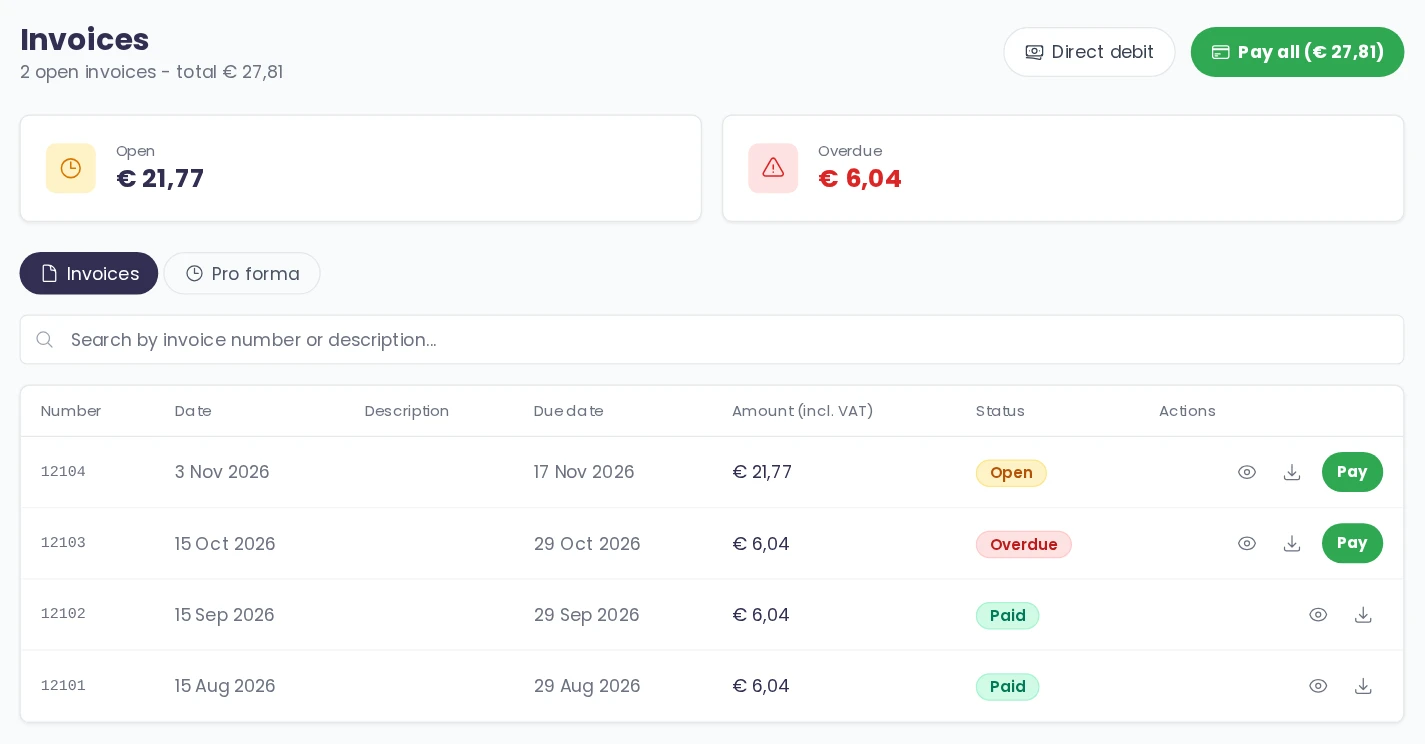
- At the top you see what is still open, what is overdue and the total that still has to be paid.
- The table shows the number, date, due date, amount and status of each invoice: Open, Overdue or Paid.
- Use the search field to find an invoice by number or description.
- The Pro forma tab lists items that will be on your next invoice.
- At the bottom of the page, the Amounts including VAT switch shows amounts with or without VAT.
Pay a single invoice
- Click Pay or the eye icon next to the invoice. You then see the invoice lines, the VAT and the total.
- Click Pay with the amount next to it. You go to the secure payment page of our payment partner Mollie.
- Choose your payment method there and complete the payment.
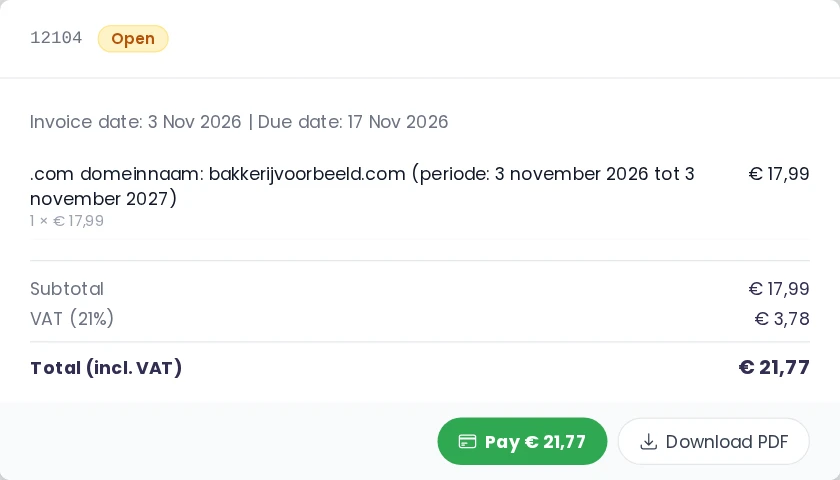
As soon as Mollie has confirmed the payment, the invoice shows as Paid in the portal.
Pay all open invoices at once
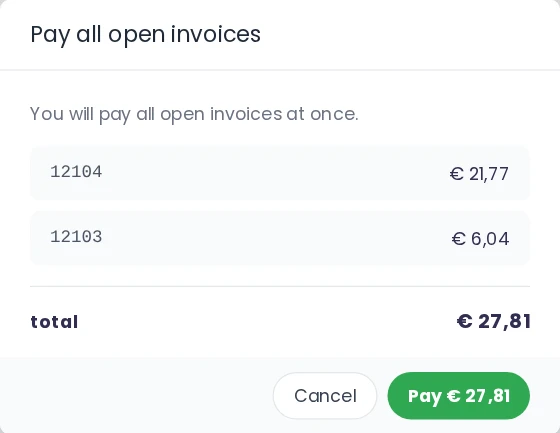
If several invoices are open, you pay them together in one payment. Click Pay all at the top of the invoices page. You see which invoices are included and the total amount. Click Pay and complete the payment at Mollie. After that, every invoice in that payment shows as Paid.
Download an invoice as a PDF
Click the download icon next to the eye in the table, or Download PDF in the invoice view. That way you forward an invoice straight to your bookkeeping.
When an invoice is overdue
Once the due date has passed, the invoice gets the status Overdue and the dashboard shows a notice with a link to your invoices. Pay it as soon as possible in the same way as above.
If an invoice is 9 days or more past its due date, the portal locks the pages of your servers, apps, domains and sites. The dashboard then shows the notice Services blocked at the top.

Click Pay expired invoices. You pay all overdue invoices in one go, and you can add open invoices that are not overdue yet. As soon as the payment is in, you have full access again. Your invoices, tickets and account stay available during the block.
Pay automatically by direct debit
Would you like your invoices to be paid automatically from now on? Click Direct debit on the invoices page. How it works and what you need is explained in set up direct debit (SEPA). An invoice we collect by direct debit has no pay button in the portal, so you never pay twice.
More about your invoices
How billing works, including VAT and invoice periods, is explained in billing at LJPc hosting. Is something wrong on an invoice, or would you like your billing details changed? Create a support ticket and we will sort it out for you.
Frequently asked questions
Where do I find my invoices?
In the customer portal at portal.ljpc.nl, on the Invoices page in the Financial menu. It shows the date, due date, amount and status of each invoice.
How do I pay an invoice?
Click Pay next to the invoice and then Pay with the amount next to it. You complete the payment on the secure Mollie payment page. As soon as the payment is confirmed, the invoice shows as Paid.
Can I pay several invoices at once?
Yes. Click Pay all on the invoices page. You see which invoices are included and pay them together in one payment.
What happens if I pay an invoice late?
After the due date the invoice gets the status Overdue. If it is 9 days or more past its due date, the portal locks the pages of your servers, apps, domains and sites until the overdue invoices are paid. Your invoices, tickets and account stay available.
Why does an invoice have no pay button?
That invoice is collected by direct debit, or it has already been paid. That way you never pay twice.