Signing in to the customer portal: how it works
Published on November 4, 2026 5 min read
Sign in to the LJPc customer portal with your email address, password and a code by email. Including passkeys, 2FA and resetting your password.

In the customer portal you manage your hosting, domain names, invoices and tickets in one place. This article walks you through signing in, explains how the confirmation code by email works, and shows how a passkey or authenticator app gets you in faster and more securely. Resetting your password and signing out are covered too.
Sign in in three steps
- Go to portal.ljpc.nl.
- Enter the email address and password of your account. Below the password there is a Cloudflare check that confirms you are human. It often shows Success! by itself; if it asks you to, tick the box.
- Click Sign in and confirm your sign-in with the code from your email (see below).
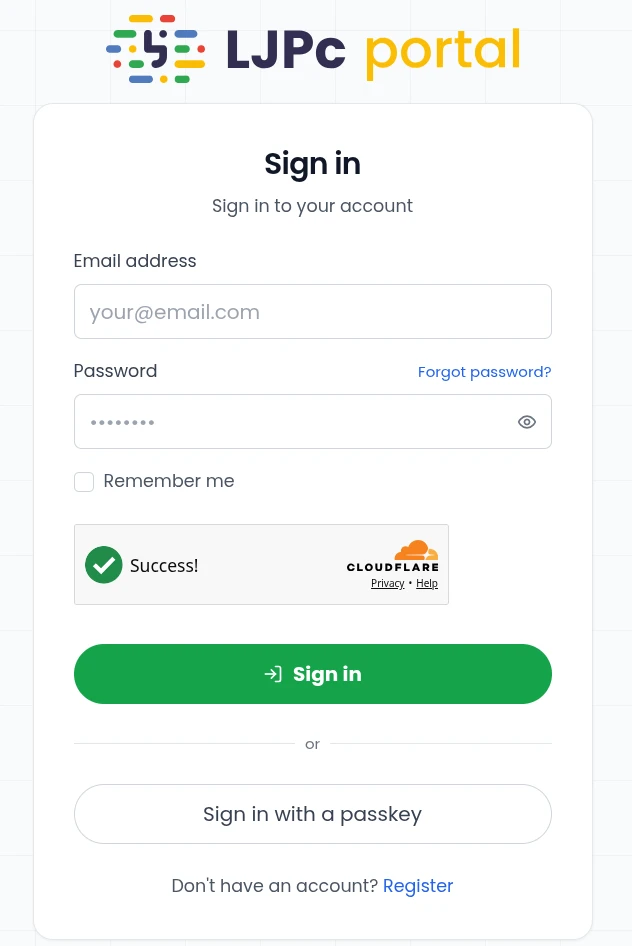
Only use Remember me on a computer or phone that is yours. In the top right corner of the page you switch between Dutch and English.
Confirm your sign-in with the code from your email
After your password, the portal asks for a second step. That keeps your account yours, even if someone else learns your password. If you have not set up a passkey or authenticator app yet, we send a 7-digit code to the email address of your account.
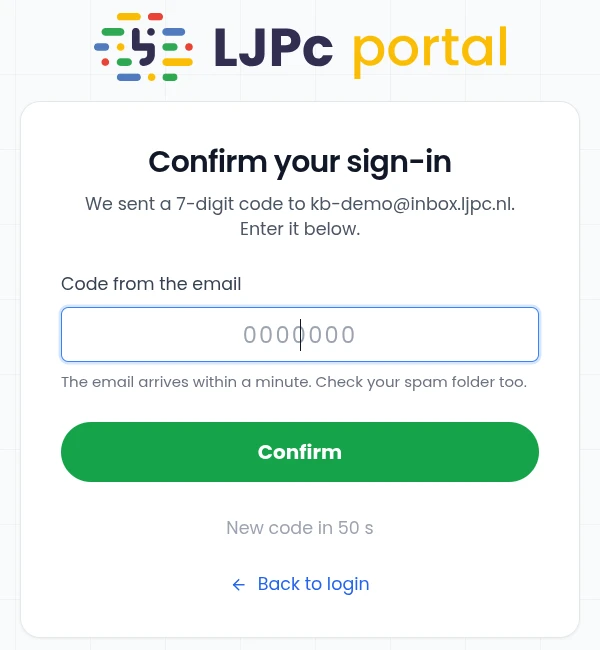
- The email has the subject Your sign-in code for the LJPc portal and usually arrives within a minute. If it is not in your inbox, check your spam folder.
- Enter the code and click Confirm. The code is valid for 10 minutes and works once.
- No email? After a minute the Send a new code button appears on the same page. You can request up to 5 codes per hour.
- After 5 wrong attempts the code expires. Request a new one.
Did you receive a sign-in code while you were not signing in yourself? Then someone else knows your password. Change it right away (see below) and let us know.
Faster and more secure: a passkey or authenticator app
After the code, the portal shows the page Secure your account with a second step. There you set up a passkey or authenticator app in a few minutes. From then on you confirm your sign-in on your own device and no longer need a code by email.
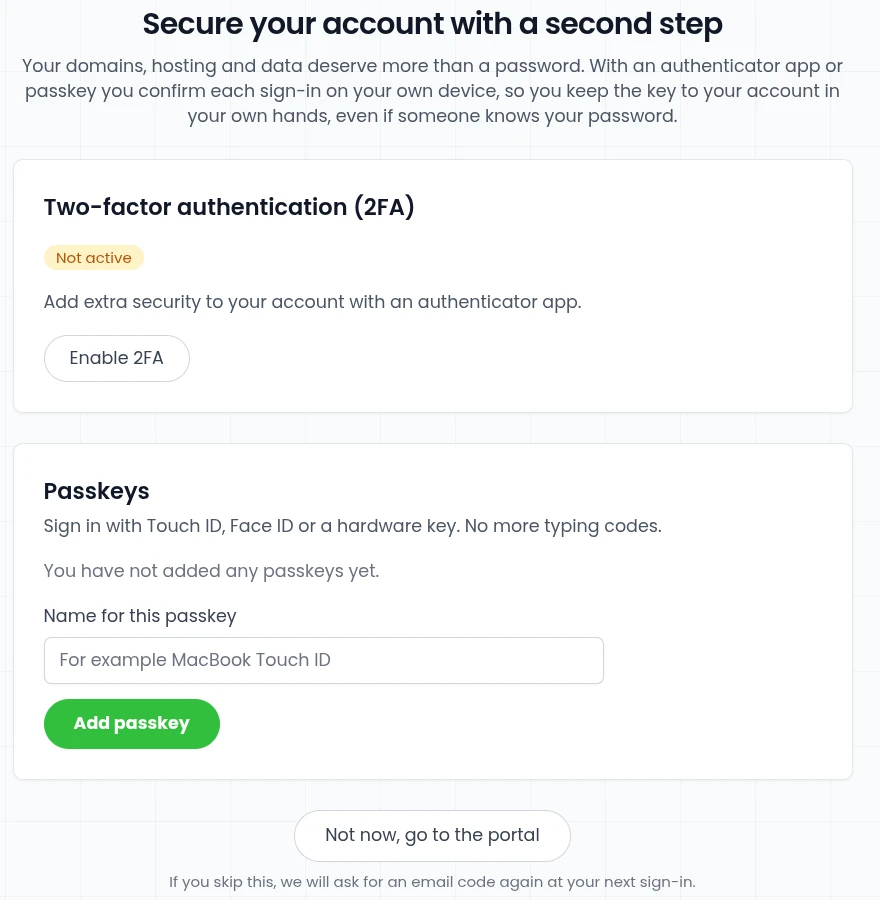
- Passkey: you sign in with Touch ID, Face ID, Windows Hello or a hardware key. Give the passkey a recognisable name and click Add passkey. From then on you click Sign in with a passkey on the sign-in page and you are in with one step, without a password and without a code.
- Authenticator app: an app such as Google Authenticator or Microsoft Authenticator shows a new 6-digit code every 30 seconds. Click Enable 2FA and follow the steps. You also get ten recovery codes, for when your phone is not at hand. Keep them in a safe place.
If you choose Not now, go to the portal, we will ask for an email code again at your next sign-in. You can also set up a passkey or app later via your name in the top right corner, My account and the Security tab. A detailed guide is in set up two-factor authentication (2FA).
Forgot your password
- On the sign-in page, click Forgot password?.
- Enter the email address of your account and click Send reset link.
- Open the email Reset your password and click the button in it. The link works once; if it has expired, request a new one.
- Choose a new password of at least 8 characters, enter it twice and click Reset password.
You then return to the sign-in page. Sign in with your new password and confirm your sign-in as usual.
Change your password
Still know your password but want a new one? Click your name in the top right corner, choose My account and open the Security tab. Enter your current password, then your new one twice, and click Change password. On the same tab you manage your passkeys and authenticator app.
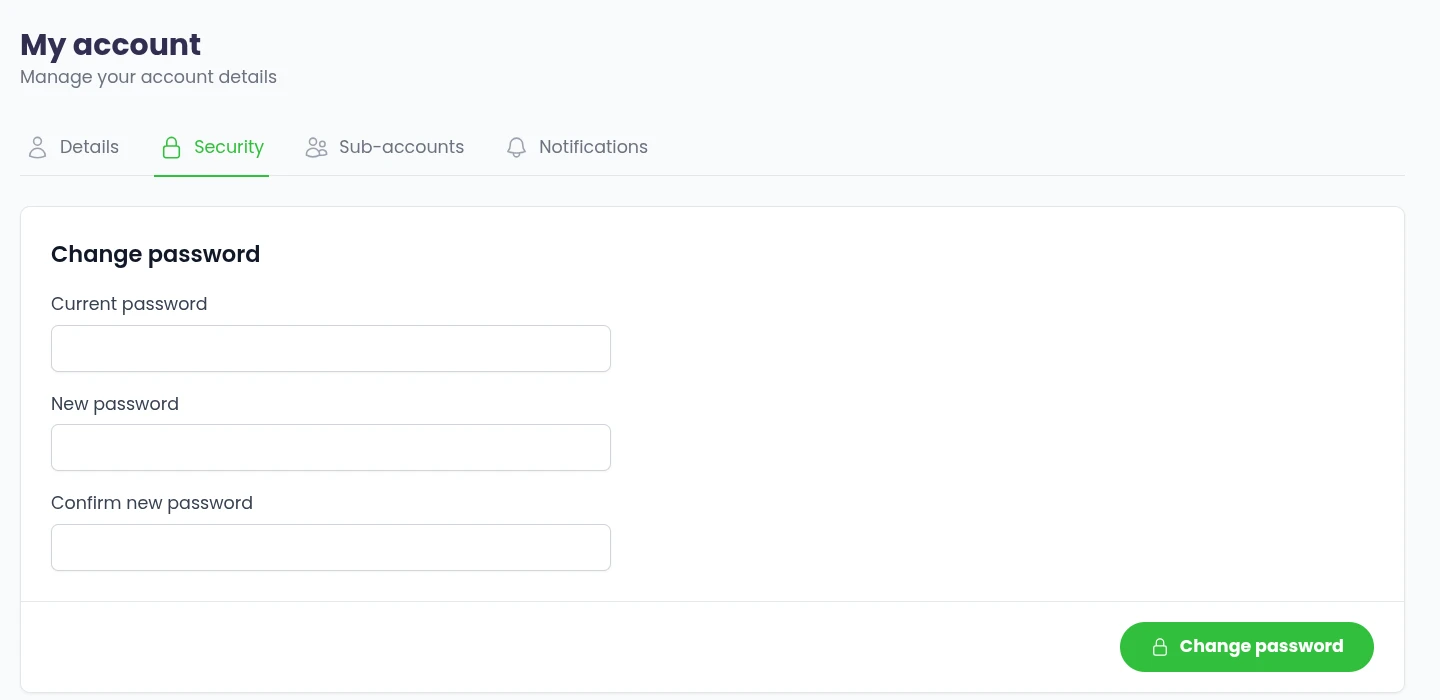
What else you arrange under My account, such as your details and sub-accounts, is explained in manage your hosting account and invoices.
Sign out
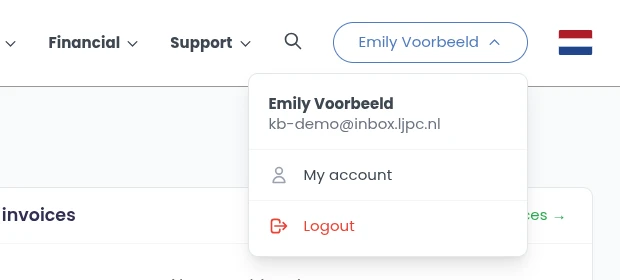
Click your name in the top right corner and choose Logout. Always do this on a computer you share with others.
Cannot sign in?
- Too many sign-in attempts: after 5 wrong attempts within a minute, the portal shows how many seconds to wait. Try again after that, or reset your password.
- The Cloudflare check does not pass: reload the page. If that does not help, switch off an ad blocker or VPN for portal.ljpc.nl or try another browser.
- Lost the phone with your authenticator app: after your password, enter one of your recovery codes instead of the code from the app. If you have none left, contact us. We reset your second step so you can set it up again.
- You do not see your services: if an invoice is 9 days or more past its due date, the pages of your services are locked. As soon as the payment is in, you have full access again. More about this in billing at LJPc hosting.
Still stuck? Call us on +31 85 130 6429 or email support@ljpc.nl. If you can sign in, you can also create a support ticket. We are happy to help.
Frequently asked questions
Where do I sign in to the customer portal?
At portal.ljpc.nl. You sign in with the email address and password of your account and then confirm your sign-in with a code by email, a passkey or an authenticator app.
Why do I get a code by email when I sign in?
The code is the second step that protects your account if someone else knows your password. It has 7 digits, is valid for 10 minutes and works once. With a passkey or authenticator app you no longer need the email code.
I did not receive a sign-in code. What now?
Check your spam folder. After a minute you request a new code on the same page with Send a new code, up to 5 times per hour. If nothing arrives, contact us.
Can I sign in without a code by email?
Yes. Set up a passkey or authenticator app via My account, Security tab. With a passkey you sign in with one step, without a password and without a code.
I forgot my password. How do I get back in?
Click Forgot password? on the sign-in page, enter your email address and open the link in the email Reset your password. There you choose a new password of at least 8 characters.