Notification settings in the customer portal: send invoices and alerts to another address
Published on November 9, 2026 4 min read
Want invoices to reach your accountant and malware alerts your IT person? Choose per type of email which address it goes to in the customer portal.

In the customer portal you decide which email address receives our emails about invoices, quotes, subscriptions, tickets, malware and the mail limit. You set this up with the main account, under My account on the Notifications tab. That way invoices go straight to your accounts department and website alerts reach your IT person or web developer.
How to change your notification email addresses
- Log in to portal.ljpc.nl with the main account. If you need help, see log in to the customer portal.
- Click your name in the top right corner (on your phone, open the menu first) and choose My account.
- Open the Notifications tab. You can also go there directly via portal.ljpc.nl/en/account?tab=meldingen.
- For each type of email, enter the address it should go to. Most fields accept several addresses: separate them with a comma or put each one on a new line.
- Click Save at the bottom of the page.
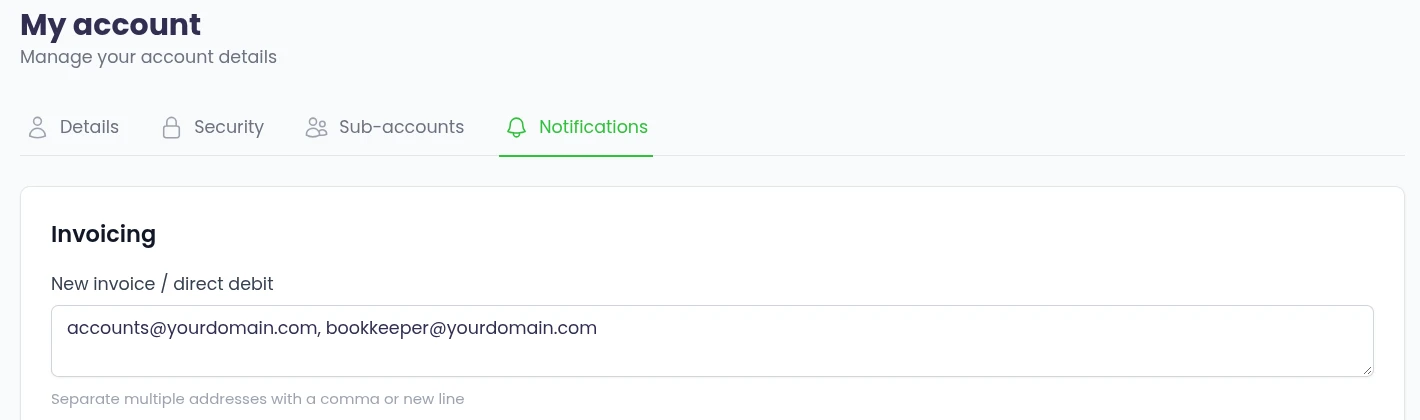
An empty field shows the email address of your account in grey. If you leave a field empty, that email goes to this address. Once you enter an address, the email only goes to the addresses in the field. To keep receiving a copy yourself, add your own address as well.
Which email goes where?
The Notifications tab has a block for each type of email, so you choose per topic who receives it.
| Block and field | Which emails | Several addresses |
|---|---|---|
| Invoicing: New invoice / direct debit | A new invoice, the notice of an upcoming direct debit and a credit note, with the invoice attached as a PDF and as a UBL file | Yes |
| Invoicing: 1st reminder, 2nd reminder and 3rd reminder | The reminders for an invoice that is still unpaid after its due date, each one set separately | Yes |
| Invoicing: Payment confirmation | The confirmation that we have received your payment | Yes |
| Quotes: Quote email address and CC email address | A new quote with the link to sign it, and the confirmation once the quote has been signed, both with the quote attached as a PDF. Fill in a CC email address and that address receives a copy of both emails | One address per field |
| Subscriptions | The confirmation that a subscription has been cancelled or resumed, and a reminder shortly before a cancelled subscription ends | Yes |
| Tickets: Email address for ticket messages | An email when we reply to your ticket, and a request to approve something, such as extra hours | One address |
| Malware alerts | An alert when our daily security scan finds possible malware on one of your websites, listing the files involved | Yes |
| Mail limit | An alert when a mailbox, domain or hosting plan exceeds its hourly sending limit | Yes |
What happens to an invoice after its due date and how to pay it is explained in paying invoices in the customer portal. To sign a quote or approve work, see how to sign a quote and approve work. For more on the sending limit, see email sending limit.
Send invoices to your accountant or accounting software
Under New invoice / direct debit, enter the address of your accounts department or accountant, for example accounts@yourdomain.com, bookkeeper@yourdomain.com. Every new invoice then arrives at those addresses, with the PDF and the UBL file attached.
- Accounting software with its own inbox. Many accounting packages give you an email address for incoming purchase invoices. Enter that address here and every invoice from us lands in your bookkeeping automatically.
- Reminders to someone else. You set each reminder separately. The 3rd reminder can also go to a manager or to your own address, so an overlooked invoice always gets noticed.
- Direct debit. If you pay by direct debit, the direct debit notice goes to the addresses under New invoice / direct debit.
For payment methods and how billing works, see billing at LJPc hosting.
Website alerts for your IT person or web developer
If an IT person or web developer looks after your website or email, enter their address in the Malware alerts and Mail limit blocks. Add your own address too, so you both know straight away. With a malware alert your IT person can check the listed files right away, and with an exceeded mail limit they can find out which mailbox or form is sending so much mail.
For ticket messages you enter one address. If you want your IT person to create and follow tickets themselves, give them their own sub-account (see below).
Notifications and sub-accounts
The Notifications tab is only available in the main account. If you do not see it, you are logged in with a sub-account: log in with the main account instead. The settings apply to the emails of the main account, so to all invoices, subscriptions and websites on your account.
A sub-account receives the emails about the tickets it created itself, at the sub-account's own email address. That way your colleague or IT person gets the replies to their own questions straight away. How to create a sub-account and which permissions you can give is explained in sub-accounts in the customer portal.
Double-check your addresses
In the fields that accept several addresses, the portal does not check the addresses when you save. An address with a typo will therefore not receive any email. Check each address carefully before you click Save. If an email does not arrive somewhere, ask the recipient to check their junk or spam folder as well.
Need a hand? Call us on +31 85 130 6429, email support@ljpc.nl or create a support ticket. We are happy to help.
Frequently asked questions
Will I still receive the email myself if I enter another address?
Once you enter an address, that email only goes to the addresses in the field. To keep receiving a copy, add your own address as well, separated by a comma.
Why can I not see the Notifications tab?
The Notifications tab is only available in the main account. If you are logged in with a sub-account, log in with the main account to set up notifications.
Which emails do not follow these settings?
The login code and the password reset email always go to the email address you log in with. The email about the storage of your hosting plan also goes to the email address of your account.
Why do I not get an email for every reply to my ticket?
If a ticket still has a reply from us that has not been opened in the portal, we do not send a new email for the next reply. Open the ticket in the portal with the account that created it, and you will get an email again for the next reply.
Can I enter several addresses for ticket messages?
For ticket messages you enter one address. If more people need to follow along, use a shared address such as support@yourdomain.com, or give colleagues their own sub-account for their own tickets.
Does my accountant need an account in the portal?
To receive invoices by email, your accountant only needs their address in the New invoice / direct debit field. If your accountant also wants to view and download invoices in the portal, create a sub-account with the View invoices permission.