Sign a quote and approve work in the customer portal
Published on November 9, 2026 6 min read
Sign an LJPc quote online with your name and signature, and approve work on a support ticket in the customer portal. Here is how it works, step by step.

You sign an LJPc quote online: click View quote in the email, enter your name, draw your signature and click Sign quote. When we ask for your approval on a support ticket, you give it in the customer portal on that ticket's page with the Approve button. Either way, you see exactly what you agree to before you do: the amount of the quote, or the number of hours per item.
Quote or approval: what is the difference?
We send you either a quote or an approval request on a ticket. This is how to tell them apart:
| Quote | Approval | |
|---|---|---|
| New quote available, with the quote as a PDF | Approval requested for ticket: and the name of your ticket | |
| You see | The amount including VAT and how long the quote is valid | The items of the work with the number of hours |
| To agree | Your name and signature | The Approve button on the ticket |
How to sign a quote
A new quote arrives by email. It shows the quote number, the amount and the date until which the quote is valid, and the quote itself is attached as a PDF.
- Click View quote in the email. You can also log in to the customer portal, go to Financial > Quotes and click the pencil icon next to the quote.
- The View & Sign Quote page opens. Check the quote number, the amount including VAT and the date under Valid until. Use Download quote as PDF to read the full quote with every line.
- Enter your name under Your name. Under Note (optional) you can add something for us, such as a preferred start date.
- Draw your signature under Your signature with your mouse, touchpad or finger. Not happy with it? Click Clear signature and draw it again.
- Click Sign quote. The button turns green as soon as there is a signature.
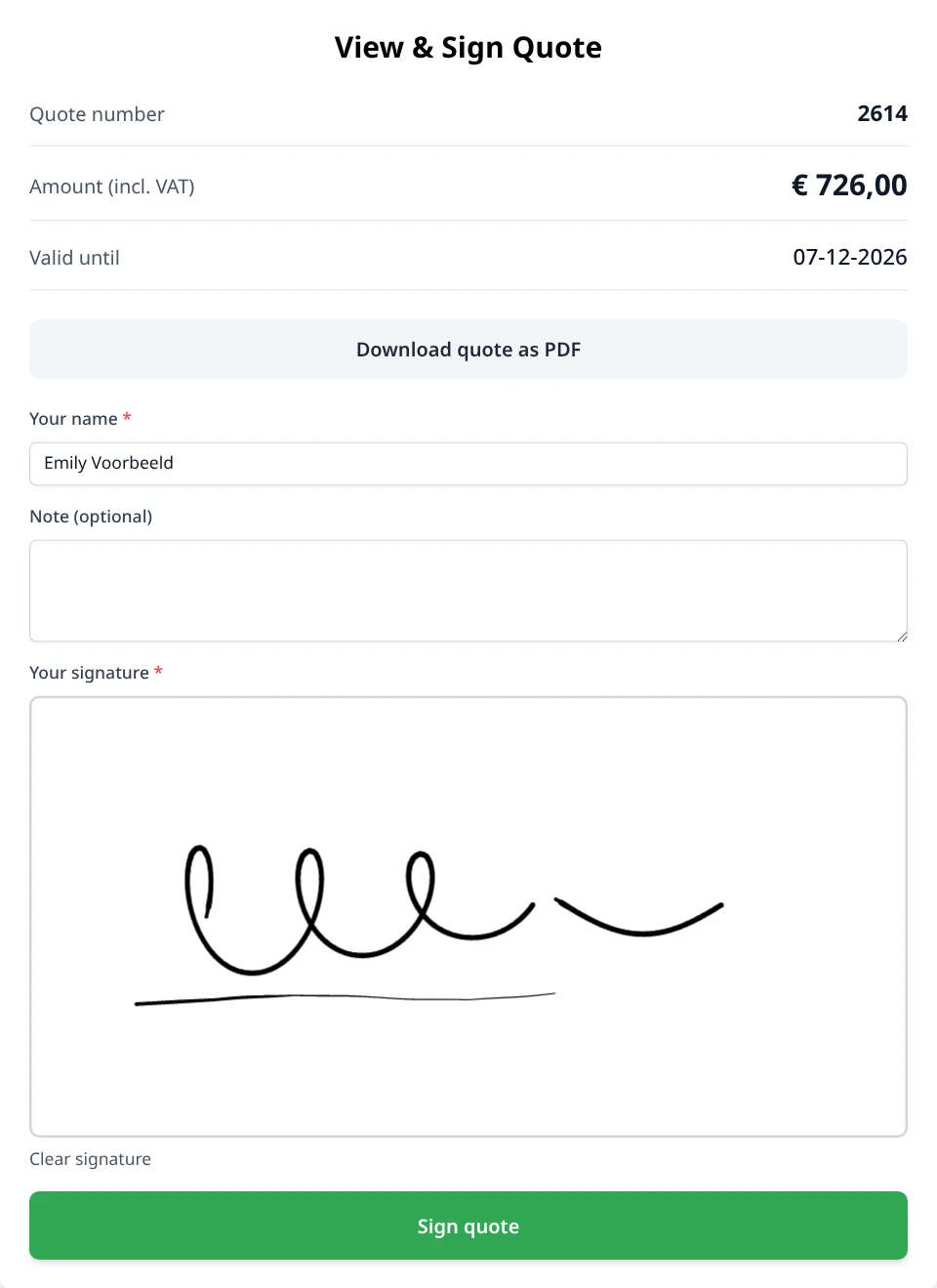
The signing page lives on factuur.ljpc.nl, the address of our payment links. The link in the email takes you straight to your quote there.
After you sign
You immediately see Thank you for signing! with a button to download the signed quote. At the same time you receive an email with the subject Quote signed and the signed quote attached as a PDF, and we are notified that you signed. That email also tells you we will be in touch about the next steps. You can always find the signed quote in the customer portal as well.
Finding your quotes in the customer portal
Under Financial > Quotes you find every quote we have sent you, newest first. This menu item appears as soon as a quote is ready for your account. For a tour of the rest of the menu, see the customer portal guide.
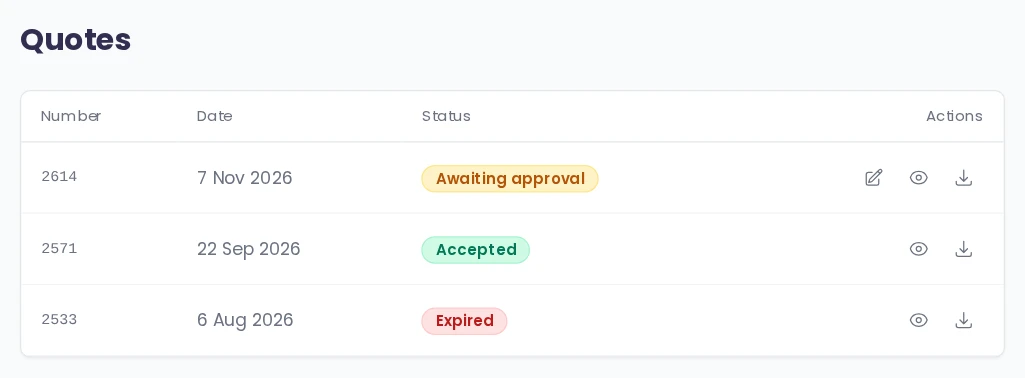
| Status | What it means |
|---|---|
| Awaiting approval | The quote is ready for your signature. |
| Accepted | You have signed the quote. |
| Expired | The Valid until date has passed. |
The buttons are on the right of each quote. The pencil icon takes you to the signing page and only appears on a quote that is waiting for your signature. The eye icon opens the quote in a window on the page, and the download arrow saves it as a PDF. For a signed quote, that PDF includes your signature.
Has your quote expired?
After the Valid until date you can no longer sign the quote. If you open the link then, you see Quote Expired. Still want to go ahead? Contact us for a new quote: email info@ljpc.nl, call +31 85 130 64 29 or create a support ticket.
How to approve work on a ticket
When work falls outside your plan, such as help with your website, we ask for your approval first. You receive an email with a description of the work and the number of billable hours. In the portal the ticket is listed under Waiting for reply with the status Awaiting response.
- Click View details in the email, or open the ticket in the customer portal via Support > Tickets. If you are not logged in yet, log in first. Need help with that? See log in to the customer portal.
- The ticket page shows the Approval requested block, with our explanation and a table listing each item with its description and number of hours.
- A fixed item has a grey tick that cannot be changed. An optional item has a blue tick: clear it if you do not want that item. The item is then crossed out and the totals at the bottom update right away.
- If you work with a purchase order number or your own reference, enter it on the same page under Invoice reference and click Save.
- Click Approve.
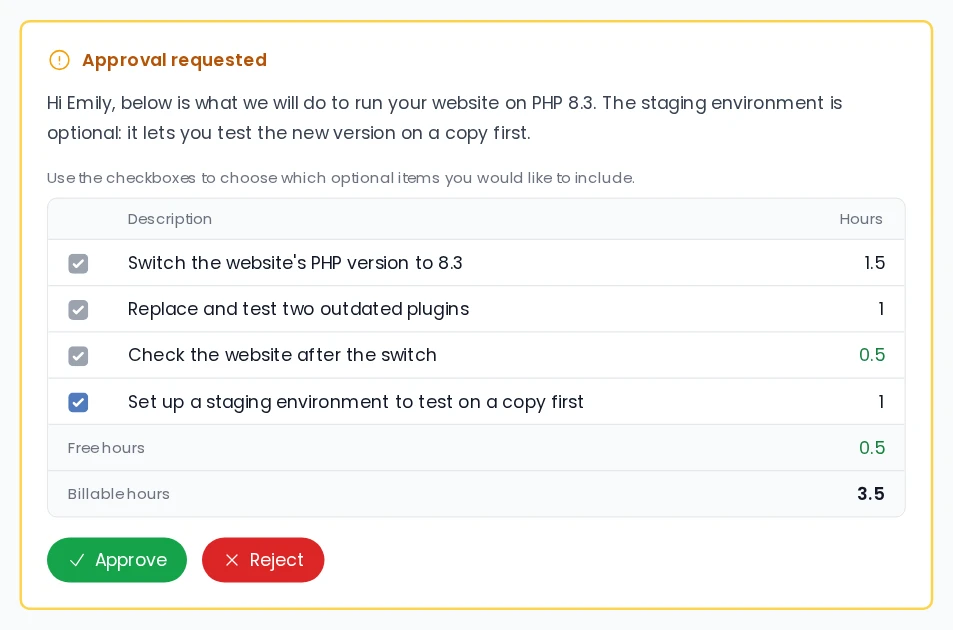
| In the table | What it means |
|---|---|
| Hours in black | Hours we invoice |
| Hours in green | An item we do for you free of charge |
| Free hours | The total of the free items |
| Billable hours | The total that goes on your invoice, without the items you cleared |
After you approve, you see Approval granted and the ticket gets the status To do: we schedule the work. Once the ticket is finished, the billable hours go on your invoice at the hourly rate that applies to you. For more on the invoice reference and your invoices, see create a support ticket and pay invoices in the customer portal.
How to reject an approval request
Would you rather not go ahead, or do it differently? Click Reject. A field Reason for rejection (optional) appears: tell us why, then click Reject once more to confirm. You see Approval rejected, and the hours from this request do not go on your invoice.
If you would like us to take a different approach, also say so in a reply at the bottom of the ticket. The ticket then gets the status New again, so we see right away that it is back with us.
Earlier approval requests stay on the ticket page, marked Approved or Rejected with the date. Click one to see its items and your reason again.
Who in your company can sign or approve?
- Quotes go to the address under Quote email address, with a copy to the CC email address if you fill that in. If you leave those fields empty, the quote goes to the email address of your main account. You set this under My account > Notifications, see notification settings in the customer portal.
- In the portal, everyone with the View quotes permission sees your account's quotes, including the pencil icon to sign. Give a colleague that permission with a sub-account.
- An approval request belongs to a ticket. You open the ticket with the account that created it, or with the main account, which also sees the tickets of sub-accounts. The approval email goes to whoever created the ticket. For tickets of the main account, you can choose a different address in Notifications under Email address for ticket messages.
Frequently asked questions
I cannot find the email with the quote. Where is it?
Log in to the customer portal and go to Financial, then Quotes. All your quotes are there, with the pencil icon to sign. If the email goes to a colleague or your accounts team, check under My account, Notifications which address is set as the Quote email address.
Do I need to log in to sign a quote?
The View quote button in the email takes you straight to the signing page, without logging in. If you go through the customer portal, you log in first and click the pencil icon next to the quote.
Can I download a signed quote later?
Yes. The signed quote is attached as a PDF to the confirmation email, and in the customer portal you download it under Financial, then Quotes, with the download arrow. That PDF includes your signature.
What happens if I clear an optional item?
The item is crossed out and no longer counts towards Billable hours. After you approve, only the ticked items with hours in black go on your invoice.
Can I change an approval afterwards?
If you want something different after approving or rejecting, say so in a reply at the bottom of the ticket. The ticket then gets the status New, so we see it is back with us.
Why is Quotes missing from the menu?
The Quotes item under Financial appears as soon as a quote is ready for your account. If you use a sub-account, you also need the View quotes permission.