How to set up an out-of-office auto-reply for your email (webmail and Plesk)
Published on November 9, 2026 7 min read
Going on holiday? Set up an automatic out-of-office reply in LJPc webmail or Plesk, with a start and end date, so senders know when you are back.

An out-of-office reply (also called an automatic reply, autoresponder or vacation message) sends a fixed message back to everyone who emails you while you are away. With LJPc hosting you turn it on in the webmail at ljpc.email or in Plesk. It runs on our mail server, so it keeps working when your computer is switched off, and with an end date it stops by itself when you are back.
Where to set up your out-of-office reply
There are two places, both included with every mailbox. Pick one, because they work independently of each other.
| Webmail (ljpc.email) | Plesk | |
|---|---|---|
| Who sets it up | Anyone with the email address and password of the mailbox | The owner of the hosting plan, for any address on the domain |
| Start and end | Start date and end date, optionally with a time | End date; the reply starts as soon as you save |
| How often per sender | Once a week by default, adjustable | Once a day by default, adjustable |
| Mail to a colleague as well | Yes, as a copy or a redirect | Yes, by forwarding |
| Best for | Arranging your own time off, also in advance | Covering for a colleague who is unexpectedly away |
Set up an out-of-office reply in webmail
The webmail opens in Dutch. To switch it to English, follow the steps in LJPc webmail: how to sign in and use it. The steps below use the English names.
- Go to ljpc.email and sign in with your full email address and password.
- Click Settings on the left, then Out of Office.
- Enter a short Subject, such as "Out of office until 20 August", and type your message under Body.
- Enter your first day off under Start time and your last day off under End time. The box next to each date is for a time; leave it empty and the whole day counts.
- Set Status to On and click Save.
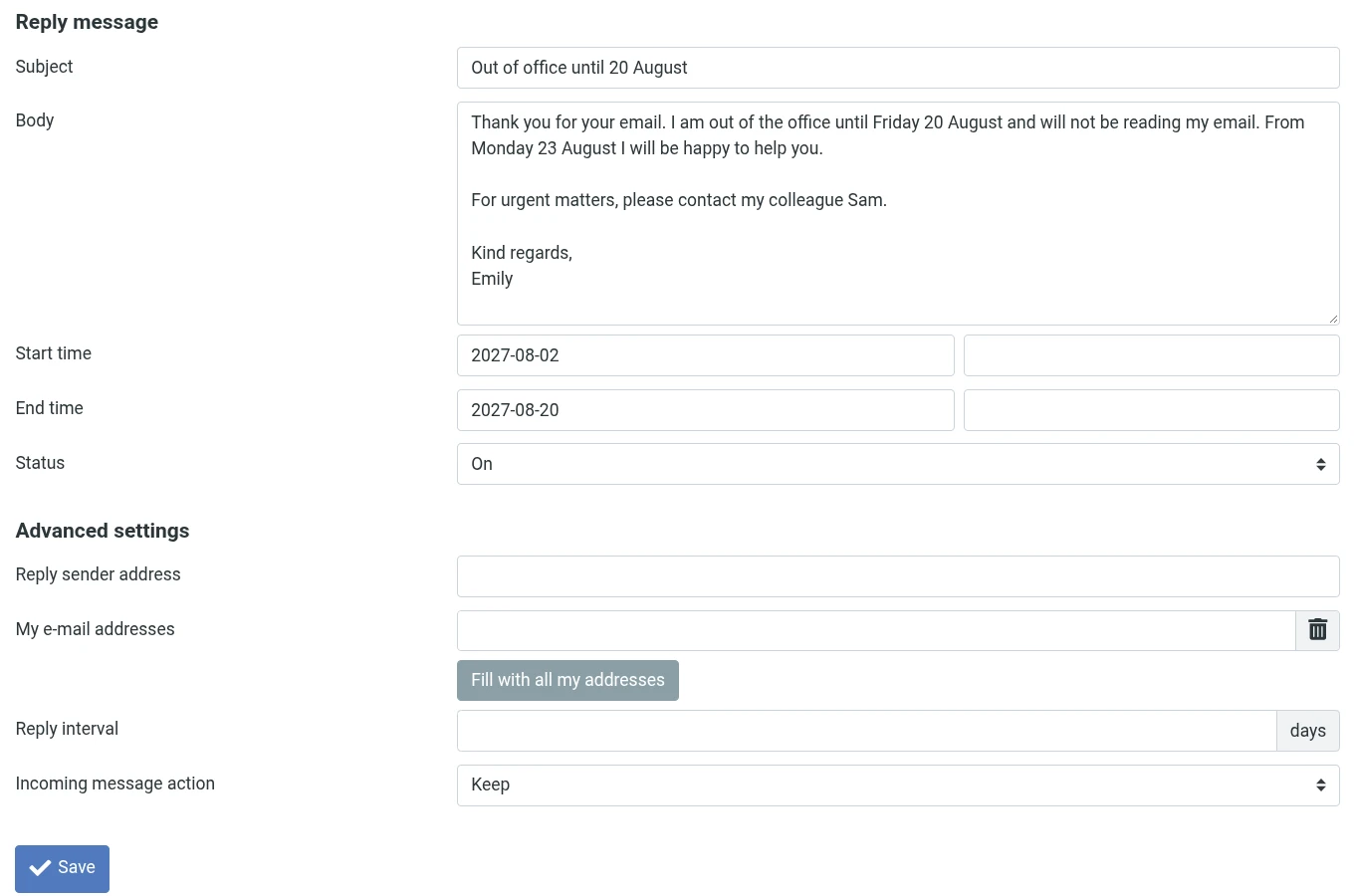
With a start and end date you can set the message up well before you leave. Senders only receive it within that period, and it stops by itself afterwards. Back from holiday? Set Status to Off, or leave it and change the dates next time.
Under Advanced settings you can set three more things:
- My e-mail addresses: the webmail replies to mail that is addressed to you. If mail also arrives through an alias, such as info@yourdomain.com, add that address here. Fill with all my addresses adds the addresses you have set up as identities in the webmail. What an alias is, is explained in email forwarding and aliases.
- Reply interval: the number of days before the same sender gets your reply again. Leave it empty and that is once a week.
- Incoming message action: Keep by default, so all mail lands in your own mailbox. Choose Send copy to and enter a colleague's address to have your mail arrive in their inbox too, while you keep the original.
Set up an auto-reply in Plesk
As the owner of the hosting plan, you can switch on an automatic reply for any address on your domain in Plesk, without the password of that mailbox. New to Plesk? Have a look at the Plesk control panel guide.
- In the customer portal, open the page of your site and click Log in to Plesk in the Site overview block. See open Plesk from the customer portal.
- Click Mail on the left, then the email address.
- Open the Auto-Reply tab and tick Switch on auto-reply.
- Auto-reply message subject shows
Re: <request_subject>. Leave it, and the reply uses the subject of the incoming email with Re: in front. You can also type your own subject. - Type your message under Auto-reply message text. For Message format, Plain text looks right in every mail app.
- Want a colleague to receive your mail too? Enter their address under Forward to, and Plesk forwards incoming mail to that address.
- Send an automatic response to a unique email address no more than is set to 1, so each sender gets your reply at most once a day.
- Tick Switch off auto-reply on and pick the date on which Plesk turns the reply off, for example the day you are back at work.
- Click OK.
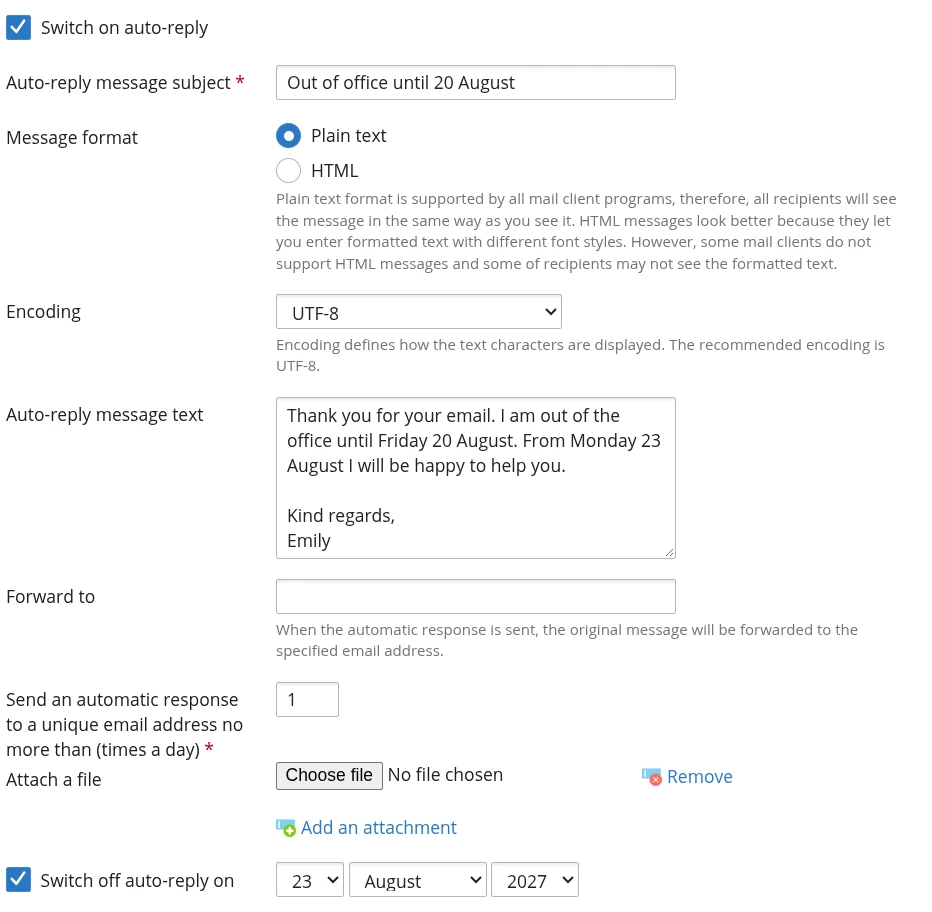
The Plesk auto-reply starts as soon as you click OK. To prepare it days in advance with a start date, use the webmail. The other settings of an address in Plesk are covered in create an email address in Plesk.
Turn it on in one place only
The webmail and Plesk each have their own out-of-office reply, and they do not see each other's setting. If both are on, a sender gets two automatic replies. So choose one place, and switch the reply off in that same place when you are back.
Outlook, Apple Mail and your phone
The reply in webmail or Plesk runs on our mail server, so it goes out even when your computer is off and your phone is in your bag. A mail app works differently:
- Outlook: the Automatic Replies feature is meant for Microsoft 365 and Exchange accounts. Your LJPc hosting mailbox is an IMAP account in Outlook; for those, Microsoft points to a rule that only replies while Outlook keeps running on your computer (Microsoft's explanation). Set up your out-of-office in webmail instead. Adding your account to Outlook is covered in set up email in Outlook.
- Apple Mail on a Mac: a rule that replies automatically only runs while Mail is open. For replies while Mail is closed, Apple refers you to your email provider (Apple's explanation). With us, that is the webmail or Plesk.
- Your phone: open ljpc.email in your phone's browser and follow the same webmail steps. The menu sits behind the menu button.
What to write in your out-of-office message
- Until when you are away, and from which day you will reply again.
- Who to contact with an urgent question, with a name and an address that is being read.
- A short subject, so the sender sees at a glance what is going on.
- If you also email Dutch-speaking contacts, add a Dutch version below the English one.
- Everyone who emails you reads the message, including people you do not know. Keep it businesslike and leave out where you are going.
An example:
Subject: Out of office until 20 August
Thank you for your email. I am out of the office until Friday 20 August and will not be reading my email. From Monday 23 August I will be happy to help you. For urgent matters, please contact my colleague Sam at info@yourdomain.com.
Kind regards,
Emily
Why doesn't everyone get my auto-reply?
- Once per period: in the webmail the same sender gets your reply once a week by default, in Plesk once a day. That way someone who emails you often does not get the same reply every time.
- Newsletters and automated mail: the webmail does not reply to mailing lists or to mail that was itself sent automatically. That stops two automated systems from replying to each other endlessly.
- Mail to an alias or in Bcc: the webmail replies when your address is among the recipients. Add your aliases under My e-mail addresses and mail to those addresses gets a reply as well.
What LJPc hosting takes care of
The out-of-office reply is included with every LJPc hosting mailbox, in both the webmail and Plesk. It runs on our mail servers, so your message goes out even when all your devices are off. You create a new email address in the customer portal, as described in create an email address in the customer portal, and open Plesk from there in one click. Need a hand? Create a support ticket in the portal.
Frequently asked questions
How often does the same sender get my out-of-office reply?
In the webmail each sender gets your reply at most once a week by default. Under Advanced settings you can set a different number of days at Reply interval, with a minimum of one day. In Plesk the default is once a day, which you can change on the Auto-Reply tab.
Does my out-of-office reply stop automatically?
Yes, if you set an end date. In the webmail senders get no reply after the End time. In Plesk, Switch off auto-reply on turns the reply off on the date you pick. Without an end date the reply stays on until you switch it off yourself.
How do I test my out-of-office reply?
Send an email to your address from a different address, such as your personal one. The automatic reply then comes back to you. To test again, use yet another address: the same sender only gets the reply once per period.
Can I forward my email to a colleague while I am away?
Yes. In the webmail, choose Send copy to under Incoming message action and enter your colleague's address. In Plesk, enter the address under Forward to on the Auto-Reply tab. To forward mail permanently, use the forwarding feature in Plesk.
Why don't I see Automatic Replies in Outlook?
That feature works with Microsoft 365 and Exchange accounts. Your LJPc hosting mailbox is an IMAP account in Outlook, so set up your out-of-office reply in the webmail at ljpc.email or in Plesk; it also works when Outlook is closed.
Can I set up an out-of-office reply for a colleague?
Yes, in Plesk. As the owner of the hosting plan, open Mail, click your colleague's address and switch on an automatic reply on the Auto-Reply tab. You do not need the password of that mailbox.