How to change PHP settings in Plesk: memory_limit, upload_max_filesize and more
Published on November 9, 2026 6 min read
Fix "Allowed memory size exhausted" and upload size errors: change memory_limit, upload_max_filesize and other PHP settings in Plesk.

Seeing "Allowed memory size exhausted", or does a large upload fail? Raise the matching PHP setting in Plesk. Open your domain, click PHP under Dev Tools, pick or type a higher value under Performance and security settings and click OK. The change only applies to that website.
This guide shows which error belongs to which setting, how to change the value, which value to choose and what to do if you cannot change a setting yourself. Looking for a different PHP version instead? See how to change the PHP version in Plesk.
Which PHP setting causes which error?
A PHP error message usually names the setting that is too low. If the error does not show on your website, look in the error log of your site: in Plesk under Logs for your domain. See how to view error logs in Plesk to open the log and read an error line.
| Error or symptom | Setting | What to do |
|---|---|---|
| "Allowed memory size of 134217728 bytes exhausted", in WordPress often "There has been a critical error on this website" | memory_limit | Increase memory_limit, for example from 128M to 256M |
| "The uploaded file exceeds the upload_max_filesize directive in php.ini" or "exceeds the maximum upload size for this site" | upload_max_filesize | Increase upload_max_filesize and post_max_size with it |
| "The link you followed has expired" when uploading in WordPress, or "POST Content-Length of ... bytes exceeds the limit" in the log | post_max_size | Set post_max_size higher than upload_max_filesize |
| "Maximum execution time of 30 seconds exceeded" | max_execution_time | Increase max_execution_time, for example to 120 or 300 |
| Menu items, product variations or page builder settings are missing after saving; the log shows "Input variables exceeded" | max_input_vars | Ask support for a higher value (see below) |
The number in a memory error is the current limit in bytes: 134217728 bytes is 128M, 268435456 bytes is 256M.
How to change PHP settings in Plesk
- Open Plesk from the customer portal: go to Services > Sites, open your site and click Log in to Plesk in the Site overview block. See how to open Plesk from the customer portal for details.
- Go to Websites & Domains and open the Dashboard tab in the card of your domain. New to Plesk? The Plesk control panel guide shows where everything is.
- Under Dev Tools, click PHP. This opens the PHP Settings page of your domain.
- Find the setting you want to change under Performance and security settings, for example memory_limit.
- Pick a value from the list, or click in the field and type your own value, such as
256M. The list mostly offers low values, so type a higher value yourself. A Reset To Default link appears next to the field to go back to the default. - Click OK at the bottom of the page. Apply also saves, but keeps the page open.
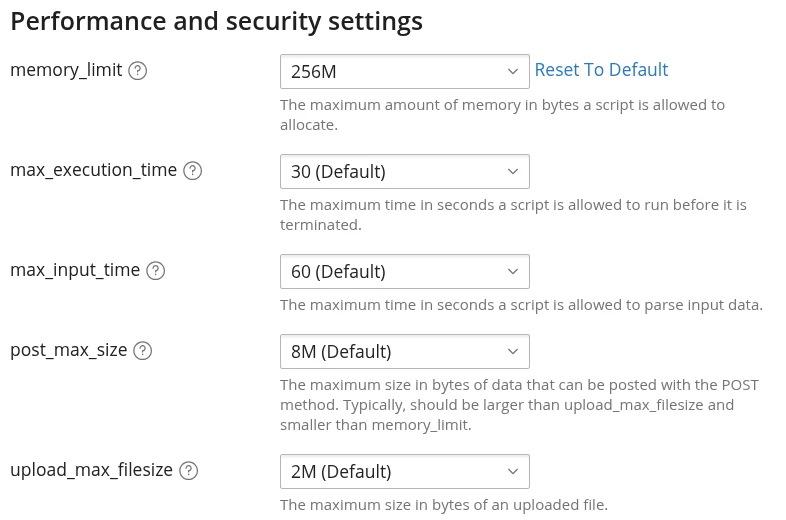
A value marked (Default) is the server default for the PHP version of your site. That default differs per server and per PHP version. A value you enter yourself stays in place, also when you switch to another PHP version later.
The settings apply per website. If a subdomain runs its own website, it has its own PHP settings.
Which value should you choose?
- memory_limit: increase it step by step, for example from 128M to 256M and, if needed, to 512M. Test again after each step.
- upload_max_filesize: a little larger than the biggest file you want to upload, for example 64M.
- post_max_size: at least as large as upload_max_filesize and preferably a bit larger, because the form sends its other fields along with the file. When you raise one, raise the other too.
- max_execution_time: 120 or 300 seconds gives an import or backup more time. A normal page of your website should load within a few seconds.
Write sizes with K, M or G without a B: 256M or 1G, not 256MB. Do not set limits higher than you need: a generous limit hides a plugin or script that asks for too much instead of fixing it.
Values shown as plain text instead of drop-down lists?
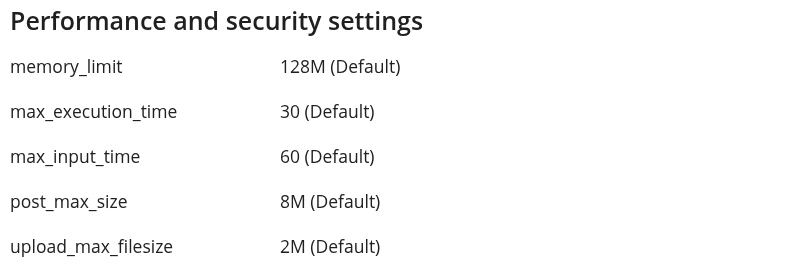
If the values are shown as plain text without a drop-down list, as above, your package does not let you change these settings yourself. In Plesk, Account with the Permissions tab shows what your package allows. The settings under Performance and security settings need Hosting performance settings management; the ones under Common settings need Common PHP settings management.
In that case, contact our support team with your domain name, the setting and the value you need, and we will look into it with you. See how to create a support ticket.
How to increase max_input_vars
max_input_vars sets how many fields a form may send to PHP in one request. A large WordPress menu, a product with many variations or the settings of a page builder can go over that limit. PHP then drops everything above the limit: there is no error on screen, but part of your changes is gone after saving. The error log shows a line with "Input variables exceeded" and the current limit.
max_input_vars is not on the PHP Settings page, even if you can change the other settings. You can see its current value on the phpinfo page or in WordPress (see below); the default differs per server and per PHP version. Need a higher value? Contact support with your domain name and the value your plugin or theme asks for.
Check that the new value is active
- In Plesk: on the PHP Settings page, click View the phpinfo() page next to the PHP version and search for the name of the setting. The Local Value column is the value your website uses.
- In WordPress: go to Tools > Site Health > Info and expand Server. It lists PHP memory limit, Upload max filesize, PHP post max size, PHP time limit and PHP max input variables.
Then try again what failed before. If the new value does not show up, contact support.
Good to know
- Always change PHP settings on the PHP Settings page in Plesk. A php_value line in an .htaccess file causes a 500 error on some of our servers, and a .user.ini file is not read on every server. See .htaccess: redirects, security and more for what does belong in .htaccess.
- WordPress never lowers the PHP memory limit. Once you raise memory_limit in Plesk, WordPress uses that value too.
- A scheduled task of the type Run a PHP script uses the server defaults for its PHP version, not the settings of your website. If such a WordPress task runs out of memory, add
define( 'WP_MEMORY_LIMIT', '256M' );to wp-config.php: WordPress then raises the limit itself when it loads. See how to set up cron jobs in Plesk for more on scheduled tasks. - On some of our servers the page also shows PHP-FPM settings at the bottom. They control how many PHP processes your website uses at the same time. Leave them as they are unless support advises otherwise.
- Common settings includes display_errors. Keep it off on a live website: you can read errors safely in the error log without your visitors seeing them.
Need help? Call us on +31 85 130 6429, email support@ljpc.nl or create a support ticket. We are happy to help.
Frequently asked questions
What does (Default) next to a PHP setting in Plesk mean?
Your website uses the server default for the PHP version of your site. That default differs per server and per PHP version. If you enter a value yourself, it applies to your website, also after you switch PHP versions.
Do I need to restart anything after changing a PHP setting?
No, there is nothing to restart. Click OK, then check on the phpinfo page in Plesk that the new value shows in the Local Value column.
Why does php_value in my .htaccess file not work?
On some of our servers a php_value line in .htaccess causes a 500 error, and a .user.ini file is not read on every server. Change PHP settings on the PHP Settings page in Plesk instead: that works on all our servers.
How high can I set memory_limit?
Choose the lowest value at which your website works well and increase it step by step, for example from 128M to 256M. If your site keeps needing more memory, check the error log to find the plugin or script that asks for it. Not sure? Contact our support team.
Can I change max_input_vars myself in Plesk?
No, max_input_vars is not on the PHP Settings page. Contact support with your domain name and the value your plugin or theme asks for. You can see the current value on the phpinfo page in Plesk.
Do PHP settings apply to all my websites at once?
No, PHP settings apply per website. If you have several websites or a subdomain with its own website, change the PHP settings for each website separately.