How to password protect a directory or website in Plesk
Published on November 9, 2026 6 min read
Lock a test site, a folder or your whole website behind a username and password with Password-Protected Directories in Plesk. Step by step.

Want to share a test site, a folder of documents or your whole website only with people you give a password to? In Plesk, you set this up for your domain under Password-Protected Directories. You choose the directory, add one or more users, and from then on every visitor's browser asks for a username and password. Search engines are kept out as well, so the content does not show up in Google.
You open Plesk with one click from the customer portal. This guide uses the button and menu names exactly as Plesk shows them.
When should you password protect a directory?
- A test site or a new website that is not finished yet: you can show it to your client or colleagues while the rest of the world cannot reach it.
- A folder of files for customers, members or your team, such as price lists, manuals or photos.
- A tool or admin area on your website that is meant for you only.
Google itself recommends password protection for confidential content: only people with the login details can reach it, and it stays out of the search results (see Google's guidance).
How to password protect a directory in Plesk
- Open Plesk from the customer portal: go to Services > Sites, open your site and click Log in to Plesk. See open Plesk from the customer portal for details.
- You land on Websites & Domains. Expand your domain and click Password-Protected Directories under Security. If your test site runs on its own subdomain, such as staging.yourdomain.com, open the card of that subdomain instead.
- Click Add Protected Directory.
- In Directory name, type the directory after the slash, for example
/staging. The path starts at your website's root folder (httpdocs):/stagingis the folder httpdocs/staging and opens at https://yourdomain.com/staging. If the directory does not exist yet, Plesk creates it for you. To protect your entire website, leave only the/. - In Title of the protected area, enter a short name, for example Staging. Plesk passes this name to the browser's login prompt and shows it in the list.
- Click Create. Your directory now appears in the list.
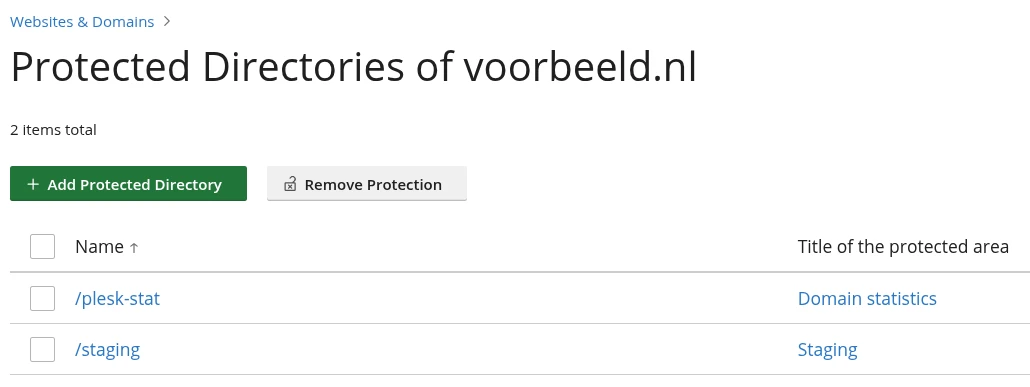
The directory is now protected, including every file and subfolder in it. Nobody can get in yet, though, so add a user straight away.
Add users
- In the list, click the name of your directory, for example /staging.
- Click Add User.
- Enter a Username. Next to Password, click Generate for a strong password and copy it with the button next to it, or type your own. The eye icon shows the password.
- Click Create and share the username and password with the people who need access.
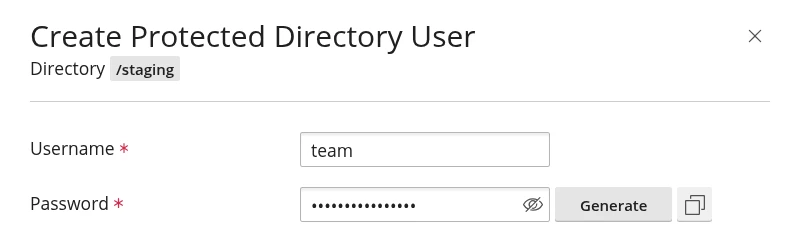
You can add as many users per directory as you like, for example one per colleague or customer. That way you can later remove one person's access while everyone else keeps theirs. A user belongs to one directory: access to /staging does not open any other protected directory.
What do visitors see?
Anyone who opens the directory gets a browser prompt asking for a username and password. With the right details, the page opens. After a wrong password the browser asks again, and clicking Cancel shows a 401 Unauthorized error. This applies to everyone without login details, search engines included.
- Your password travels encrypted. Your website redirects visitors from http to https by default, and only then does the browser ask for the password. Your domain or subdomain needs an SSL certificate for this; see Let's Encrypt: set up your free SSL certificate.
- Your certificate keeps renewing. Even with your entire website protected, Let's Encrypt can still validate your domain.
- Your browser remembers your login until you close it. To see what a visitor without a password sees, open the page in a private window.
Plesk stores this protection in the web server configuration and keeps the passwords outside your website. That is why the File Manager shows no .htaccess or .htpasswd file for it. If you prefer to set it up by hand in an .htaccess file, see set up .htaccess: redirects, security and more.
Change a password, revoke access or remove protection
Go to Websites & Domains > Password-Protected Directories and pick what you need:
| What do you want to do? | How |
|---|---|
| Set a new password for a user | Click the directory name, then the key icon (Change password) next to the user. Enter a new password or click Generate, then click Save. |
| Remove someone's access | Click the directory name, select the user and click Remove. |
| Give someone else access | Click the directory name, then Add User. |
| Make the directory public again | Select the directory, click Remove Protection and confirm with Yes, remove. The directory and its files stay in place; the users of that directory are removed. |
Plesk does not display existing passwords. If a user has lost theirs, set a new one with the key icon.
Password protect a WordPress site
For a complete WordPress site, such as a staging copy, WP Toolkit in Plesk has its own switch: Password protection under Tools on your site's card. You set one username and password there and click Protect. The steps are in how to create a WordPress staging site with WP Toolkit.
Keep two things in mind with WordPress:
- Protect the whole site, not only the wp-admin folder. wp-admin also contains admin-ajax.php, which plugins such as contact forms and web shops use on the front end of your site. With a password on wp-admin, those features ask your visitors for a password too. WordPress warns about this in its hardening guide. Secure your admin area with a strong password and two-step login instead.
- Services that call your site are locked out too. A payment provider confirming a payment, or a monitoring service checking that your site is up, gets the same password prompt. A protected directory suits a test site or a new website, not a live web shop.
What is /plesk-stat in the list?
The list already contains a directory called /plesk-stat with the title Domain statistics. Plesk uses it to protect your website statistics. Leave it in place: Remove Protection would make your statistics public.
Need a hand, or is Password-Protected Directories missing for your domain? Create a support ticket in the customer portal and we will look into it with you. For everything else on your domain, see the Plesk control panel guide.
Frequently asked questions
Can I password protect my entire website?
Yes. Leave only the / in Directory name and the browser asks for a username and password on every page of your website. For a WordPress site you can also use Password protection in WP Toolkit. Services that call your site, such as a payment provider, are locked out as well, so use this for a test site or a new website.
Will a password-protected directory show up in Google?
No. Search engines get the same password prompt and cannot read the content. If the content was already in Google, it is removed from the search results over time.
Someone lost the password for a protected directory. How do they get back in?
Plesk does not display existing passwords. Open the directory in Password-Protected Directories, click the key icon (Change password) next to the user and set a new password.
Why is there no .htaccess or .htpasswd file in the directory?
Plesk stores the protection in the web server configuration and keeps the passwords outside your website. Your files and any .htaccess of your own in that directory stay as they are.
Will my SSL certificate keep renewing while my website is password protected?
Yes. Let's Encrypt validates your domain through a separate address that Plesk keeps outside the protection. Even with your entire website behind a password, your certificate renews.
What is the difference between 401 Unauthorized and 403 Forbidden?
401 Unauthorized means you have to log in first, as with a password-protected directory. With the right username and password you get in. With 403 Forbidden the server refuses the page even if you log in. Our article on the 403 Forbidden error explains how to find the cause.