Plesk reseller guide: customers, subscriptions and client logins
Published on November 9, 2026 7 min read
Reseller hosting with Plesk? Add customers with their own login, move subscriptions to them and set what each client can change.

With a reseller package you are the hosting provider for your own clients in Plesk. You add each client as a customer with their own login, put that client's websites in their own subscriptions and decide per subscription what the client can change. Your client logs in with their own username and password on the same Plesk login page as you and only sees their own websites.
This guide shows how Plesk is laid out for resellers, how to give a client their own login, how to move existing websites to that client and where to set permissions and disk space per client. For everything inside a single website, such as email, files, databases and PHP, see our Plesk control panel guide. What reseller hosting is and who it suits is covered in reseller hosting: manage all your client websites.
Three terms you need to know
| In Plesk | What it means |
|---|---|
| Customer | One of your clients, with their own Plesk username and password. |
| Subscription | A website with its own domain, mailboxes, databases and disk space. A customer can have several subscriptions. |
| Service plan | A package you put together yourself: how much space a subscription gets and what the client is allowed to change. |
How do you open Plesk as a reseller?
You open Plesk from the customer portal:
- Go to Services and then Servers.
- Click your reseller package.
- Click Login. Plesk opens in a new tab, signed in to your reseller account.
The websites in your reseller package are also listed in the portal under Services and Sites. If a site belongs to one of your customers in Plesk and you click Log in to Plesk next to it, you are signed in as that customer and see exactly what they see. More about signing in: open Plesk from the customer portal.
The address bar of the Plesk tab shows the address of your Plesk server, ending in :8443. That is the address you give to your clients.
The Plesk reseller panel at a glance
As a reseller you get your own menu with your customers, their subscriptions and your service plans.
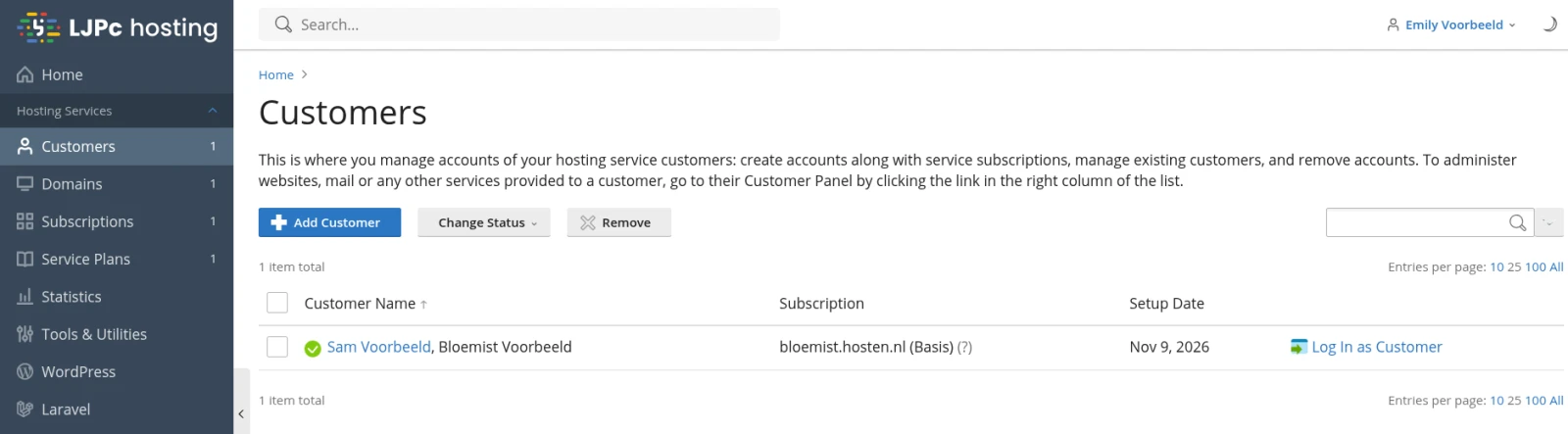
| Menu | What you find there |
|---|---|
| Home | An overview of your reseller package: Disk space shows how much of your storage is in use, plus the number of customers, subscriptions and service plans. My resources and permissions overview lists everything your package allows. |
| Customers | Your clients and their subscriptions. Log In as Customer opens Plesk the way your client sees it. |
| Domains | All domains of all your clients in one list. |
| Subscriptions | All subscriptions, with the Add Subscription, Change Plan and Change Subscriber buttons. |
| Service Plans | Your own packages for your clients: space, limits and permissions. |
| WordPress | WP Toolkit for your clients' WordPress sites. |
| My Profile | Your own details and password. |
Click a subscription to open Websites & Domains for that website, with the same card and tiles described in the Plesk control panel guide.
How to add a customer with their own Plesk login
To let a client manage their own websites in Plesk, create a customer account for them:
- Click Customers in the menu, then Add Customer.
- Enter your client's name under Contact name and their email under Email address. Add the company name under Additional customer information.
- Under Access to Plesk, choose a Username and a Password, or click Generate. If you pass on the login details yourself, leave Activate account by e-mail unticked so the account works straight away.
- If the client's website is already in your account, untick Create subscription for the customer under Subscription. You move that website to the client in the next step. For a new website, keep the box ticked, enter the domain name and pick a service plan.
- Click Add Customer.
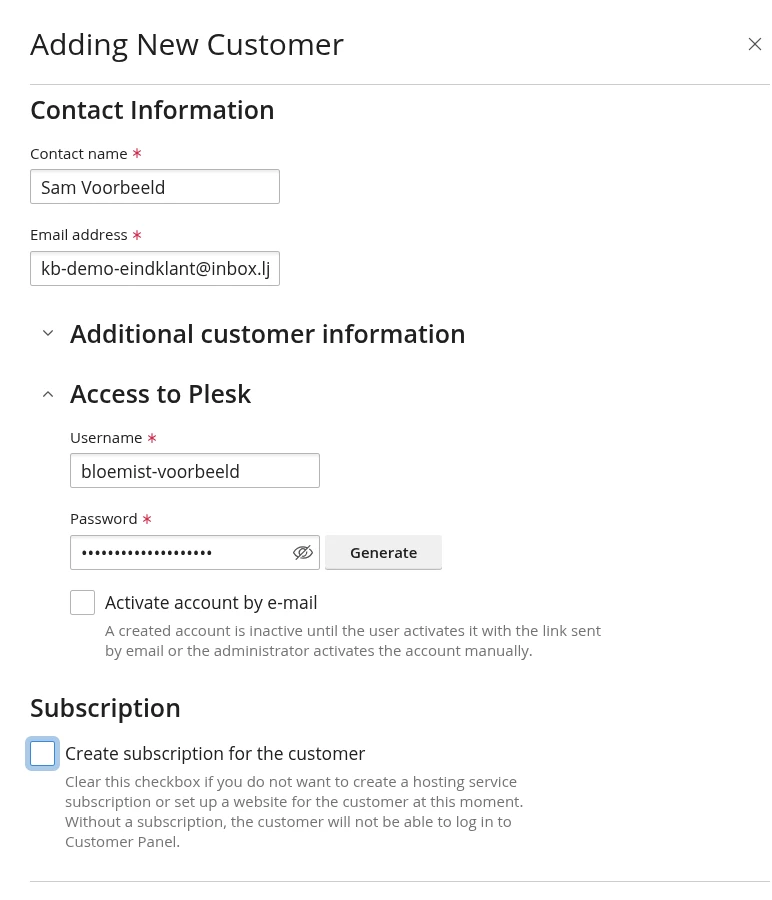
Your client can log in as soon as at least one subscription belongs to them.
How to move a subscription to another customer
If your client's websites are still under your own name, move them with Change Subscriber:
- Click Subscriptions in the menu.
- Tick the subscriptions of your client.
- Click Change Subscriber.
- Select your client under Owner and click Reassign.
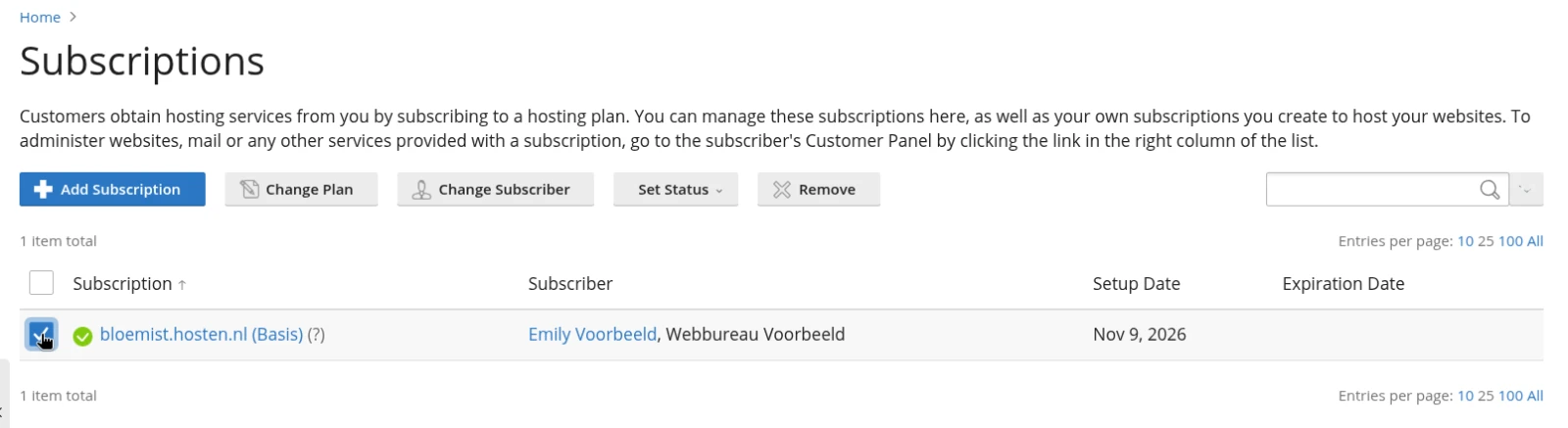
The Subscriber column now shows your client's name. The website stays where it is: only its owner in Plesk changes. To move a website back to yourself later, select your own name under Owner.
How your client logs in
Your client opens the address of your Plesk server, the one you see in the address bar when you open Plesk. They enter their Username and Password and click Log in. They only see the subscriptions that belong to them, with the menu and tiles from the Plesk control panel guide.
There your client manages their own email addresses (see create an email address in Plesk), files, databases and WordPress. Each client has their own mailboxes, separate from your other clients. If your client forgets their password, you set a new one: click the client under Customers, then Change Login Info.
Set what each client can change
Per subscription you decide what your client can change, such as DNS, the PHP version, PHP settings, backups and scheduled tasks. These options are on the Permissions tab, in two places:
- In the service plan, for every subscription on that plan: click Service Plans, the plan, the Permissions tab and then Update & Sync.
- For a single subscription: click Subscriptions and the subscription. In the panel on the right, click Customize under Account; if the panel is closed, open it with the icon in the top right. Open the Permissions tab and click Update & Lock. From then on that subscription no longer follows changes to the service plan.
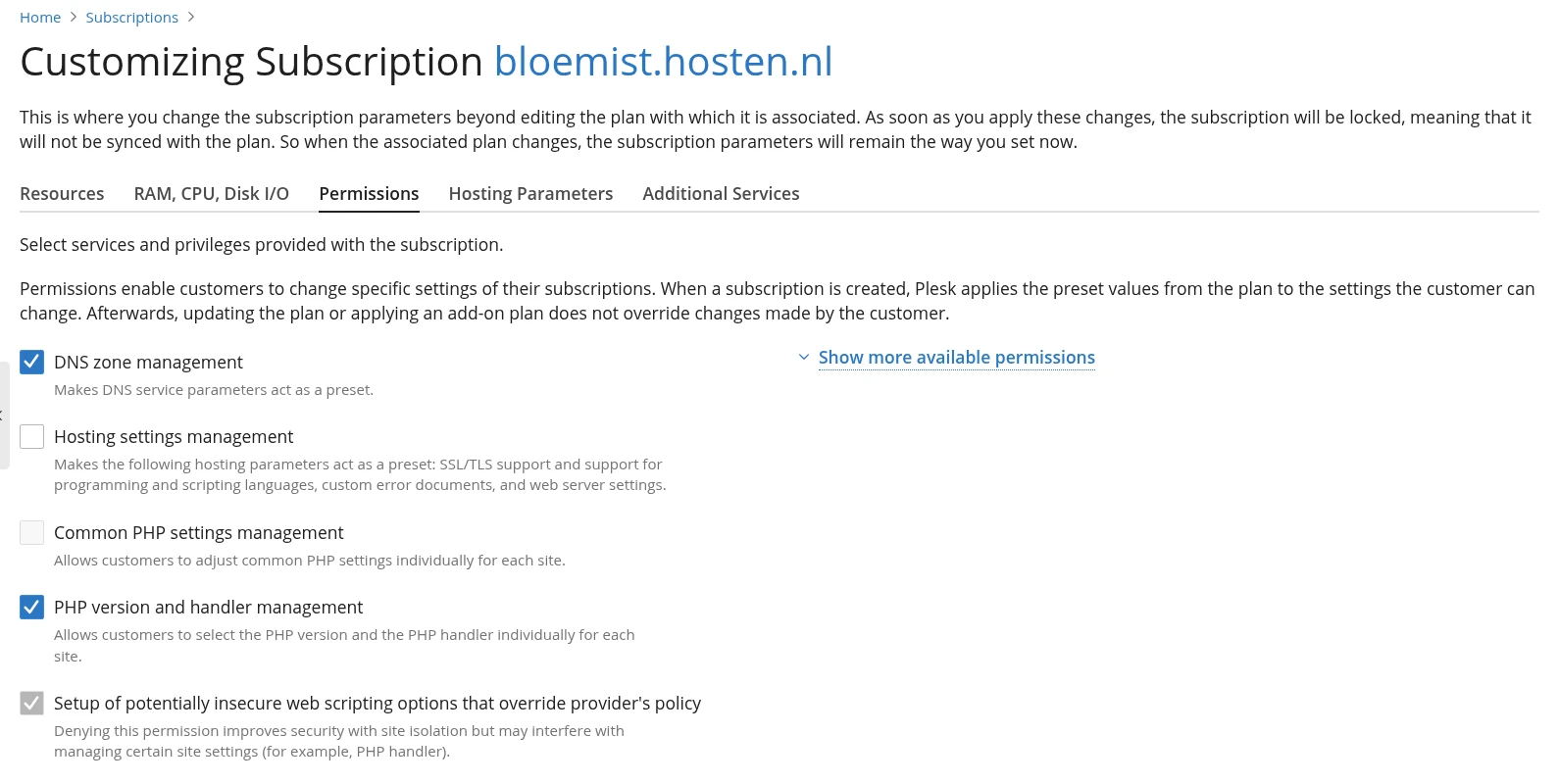
If a client can change PHP settings in one subscription but not in another, the permissions of those subscriptions differ. For PHP settings, enable both Hosting settings management and Common PHP settings management; PHP version and handler management covers the PHP version (see change the PHP version in Plesk). You can pass on the permissions your reseller package has; you find them on Home under My resources and permissions overview.
More or less space for a client
You divide the storage of your reseller package among your clients yourself. Where to change what:
| What do you want to change? | Where |
|---|---|
| Space or permissions of one subscription | Plesk: Subscriptions, the subscription, Customize. Or move it to another service plan with Change Plan. |
| All subscriptions on the same service plan | Plesk: Service Plans, the plan, Update & Sync. |
| How much of your reseller storage is in use | Plesk: Home, under Disk space. |
| Your reseller package itself, for example more storage | Arrange it with us: get in touch with support. |
You set your own prices for your clients; we invoice you for your reseller package. When a client leaves, read domain name or website: what to cancel and when it stops.
Your client keeps their domain with another provider
Your client can keep their domain name where it is. At their own provider they point the A and AAAA records to our server, and for email the MX and TXT records as well. Plesk shows which records are needed: open the domain, go to the Hosting & DNS tab and use DNS check. Step by step: domain registered elsewhere? How to point it to LJPc hosting.
Portal or Plesk: who sees what?
- You work in the customer portal and in Plesk. The portal shows your reseller package, your clients' websites, your invoices and your subscriptions with LJPc.
- Your clients work in Plesk with their own login and only see their own websites there.
- Your colleagues get access through a sub-account in the portal. A sub-account sees every service on your account it has permission for, including the websites of all your clients. See sub-accounts in the customer portal.
Need a hand? Call us on +31 85 130 6429, email support@ljpc.nl or create a support ticket. We are happy to help.
Frequently asked questions
Can my client see the websites of my other clients in Plesk?
No. Your client logs in with their own username and password and only sees the subscriptions that belong to them. As a reseller you see all customers and subscriptions.
Where does my client log in?
At the same address as you: the address of your Plesk server that you see in the address bar when you open Plesk from the customer portal, ending in :8443. Your client enters their Username and Password and clicks Log in.
My client forgot their Plesk password. What now?
You set a new one yourself: in Plesk, click Customers, then the client, then Change Login Info.
Why can my client not change the PHP settings?
That depends on the permissions of their subscription. In the service plan, or with Customize for that one subscription, enable Hosting settings management and Common PHP settings management on the Permissions tab.
Can I move a website back to my own account later?
Yes. Tick the subscription under Subscriptions, click Change Subscriber and select yourself under Owner.
How do I get more storage for my reseller package?
You divide the storage among your clients yourself in Plesk. To make the reseller package itself bigger, get in touch with support. Plesk shows how much storage is in use on Home under Disk space.