Transfer your domain to LJPc: steps and status
Published on July 4, 2026 6 min read
Transfer your domain to LJPc: request the transfer code, open the lock, start the transfer in the customer portal and follow its status until done.

When you transfer your domain to LJPc, the registration of your domain name moves from your current provider to LJPc. Your domain, hosting and email are then in one place and you manage everything in the customer portal. This guide shows how to start the transfer, how to follow it until it is complete and how your website and email keep working in the meantime. Want to move your domain from LJPc to another provider instead? See get your EPP code and transfer your domain.
What moves
A domain transfer moves the registration of your domain name to another registrar: the company that manages your domain at the registry, such as SIDN for .nl. Two terms come up all the time:
- Transfer code: a unique code from your current provider that authorises the transfer. It is also called auth code, EPP code or, for .nl, verhuistoken.
- Transfer lock: a protection at your current provider that blocks unwanted transfers. The lock has to be open before you start.
As soon as the transfer is complete, the nameservers of your domain point to LJPc automatically (ns1, ns2 and ns3.ljpc.network). So make sure your website and email are ready with us by then. How to do that is explained below.
Before you start
- You can sign in at your current provider, to request the transfer code and open the lock.
- Your domain is active. Renew an expired domain at your current provider first.
- The email address of the domain's holder is up to date. For some transfers an approval mail is sent there.
- For extensions such as .com, .net and .org, a domain cannot be transferred in the first 60 days after registration or a previous transfer.
- Is DNSSEC switched on at your current DNS provider? Have the DS record removed there and wait for the TTL to pass (the time a DNS answer may be cached) before you start the transfer, so your domain stays reachable after the move. Read more in DNSSEC when you move and change your nameservers.
- You have a customer portal account. No account yet? Register first.
Transfer your domain: step by step
- Request the transfer code from your current provider. Look in their control panel for transfer code, auth code, EPP code or verhuistoken, or ask their support. Your provider is required to give you the code. For a .be domain the transfer code comes from DNS Belgium itself and is valid for 7 days; how to request it is explained in DNS Belgium explained.
- Open the transfer lock in the same control panel.
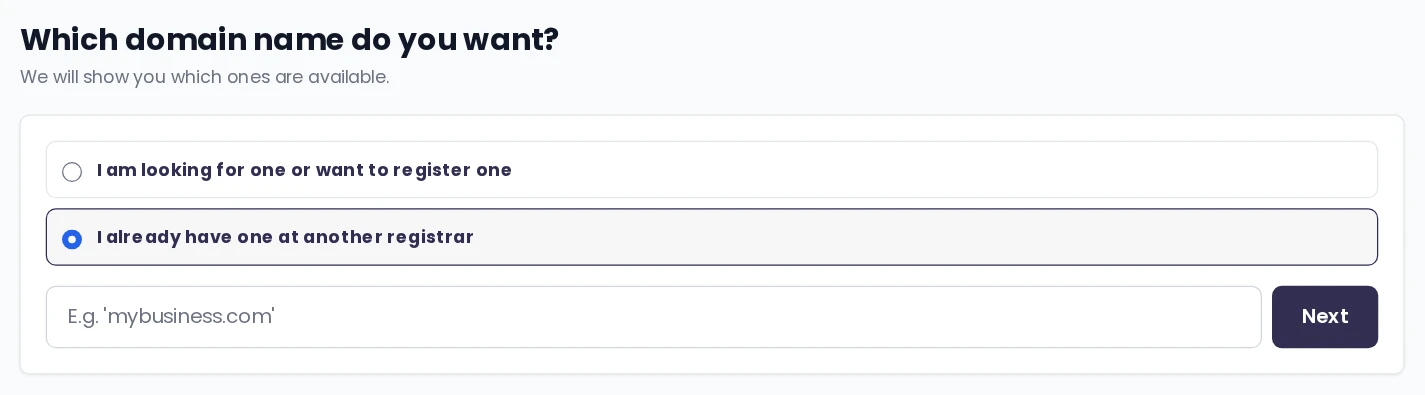
- Start the transfer in the customer portal. On the dashboard, click I already have a domain and only need hosting in the Find your domain card, or go straight to the order page. Choose I already have one at another registrar, enter your domain name and click Next.
- Choose Transfer to LJPc, enter the transfer code and click Confirm. The portal checks right away whether the code is correct and the lock is open.
- Choose your hosting. Take a hosting package or your own server, or choose DNS only or forwarding if your website stays elsewhere.
- Complete your order in the cart. You see the price of the domain name before you order. After your order we request the transfer at the registry right away.
Is your domain already in the portal, but still registered with another registrar? Open the domain under Services, Domains and choose Transfer this domain to LJPC. Enter the transfer code and click Start transfer.
Follow the transfer
After the request you receive an email with the status. In the portal the domain shows Transfer in progress, and the domain page shows a card with the status and the deadline. The card updates itself, so you see right away when the transfer is complete.
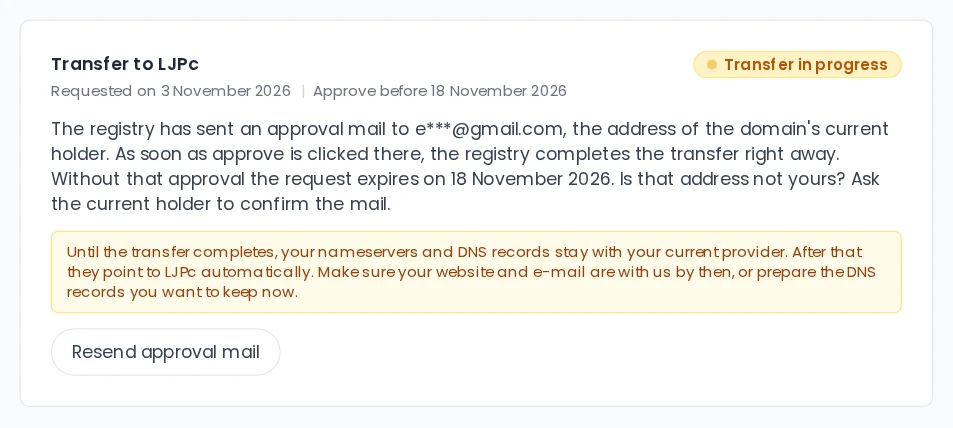
- Approval mail: for some transfers the registry sends an email to the address of the domain's current holder. The portal shows that address partly hidden and the date by which it has to be approved. Without approval the request expires on that date. If the mail did not arrive, click Resend approval mail (once every 24 hours). If you do not manage that address yourself, ask the current holder to approve.
- Transfer at the registry: for other transfers the registry completes it by itself, at the latest on the date the portal shows, unless your current registrar rejects the transfer. Does your current registrar send an email asking you to confirm? Confirm it and the transfer completes sooner.
- .nl and .be transfers are often complete within a few minutes.
Once the transfer is complete, you receive an email and the domain is with us, with automatic renewal.
Your website and email during the transfer
Until the transfer is complete, your nameservers and DNS records stay with your current provider, so your website and email keep working as before. After that they point to LJPc automatically. Make sure you are ready at that moment:
- Is your website or email moving too? Set it up with us beforehand. See migrate your website to LJPc and migrate email to a new server.
- Are your website or email staying elsewhere? Then prepare the DNS records you want to keep with Add DNS hosting on the domain page. See manage DNS records.
A new DNS setting is not visible everywhere at the same time. Why that is, is explained in DNS propagation.
If the transfer does not work
- The transfer code is not correct: your order page shows The transfer code is not correct and you receive an email. Request a new code from your current provider, enter it on the order page and click Restart transfer.
- The domain is still locked: you see Your domain is still locked. Open the lock at your current provider and then click The lock is open, transfer now. The portal first checks whether the lock really is open.
- Not confirmed in time or rejected: the card on the domain page shows the reason and you receive an email. Your domain then stays with your current provider. Request a new transfer code, open the lock, make sure the approval mail gets confirmed and start again.
- The domain has expired: renew it at your current provider first and transfer it after that.
Still stuck? Create a support ticket and we will look into it with you and get the transfer going for you.
Frequently asked questions
What is a transfer code and where do I find it?
A transfer code is a unique code that authorises the transfer of your domain. It is also called auth code, EPP code or, for .nl, verhuistoken. You request it in the control panel or from the support of your current provider.
How do I start a domain transfer to LJPc?
On the customer portal dashboard, click I already have a domain and only need hosting in the Find your domain card, choose I already have one at another registrar, enter your domain name and choose Transfer to LJPc. Enter the transfer code, choose your hosting and complete the order.
How long does a domain transfer take?
.nl and .be transfers are often complete within a few minutes. For other extensions the portal shows the deadline: the registry then completes the transfer by itself, or the approval mail has to be confirmed before that date.
I did not receive an approval mail. What now?
The mail goes to the address of the domain's current holder; the portal shows that address partly hidden. Check the spam folder or ask the holder to approve. On the domain page you resend it with Resend approval mail, once every 24 hours.
Do my website and email keep working during the transfer?
Yes. Until the transfer is complete, your nameservers and DNS records stay with your current provider. After that they point to LJPc automatically, so set up your website, email or DNS records with us before then.
What if my transfer code is not correct?
Your order page then shows The transfer code is not correct. Request a new code from your current provider, enter it on the order page and click Restart transfer.