How to give a developer access to your website: Plesk, FTP and SSH
Published on November 11, 2026 9 min read
Give your web developer their own Plesk login, an FTP account or SSH with their own key, without sharing your password, and revoke it when the work is done.

Give your developer, web designer or agency a login of their own instead of your password: an additional Plesk user, an extra FTP account, SSH with the developer's own key, or a sub-account in the customer portal. Pick the smallest level of access that fits the job and remove it as soon as the work is done. Your own password stays yours, and you always know who can reach what.
Below you'll find which type of access suits which job, how to set up each login and how to revoke it afterwards.
What kind of access does your developer need?
| What your developer will do | Access to give | Where you set it up |
|---|---|---|
| Manage the website, databases, PHP settings and scheduled tasks | An additional Plesk user with a role | In Plesk under Users, see below |
| Only upload or edit files | An extra FTP account limited to one folder | In Plesk under FTP, see below |
| Work on the command line with SSH or SFTP | SSH with the developer's own key, from a static IP address | With a support ticket, see below |
| Content, plugins or the theme in WordPress | A WordPress user account of their own | In WordPress under Users |
| Several websites, DNS, domain names or tickets | A sub-account in the customer portal | In the portal under My account |
A developer often needs more than one, for example a Plesk user and a WordPress account. Each login is separate, so you revoke them separately too.
Why a separate login beats sharing your password
- Your password stays yours. Your developer signs in with their own details, and your portal login stays protected by your own second step.
- Access to what is needed. For each login you choose which website, which folder or which parts of Plesk someone can manage.
- Revoke in one step. When the work is done, you switch off that one login. You don't have to change your own password.
- A clear overview. In Plesk, Users and FTP show you who has a login.
Anyone with access can change and delete your website, databases and files. Only give access to someone you trust, and make a recent backup first, as described in back up your website.
How to add a user in Plesk
An additional Plesk user lets your developer sign in to Plesk with their own username and password. You decide the role (what they can do) and which website they can access.
- Open Plesk from the customer portal, as described in open Plesk from the customer portal, and click Users in the menu on the left.
- On the User Accounts tab, click Create User Account.
- Enter your developer's name under Contact name.
- Leave Email address empty and enter your developer's own email address under External email address. Plesk needs one of the two. If you type a name under Email address, Plesk creates a new email address on your own domain with it.
- Pick a role under User role. Plesk preselects Application User, which gives no control over your website. Choose WebMaster or a custom role, see below.
- Under Access to subscriptions, choose the website your developer works on. All gives access to every website in your Plesk account.
- Under Plesk Preferences, enter a username under Username and a strong password under Password and Confirm password.
- Leave User is active ticked and click OK.
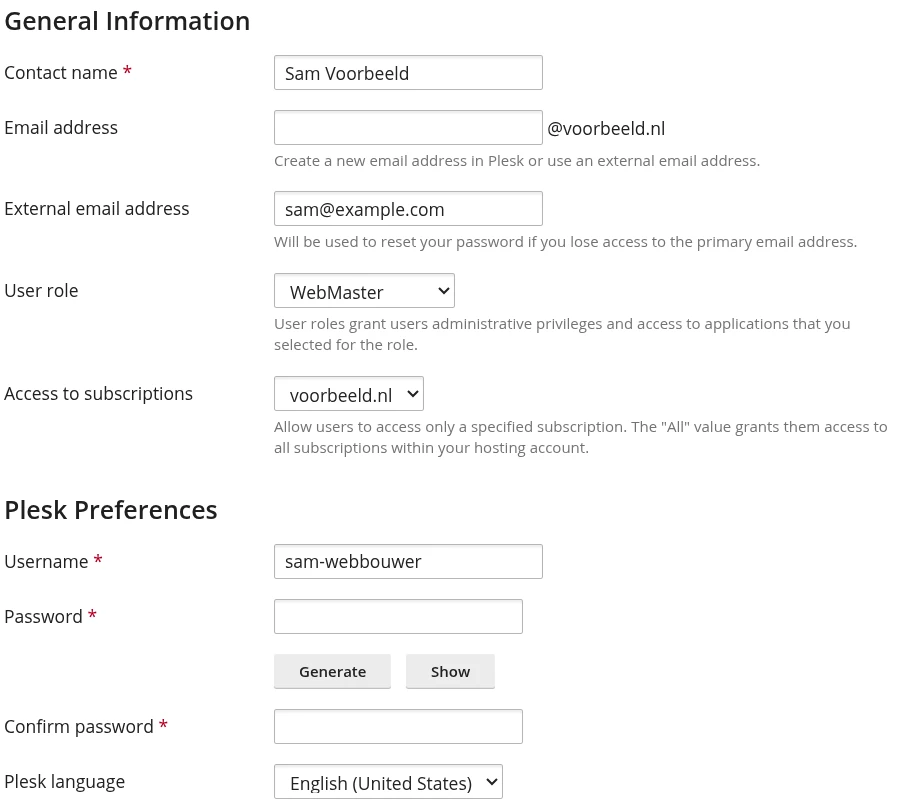
Your developer then signs in at the address of your Plesk server with the username and password you chose in the form. You can see that address in the address bar when you open Plesk from the portal: https://, your server name and .space.ljpc.systems. Send the password with a one-time link, as described in share passwords securely.
What Plesk shows depends on your hosting plan. If you don't see Users in the menu on the left, give access through a portal sub-account (further down), or ask us in a support ticket what your plan allows.
Which Plesk user role should you choose?
| Role | What it allows |
|---|---|
| Owner | Everything, including managing users and roles. Keep this role for yourself. |
| WebMaster | Everything except managing users and roles: websites, files, databases, email, DNS, backups, logs and scheduled tasks. |
| A custom role | Exactly the parts you switch on, for example everything except email. |
| Application User and Accountant | No control over your website, files or email. These roles are not meant for a developer. |
With WebMaster, your developer can also create, change and delete mailboxes. To keep your email out of the job, create a custom role.
Create a custom role, for example without email
- In Plesk, go to Users and open the User Roles tab.
- Click Create User Role and enter a name under User role name, such as Web developer.
- Under Access to Plesk services, set what your developer needs to Granted. For website work that might be Create and manage sites, Upload and manage files, Create and manage databases, Create and manage scheduled tasks, Manage logs and View statistics.
- Leave Manage users and roles and Create and manage mail accounts on Denied. Your developer then can't add new logins, and your mailboxes stay as they are.
- Click OK. Then select this role under User role when you create the user.
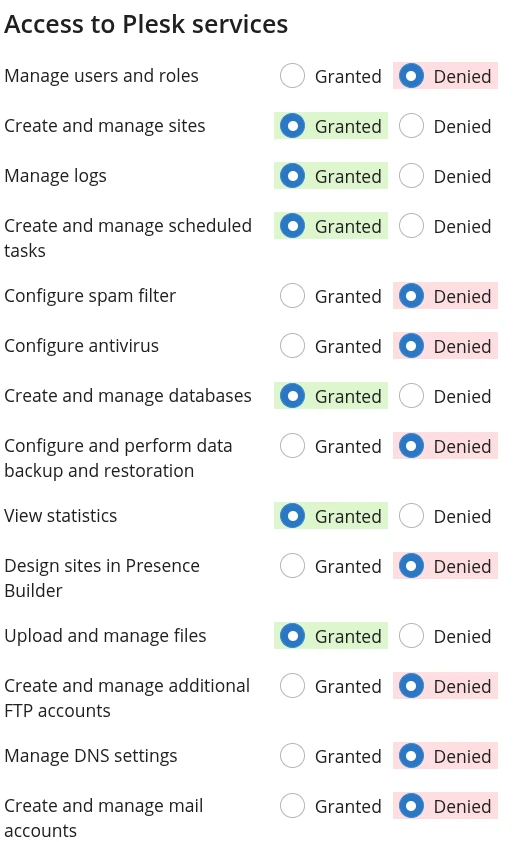
A role works within the limits of your hosting plan: a feature your plan doesn't include stays unavailable, even when the role says Granted. For a tour of Plesk, see the Plesk control panel guide.
Files only: an extra FTP account
If your developer only needs to upload or edit files, an extra FTP account is enough. In Plesk, go to Websites & Domains, open the Dashboard tab of your domain, click FTP and then Add an FTP Account. Under Home directory, choose the folder your developer works in: /httpdocs for your whole website, or a subfolder for one part of it. The account then only works inside that folder. The full steps and how to connect with FileZilla are in upload files with FTP, FTPS and SFTP. FTPS works from any internet connection.
Give your developer their own FTP account rather than the main FTP login of your subscription. That main login reaches every file in your subscription and is also the user SSH runs as.
SSH access for your developer
SSH at LJPc hosting always works with an SSH key and from a static IP address, for developers too. Why it is set up this way and how keys work is explained in SSH access to your hosting. Here's how to arrange it:
- Ask your developer for the public part of their SSH key (the line from the file ending in .pub) and the static IPv4 address of the connection they work from. The private key stays with your developer.
- Create a support ticket with the website, the public key and the IP address. A public key is fine to share in a ticket.
- We add the key to the server and the IP address to the list of trusted addresses, and let you know the username and server address your developer connects with.
Good to know:
- SSH runs as the system user of your subscription, the same user as the main FTP login. Over SSH, your developer can reach every file in that subscription.
- A Plesk user or an extra FTP account does not include SSH; that takes the key.
- If several people use SSH, each one uses their own key, so you can have one removed later.
- No static IP address? Your developer can still get to work with a Plesk user, FTPS and the tools in Plesk. Deploying with Git and running Composer work in Plesk without SSH, see Git, Node.js and Laravel in Plesk.
A sub-account in the customer portal
If your developer or agency works on several websites, on DNS and domain names, or raises tickets for you, create a sub-account in the customer portal. With the View domains permission, your developer opens Plesk in one click with the same access as you: every website and mailbox on your account. They sign in with their own password and their own second step. How to create a sub-account and which permissions exist is explained in sub-accounts in the customer portal. For a single website, an additional Plesk user gives exactly the access that is needed.
On a reseller plan, you give your own clients a customer login in Plesk. See the Plesk reseller guide.
A WordPress account of their own
If your web designer only works inside WordPress, on content, plugins or the theme, a WordPress account of their own is enough:
- Log in to WordPress and go to Users and then Add User.
- Enter a username and your web designer's email address.
- Under Role, pick the role that fits: Administrator for plugins and themes, Editor for content only.
- Leave Send User Notification ticked. Your web designer then gets an email to choose their own password.
- Click Add User.
Revoke access when the work is done
Remove each login as soon as your developer no longer needs it. If they come back later, a new one takes a few minutes.
| Login | How to revoke it |
|---|---|
| Plesk user | Go to Users, tick the user, click Remove and confirm with Yes. To switch it off for a while instead, click the name, then Change Settings, untick User is active and click OK. |
| Extra FTP account | Go to Websites & Domains, click FTP, tick the account and click Remove. |
| SSH | Ask us in a support ticket to remove your developer's key. You remove their IP address yourself in the portal under My account, IP addresses tab, with Remove; if you don't see that tab, mention the address in the same ticket. |
| WordPress account | Go to Users, hover over the user and click Delete. Choose Attribute all content to another user, pick the user and click Confirm Deletion. |
| Portal sub-account | Go to My account, Sub-accounts tab, and click Delete for that user. |
If your developer was ever given one of your own passwords, for example for the portal, your main FTP login or a mailbox, change that too. Not sure which access your developer needs? Create a support ticket and we'll help you choose.
Frequently asked questions
Can my developer get root access?
No. Your hosting is managed by us, and your developer works as the user of your own subscription, which gives full control over your website. If something is needed at server level, such as a PHP extension or a program in the shell, ask in a support ticket and we will look into it with you.
Can my developer use their Plesk user for SSH?
No. SSH runs as the system user of your subscription, with your developer's own SSH key and from a static IP address. We set up the key and the address after a support ticket. A Plesk user signs in to Plesk itself.
My developer doesn't have a static IP address. Can they still work on the site?
Yes. With a Plesk user, your developer works in the browser with File Manager, databases, Git and Composer. Files can be transferred with an FTP account over FTPS, from any internet connection. Only SSH and SFTP need a static IP address.
Will my developer see my invoices?
Not with a Plesk user, an FTP account, SSH or a WordPress account: invoices and subscriptions live in the customer portal. A portal sub-account only sees them with the View invoices permission.
Can I give a whole agency access?
Yes. Create a login per person so everyone signs in with their own details. When someone leaves the agency, you remove only that login and everyone else carries on.
My developer is asking for my login details. What should I do?
Create a login of their own with the access they need. If a password does have to go to someone, send it with a one-time link and change it when the work is done.