Git, Node.js and Laravel in Plesk: a developer guide
Published on November 9, 2026 11 min read
Deploy from GitHub with Git, run a Node.js app, install Composer packages and manage Laravel in Plesk. Step by step, mostly without SSH.

Your LJPc hosting comes with four developer tools in Plesk: Git to deploy from GitHub, GitLab or Bitbucket, PHP Composer for your PHP dependencies, Node.js to run a Node.js app, and Laravel Toolkit to manage a Laravel application. You use them in your browser, and most tasks need no SSH access. This guide shows where to find each tool and how to get started.
New to Plesk? Start with the Plesk control panel guide. You open Plesk from the customer portal, see open Plesk from the customer portal.
Which developer tools does Plesk include?
| Tool | What it does | Where in Plesk |
|---|---|---|
| Git | Deploys your code from GitHub, GitLab or Bitbucket to your site, automatically on every push if you like | Your domain card, Dashboard tab, Dev Tools: Git (or Get Started tab: Deploy using Git) |
| PHP Composer | Installs and updates the packages in composer.json | Dev Tools: PHP Composer |
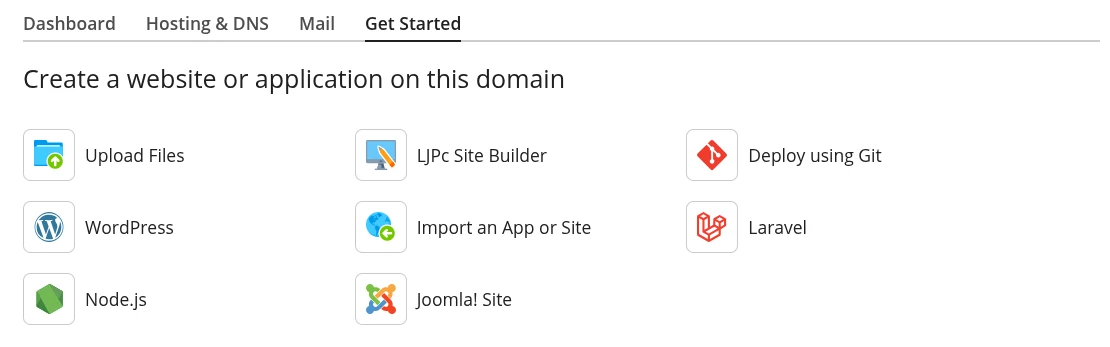
| Node.js | Runs a Node.js app, such as an Express server or an API | Your domain card, Get Started tab: Node.js |
| Laravel Toolkit | Installs, deploys and manages a Laravel application: Artisan, .env and maintenance mode | Left menu: Laravel (or Get Started tab: Laravel) |
The tools you see depend on your hosting plan and the server your site runs on. Most plans include all four. If one is missing, create a support ticket and we will look into it with you.
Deploy your website from GitHub, GitLab or Bitbucket
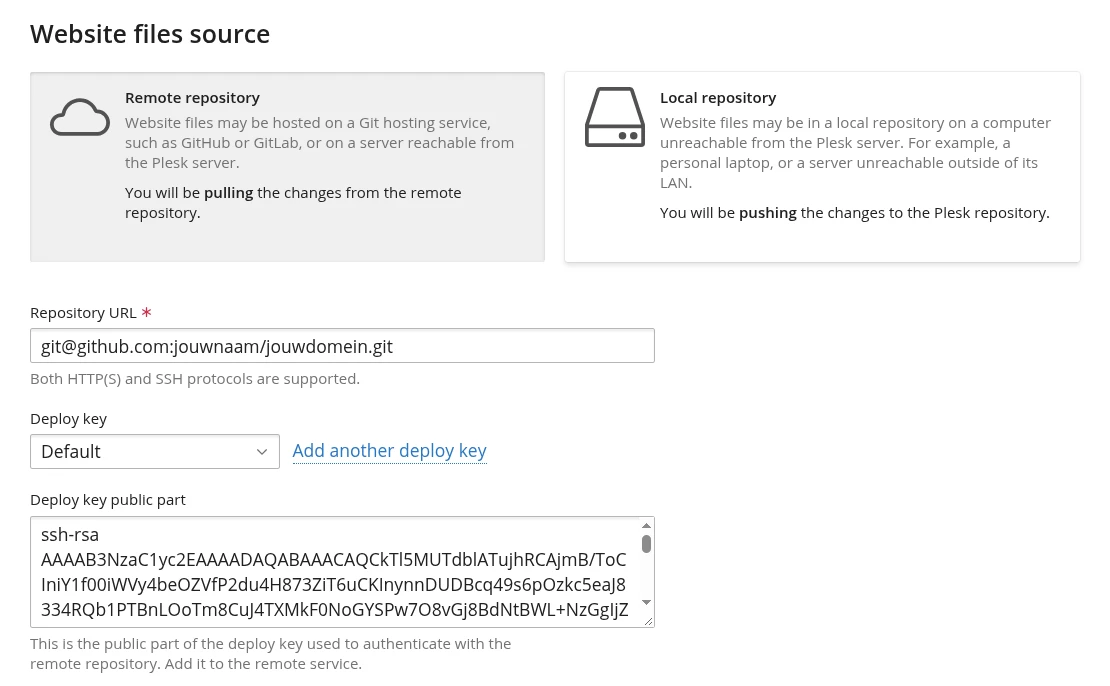
With the Git integration, Plesk pulls your code from your repository and puts the files in your website folder. You decide whether that happens automatically on every push or only when you click a button. For a private repository, Plesk gives you an SSH key that you add to the repository as a deploy key.
Step 1: connect your repository
- In Plesk, go to Websites & Domains and click Git under Dev Tools on your domain card.
- Click Add Repository. The Create repository panel opens with Remote repository already selected.
- Enter your repository address in Repository URL. Use the SSH format, for example
git@github.com:yourname/yourdomain.git. Plesk then shows the Deploy key public part field with a key that starts withssh-rsa. - Copy that key and add it to your repository, see step 2. Do this before you continue: Plesk pulls the code as soon as it creates the repository.
- Under Deployment settings, choose a Deployment mode: Automatic (on every new commit), Manual (only when you click Deploy now) or Disabled (store the repository only). Deployment directory is set to
/httpdocs, your website folder. - Click Create. Plesk adds a card for your repository. If no branch is selected under Repository branch yet, choose the branch you want to go live, such as
main.
Step 2: add the deploy key to GitHub, GitLab or Bitbucket
| Service | Where |
|---|---|
| GitHub | Your repository, Settings > Deploy keys > Add deploy key. Give it a title, paste it into Key and leave Allow write access unchecked. |
| GitLab | Your project, Settings > Repository > Deploy keys. |
| Bitbucket | Your repository, Repository settings > Access keys. |
A deploy key is read-only. Plesk uses it to fetch your code and cannot change anything in your repository.
Step 3: deploy automatically on every push
A webhook lets GitHub, GitLab or Bitbucket tell Plesk that new code is waiting.
- In Plesk, click the gear icon (Repository settings) on your repository card and copy the Webhook URL.
- In GitHub, go to Settings > Webhooks > Add webhook, paste the URL into Payload URL, keep the default push event and click Add webhook. GitLab and Bitbucket also list Webhooks in the repository settings.
- Push a small change and check Latest commits in Plesk to see your new commit.
Without a webhook, click Pull now on your repository card to fetch new commits. In Manual mode, you then publish them with Deploy now.
Run commands after each deployment
Enable post deployment actions lets you run commands after every deployment, one per line. They run in a restricted environment inside your hosting account with a limited set of programs, and that set differs per server. For PHP and npm packages, use the PHP Composer, Node.js and Laravel Toolkit buttons described below. If your front end needs a build step, build it on your own computer or in GitHub Actions and let Plesk deploy the ready-made files from a separate branch.
Install PHP packages with Composer
PHP Composer installs the packages listed in your project's composer.json.
- Upload your project, for example with Git or FTP.
- Click PHP Composer under Dev Tools on your domain card, then click Scan. Plesk searches your whole hosting account for
composer.json. - Click Install next to your project to install the packages as locked in
composer.lock, or Update to update them to the newest versionscomposer.jsonallows.
Composer uses your site's PHP version. If your project needs a different version, change it first, see change the PHP version in Plesk.
Run a Node.js app in Plesk
You can run a Node.js app, such as an Express server, an API or a server-rendered Next.js or Nuxt site, on your domain. The web server starts your app and routes visitors to it.
- Upload your files with Git, FTP or the Plesk File Manager. Leave out the
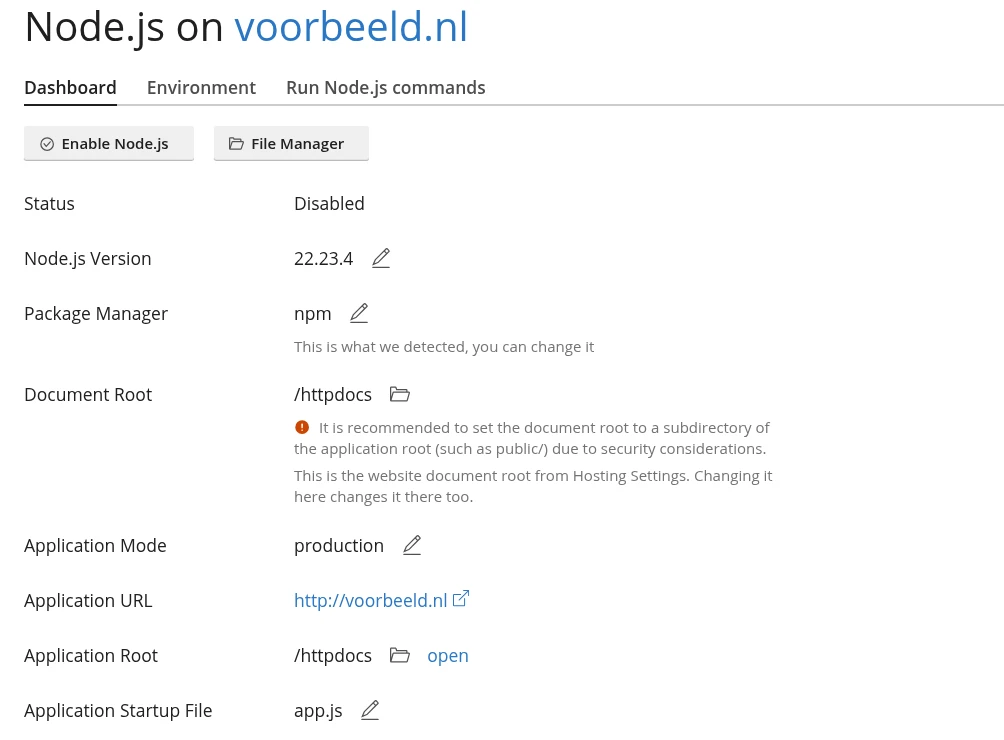
node_modulesfolder: Plesk installs it for you. - On your domain card, open the Get Started tab and click Node.js. The Node.js on yourdomain.com page opens.
- Check the settings on the Dashboard tab. Click the pencil or folder icon next to a value to change it:
- Node.js Version: the version your app needs. The versions on offer differ per server.
- Package Manager: npm, yarn or pnpm. Plesk picks the one it detects in your project.
- Application Root: the folder with your
package.json,/httpdocsby default. - Document Root: the folder with static files such as images and CSS. Plesk recommends a subfolder of the Application Root, such as
/httpdocs/public. This is the same setting as your website's document root. - Application Mode:
productionfor your live site ordevelopmentfor testing. Your app reads it asNODE_ENV. - Application Startup File: the file that starts your app,
app.jsby default.
- Click Enable Node.js.
- Click NPM install (or Yarn install or pnpm install) to install the packages from
package.json. If your app needs a build first, use Run script to run a script frompackage.json, such asbuild. - Click Restart App after every change to your code or settings.
Set your own variables on the Environment tab. Put sensitive values such as passwords and API keys under Secrets: Plesk stores them encrypted and never shows them again. On the Run Node.js commands tab you run npm, yarn or pnpm commands in your app folder, no SSH needed.
App not starting? Check the Logs of your domain, see view error logs in Plesk. Disable Node.js stops the app and keeps your files and settings.
Host Laravel with Laravel Toolkit
Laravel Toolkit sets up a Laravel application on your site and gives you buttons for what you would otherwise do on the command line.
- In Plesk, click Laravel in the left menu, then Install Application. Select your domain under Choose domain.
- Choose Install from remote repository if your code is on GitHub, GitLab or Bitbucket, or Install Skeleton for a new, empty Laravel app. For a private repository, add the SSH public key shown as a deploy key, as described for Git above.
- Is your app already on the server? Set your domain's document root to the app's
publicfolder first, for example/httpdocs/public, with theartisanfile in the folder above it. Then click Scan in Laravel Toolkit.
Your app card then gives you, among other things:
- the Artisan, Composer and Node.js tabs, where you run commands such as
migrateorrun buildwithout SSH; - Environment variables (.env): edit your
.envfile with the Edit button; - Maintenance mode: visitors see a temporary page while you work; switch it off when you are done;
- the Deployment tab: on each update, Laravel Toolkit puts your site in maintenance mode, pulls the new code, installs the Composer and npm packages and takes the site out of maintenance mode. Start it with the Deploy button, or automatically on every push by adding your app's Webhook URL to GitHub, GitLab or Bitbucket.
Run the Laravel scheduler
Your own deployment script, the Scheduled Tasks switch and the Queue in Laravel Toolkit only work when SSH access is enabled for your site. Without SSH, run the Laravel scheduler with a scheduled task in Plesk:
- On your domain card, click Scheduled Tasks under Dev Tools, then Add Task.
- Choose Run a PHP script, enter the path to
artisanin Script path, for examplehttpdocs/artisan, and enterschedule:runin with arguments. - Select your site's PHP version in Use PHP version, set Run to Cron style with
* * * * *(every minute) and click OK.
Read more about scheduled tasks in set up cron jobs in Plesk. Using a queue? Have the scheduler start queue:work --stop-when-empty every minute, with withoutOverlapping() so only one worker runs at a time. If you need SSH access, see SSH access to your hosting.
What works without SSH?
| What you want to do | Without SSH |
|---|---|
| Deploy from GitHub, GitLab or Bitbucket, automatically with a webhook | Yes, with the Git integration |
composer install or composer update | Yes, with PHP Composer or Laravel Toolkit |
Start a Node.js app, run npm install and package.json scripts | Yes, with Node.js |
Artisan commands, editing .env, maintenance mode | Yes, with Laravel Toolkit |
| The Laravel scheduler and a queue | Yes, with a scheduled task (see above) |
| The deployment script, Scheduled Tasks and Queue in Laravel Toolkit | No, these need SSH access |
| Typing your own commands on the server | No, this needs SSH access |
At LJPc hosting, SSH access works with a fixed IP address and an SSH key. Read how to request it in SSH access to your hosting.
What LJPc hosting takes care of
Git, PHP Composer, Node.js and Laravel Toolkit are ready on all our Plesk servers, with several Node.js versions to choose from on every server. Open Plesk from the customer portal and start right away. We back up your website and databases every night. If a deployment goes wrong, we can restore an earlier night's version on request. See hosting backups and restores for how that works.
Troubleshooting
| What you see | What to do |
|---|---|
| Plesk cannot pull your repository | Check that the address uses the SSH format and that the Plesk deploy key is added to your repository. Then click Pull now. |
| A push does not reach your site | Click the gear icon on your repository card and check that Deployment mode is Automatic and that the Webhook URL matches the one in GitHub, GitLab or Bitbucket. In GitHub, Recent Deliveries on the webhook shows whether the call arrived. |
| The commit is in Plesk, but the change is not on your site | Check that the right branch is selected under Repository branch and, with the gear icon, which folder Plesk deploys to (Deployment directory). |
| Your Node.js app shows an error page | Check the startup file name and the Node.js version, click Restart App and read the message in Logs. |
composer install fails on the PHP version | Switch your site to the PHP version your project requires, see change the PHP version in Plesk. |
| Git, Node.js or Laravel is missing in Plesk | Create a support ticket and we will look into it with you. |
Frequently asked questions
Do I need SSH for Git, Node.js or Laravel in Plesk?
For most tasks, no. Deploying from GitHub, GitLab or Bitbucket, composer install, npm install, Artisan commands and editing your .env file all work in Plesk in your browser. Only the custom deployment script, the Scheduled Tasks switch and the queue in Laravel Toolkit need SSH access. At LJPc hosting, SSH access works with a fixed IP address and an SSH key.
Can I deploy from a private GitHub repository?
Yes. Enter your repository address in Plesk in SSH format, for example git@github.com:yourname/yourdomain.git. Plesk then shows a deploy key. Add it in GitHub under Settings > Deploy keys without write access, then create the repository in Plesk.
How do I make my site update automatically after a git push?
Set Deployment mode to Automatic and copy the Webhook URL from your repository settings in Plesk (the gear icon). Paste it in GitHub under Settings > Webhooks > Add webhook. On every push, Plesk pulls the new code and publishes the files.
Which Node.js versions can I use?
That depends on the server: every Plesk server has several versions. In Plesk, open Node.js and click the version next to Node.js Version to see them. If the version you need is not listed, create a support ticket.
How do I run the Laravel scheduler without SSH?
In Plesk, add a Scheduled Task of the type Run a PHP script with the path httpdocs/artisan (or wherever your artisan file is) and the argument schedule:run. Set it to Cron style with * * * * * so the scheduler runs every minute.
Why can't I find Node.js or Laravel in Plesk?
Node.js and Laravel are on the Get Started tab of your domain, and Laravel is also in the left menu. If they are not there, they are not enabled for your plan or server. Create a support ticket and we will look into it with you.