How to share passwords and transfer codes securely with a one-time link
Published on November 11, 2026 7 min read
Share a password or EPP code with a one-time link that disappears after one view, or skip sharing altogether in the LJPc customer portal.

The safest way to share a password or a domain transfer code is a one-time link, for example through ots.ljpc.nl. Your browser encrypts the secret before it is sent, the recipient can open the link once, and after that the secret is gone. Often you can do even better: in the customer portal you enter a transfer code or the passwords for an email migration yourself, and a colleague or web developer gets their own login.
Below you'll find why a password doesn't belong in the body of an email, when you don't need to share anything at all, how to create a one-time link and what to do with a link you receive from us.
Why shouldn't you email a password?
An email doesn't disappear once it has been read. A password in the message stays readable in many places:
- In several mailboxes. Your Sent folder, the recipient's inbox and every phone and computer that syncs those mailboxes, and often in backups too.
- For years. Anyone who ever gets into one of those mailboxes can search for words like password, login or transfer code.
- With more people than you intended. Emails get forwarded, someone is in cc, or the text ends up in a ticket.
The same goes for a domain transfer code (also called an auth code or EPP code): with it, someone can move your domain to another provider. Chat messages, WhatsApp and tickets keep their history as well, so put the link to your secret there, not the secret itself.
Can you do it without sharing anything?
For many jobs at LJPc, no password or code needs to change hands. Check whether your situation is in this table first:
| What you want to do | How to do it without sharing |
|---|---|
| Transfer your domain to LJPc | You enter the transfer code yourself when you start the transfer in the customer portal; the portal checks it right away. See transfer your domain to LJPc. |
| Transfer your domain away from us | Copy the code in the portal and enter it yourself at your new provider. See get your EPP code and transfer your domain. |
| Move your email to LJPc | With the Migrate email button you enter the passwords of your old mailboxes yourself. We store them encrypted and wipe them when the migration is done. See migrate email to a new server. |
| A colleague, accountant or IT partner in the customer portal | Create a sub-account with its own login and only the permissions they need. See sub-accounts in the customer portal. |
| A web developer in Plesk | A sub-account with the View domains permission opens Plesk in one click, or you create a separate Plesk user for that person. Both are covered in the same sub-accounts article. Every type of developer access, including FTP and SSH, is covered in how to give a developer access. |
| A developer who needs SSH | SSH uses a key pair. Only the public key comes to us, and it is fine for that to be readable in a ticket; the private key stays on the developer's own computer. See SSH access to your hosting. |
A login per person has one more advantage: when the work is done, you remove that one login and nobody else needs a new password.
Need to send it anyway? Create a one-time link
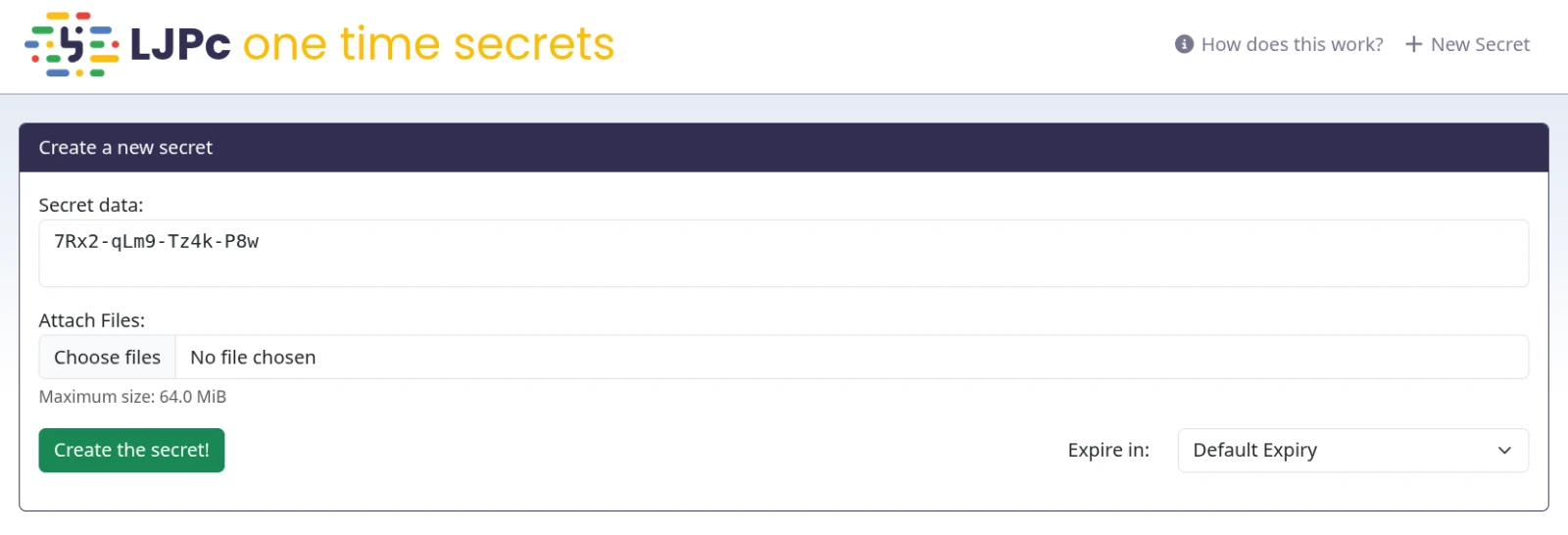
Sometimes you do have to pass something on. For example the login details of your old hosting when we migrate your website for you, the password of a mailbox at another provider or an API key for an external service. Use ots.ljpc.nl for this, our own page for one-time links. You don't need an account, and the page follows the language of your browser.
- Go to ots.ljpc.nl.
- Enter the password or code in the Secret data field. Need to include a file? Add it under Attach Files (up to 64 MiB in total).
- Under Expire in, choose how long the link stays available if nobody opens it. The default is 7 days; you can go as short as 5 minutes.
- Click Create the secret!. You get a link that starts with https://ots.ljpc.nl/#.
- Copy the link and don't open it yourself, or it will be used up.
- Paste the link into your email or ticket and say what it is for, for example: the password for info@yourdomain.com at your old provider. The email address or username can be in your message; only the password sits behind the link.
Sending several passwords at once? Put them together in one link, each on its own line with a note on what it is for. That way the recipient only has to open one link.
How does a one-time link work?
- Encrypted in your own browser. Before your secret goes to the server, your browser encrypts it with AES-256. The key is part of the link, after the # sign. Browsers never send that part of a link to the server, so the server only stores data it cannot read itself.
- Opens once. Whoever opens the link first sees a Show me the secret! button. Only after that click does the browser fetch the secret and decrypt it, and the server deletes it. If a virus scanner or a link preview only loads the page, the secret stays available for the real recipient.
- Gone by itself. If nobody opens the link, the server deletes the secret after the time you chose, 7 days by default.
Anyone who has the link can open it, so send it only to the person who needs the secret. If someone in cc opens the link first, the intended recipient sees nothing.
Received a one-time link from us?
When we send you a new password or a transfer code, you get a link to ots.ljpc.nl. That way the secret doesn't stay readable in your inbox.
- Open the link and click Show me the secret!.
- Copy the password or code straight to where you need it, or into your password manager. Once you leave the page, the secret is gone.
- Where possible, set your own new password after you first sign in. For the customer portal you do that under My account, on the Security tab; see signing in to the customer portal.
Do you see the message This is not the secret you are looking for? Then the link has already been opened or has expired. If you haven't opened it yourself, someone else may have seen the secret. Contact us and we'll sort out a new password or a new link with you.
Got an unexpected link to ots.ljpc.nl? Check who sent it, because anyone can create a link there. A one-time link only shows you something; it never asks for your own password.
Already sent a password or transfer code by email?
A few steps make it safe again:
- Change the password as soon as the work is done. You change a mailbox password in the portal, see create an email address in the customer portal. Then update it on all your devices.
- Turn the transfer lock back on if you are not transferring an international domain such as a .com after all. The EPP code article explains how.
- Delete the email from your Sent folder and ask the recipient to do the same. Changing the password is still the step that really counts, because copies can live on in other devices or backups.
- Check your email address for known data breaches with Have I Been Pwned and turn on two-factor authentication wherever you can. Then a leaked password alone won't get anyone in.
What LJPc hosting takes care of
- ots.ljpc.nl gives you your own page for one-time links, with no account and at no cost.
- New passwords and transfer codes we prepare for you reach you as a one-time link.
- In the customer portal you enter transfer codes and the passwords for an email migration yourself, and you give colleagues and web developers their own login with their own second sign-in step.
Not sure how to pass something on safely? Create a support ticket and describe what you want to share, without the secret itself. We'll agree on the safest route together.
Frequently asked questions
Is ots.ljpc.nl safe, and can LJPc read my secret?
Your browser encrypts the secret with AES-256 before it goes to the server. The key is only in the link, after the # sign, and browsers never send that part to the server. The server therefore only stores encrypted data and deletes it as soon as the link is opened, or when it expires. Only someone with the link can read the secret.
How long does a one-time link work?
Until it has been opened once, and at most as long as you choose under Expire in: 7 days by default, or as short as 5 minutes. After that the secret is deleted from the server.
I opened a link and it says the secret is not there. What now?
The link has already been opened or has expired. If you did not open it before, someone else may have seen the secret, for example a colleague in cc. Ask the sender for a new link, and have the password changed if it was a password.
Can I put an EPP code in a regular email?
Better not: with the code, someone can move your domain to another provider. Transferring to LJPc? Enter the code yourself in the customer portal. Transferring away? Enter it yourself at your new provider. If it has to go to someone, use a one-time link.
Can I send a file securely too?
Yes. On ots.ljpc.nl you add one or more files under Attach Files, up to 64 MiB in total. They are encrypted in your browser together with the text and can also be opened only once.
Why does LJPc send me a link instead of the password itself?
That way the password doesn't stay readable in your inbox, or in our sent mail. Once you open it, you copy it to where you need it, and after that it is no longer sitting in any email.