How to change the document root of your website in Plesk
Published on November 11, 2026 6 min read
Point your site to another folder, such as httpdocs/public for Laravel or Symfony. Change the document root in Plesk step by step.

The document root is the folder your website is served from. In Plesk it is httpdocs by default. To change it, open the Hosting & DNS tab of your domain, click Hosting, enter the new folder in the Document root field, for example httpdocs/public, and click Save. Plesk does not move your files, so put them in the new folder first.
This guide explains when to change the document root, how to do it step by step and what to check if your site does not load afterwards. Plesk is in English, so the names of buttons and fields match what you see on screen. New to Plesk? Start with the Plesk control panel guide.
What is the document root?
The document root, also called the web root, is the folder the web server looks in when someone opens your domain. A file in that folder opens at https://yourdomain.com/filename, and a file in a subfolder at https://yourdomain.com/subfolder/filename. Files outside the document root, such as those in your home directory above it, cannot be opened through your website.
To see the current document root, look at the bottom of your domain's card in Websites & Domains: the folder is shown after Website at. Click it to open File Manager in that folder. How the folders in your hosting space are organised is explained in Plesk File Manager.
When should you change it?
For a regular website or a WordPress site, keep the document root at httpdocs. A different folder makes sense in these cases:
| Situation | Example document root |
|---|---|
| A Laravel or Symfony application in httpdocs | httpdocs/public |
| A Drupal site installed with Composer, or Craft CMS | httpdocs/web |
| You prepared a new version of your site in its own folder and want to switch over in one go | httpdocs/new |
For a framework, a separate document root keeps your configuration private. Your project folder holds files such as .env with your database password and API keys. When the web server only serves the public or web folder, visitors cannot reach those files. Laravel warns about this in its deployment documentation. To deploy a Laravel app with Git, Composer and Laravel Toolkit, see Git, Node.js and Laravel in Plesk.
How to change the document root in Plesk
- Put your files in the new folder first. Plesk does not move anything: after the change, your website shows exactly what is in the new folder. Upload files with File Manager, FTP or SFTP, or Git.
- Open Plesk from the customer portal: go to Services > Sites, open your site and click Log in to Plesk. See open Plesk from the customer portal for details.
- Go to Websites & Domains and click the Hosting & DNS tab in your domain's card.
- Click Hosting. The Hosting Settings panel opens.
- Under Hosting type you find the Document root field. The house icon with the slash in front of it stands for your home directory. Enter the path from there, without a leading slash, for example
httpdocs/public. - Click Save at the bottom. Plesk updates the web server straight away.
- Open your website in a private browser window and check that everything loads.
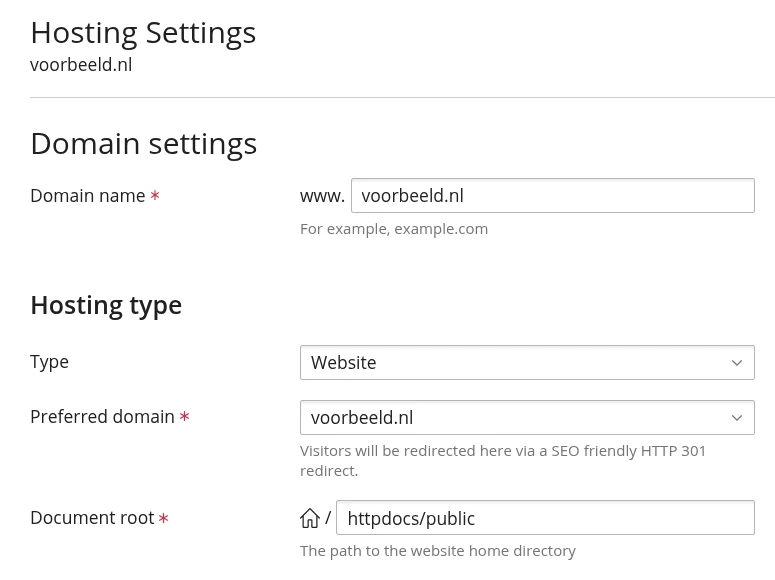
Preferably choose a folder inside httpdocs, such as httpdocs/public. That is also where File Manager uploads and Git deployments go by default, so everything stays together. Only looking? Click Cancel at the bottom and nothing changes.
Can't see the Document root field, or can't edit it? Then changing hosting settings is not enabled for your plan. Create a support ticket with the folder you want to use and we will help you out.
What happens to your existing files?
They stay where they are. Plesk only changes which folder the web server serves. If the new folder does not exist yet, Plesk creates it, and the previous folder is kept as it is, according to the Plesk documentation.
To undo the change, set Document root back to httpdocs and click Save. Your website is then served from the old folder again, with the files that are still in it.
Changing the document root of a subdomain
A subdomain has its own document root, usually a folder named after the subdomain next to httpdocs, such as blog.yourdomain.com. You change it the same way: in the subdomain's card, click Hosting & DNS and then Hosting. For a Laravel app on the subdomain the document root becomes, for example, blog.yourdomain.com/public. Setting up a subdomain is covered in create a subdomain.
Need a different home page instead?
If your site should open with a different file from the same folder, change the index file instead of the document root. The web server looks for an index file in this order: index.html, index.cgi, index.pl, index.php, index.xhtml, index.htm and index.shtml. So an index.html wins over an index.php.
- Remove or rename an old index.html when index.php should be your home page.
- Or pick the home page yourself: on the Hosting & DNS tab, click Apache & nginx, select Enter custom value under Index files, enter the file name, such as
start.html, and click OK.
The line DirectoryIndex start.html in your .htaccess file does the same, see set up .htaccess.
Site not working after the change?
| What you see | What to do |
|---|---|
| 403 Forbidden | The new folder has no index file, or the path points to a different folder than you meant. Check the Document root path and see fix a 403 Forbidden error. |
| A default placeholder page instead of your site | The new folder contains an index.html, which wins over your index.php. Remove or rename it. |
| Your site loads without styling or images, or links contain /public | The site address in your CMS or .env file still points to the old folder. Set it to https://yourdomain.com. |
| A 500 error or a blank page | Find the cause in the logs, see view error logs in Plesk. |
| You still see the old site | Your browser shows a cached copy. Open your site in a private window. |
What LJPc takes care of
Your website runs on a server managed by LJPc, with Plesk as the control panel. Git, PHP Composer and Laravel Toolkit are ready to use, so you can deploy a framework app and choose its document root yourself. We back up your website every night, see backups at LJPc hosting. Not sure which folder to pick, or does your site not load after a change? Call us on +31 85 130 6429, email support@ljpc.nl or create a support ticket in the customer portal. We are happy to help.
Frequently asked questions
What is the document root of my website?
The document root, or web root, is the folder your website is served from. On LJPc hosting it is the httpdocs folder by default. In Plesk you see it at the bottom of your domain's card, after Website at.
Does Plesk move my files when I change the document root?
No. Plesk only changes which folder the web server serves; your files stay where they are. Put your files in the new folder first, then change the Document root.
What document root should I use for Laravel?
The public folder of your app, for example httpdocs/public when your app is in httpdocs. Your .env file and the rest of your project then sit outside the document root, so visitors cannot open them.
Can I change the document root of a subdomain?
Yes. A subdomain has its own document root. In the subdomain's card, click Hosting & DNS and then Hosting, and change the Document root there.
How do I change the document root back?
Set Document root in Hosting Settings back to httpdocs and click Save. Your website is then served from the old folder again, with the files that are still in it.
Why can't I edit the Document root field?
Changing hosting settings is not enabled for your plan. Create a support ticket with the folder you want to use and we will help you out.