How to view website statistics in Plesk
Published on November 9, 2026 7 min read
See how many visitors your website gets without Google Analytics. Open your web statistics in Plesk and read Webalizer, AWStats and GoAccess reports.

Want to know how many people visit your website without Google Analytics or any other tracking code? Plesk builds a visitor report every day from your web server's log files. You open it from your domain via More statistics > Web Statistics SSL/TLS and log in with the username and password of your website's system user.
You open Plesk with one click from the customer portal. Plesk is in English, so this guide uses the same button and menu names you see on screen.
Where do the numbers come from?
Every time someone requests a page, image or other file from your website, the web server writes a line to its access log: when, which address, from which IP address, with which browser and from which referring site. Once a day a statistics program turns those lines into a report per month, per day and per hour. You do not need to add anything to your website: no script and no cookie. The statistics are created and stored on your website's own server.
Which program builds your report depends on the server your website runs on: Webalizer, AWStats or GoAccess. Further down you can see how to check which one your website uses and what the numbers mean.
How to open your website statistics in Plesk
- Open Plesk from the customer portal: go to Services > Sites, open your site and click Log in to Plesk. See open Plesk from the customer portal for details.
- You land on Websites & Domains. Expand your domain. On the left of the card you see the Statistics block with this month's disk space and traffic.
- Click More statistics and choose Web Statistics SSL/TLS.
- A new window opens and your browser asks for a username and password. Enter the credentials of your website's system user (see below) and your report appears.
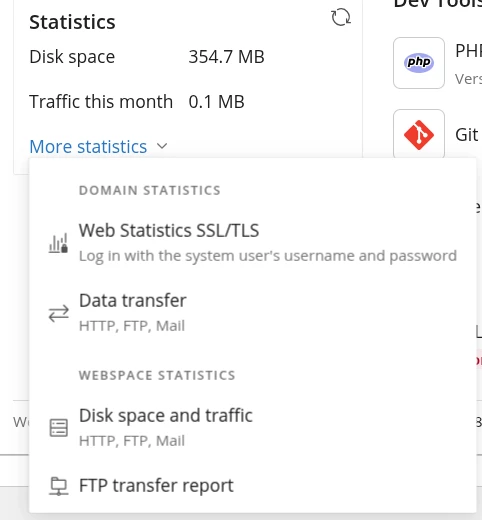
The same menu also has Data transfer, which shows the monthly traffic of your website, FTP and mail. Disk space and traffic is about your storage; see check your storage usage for how to keep track of it.
Once you have opened the report, bookmark it. The address is https://yourdomain.com/plesk-stat/webstat-ssl/. It covers visits over https, which is nearly all of your traffic. /plesk-stat/webstat/ only covers visits over plain http, which your website usually redirects to https straight away.
Which username and password do you use?
- Username: your website's system user. You find it at the bottom of your domain card next to System user, and under Connection Info. It is the same user as your main FTP account.
- Password: the password of that system user. Your customer portal or Plesk login does not work here.
- Forgot the password? On your domain card, click Password-Protected Directories under Security, then click /plesk-stat. Click the key icon next to the user and set a new password. From then on you use it to log in to your statistics.
Share your statistics with someone else
Want a colleague or your marketing agency to see the numbers? Give them their own login and keep your FTP password to yourself:
- Go to Password-Protected Directories and click /plesk-stat.
- Click Add User, enter a username and click Generate next to Password for a strong password.
- Click Create and send them the username, the password and the address of your statistics.
They can see your statistics, but this login gives them no FTP access to your website files. When the work is done, select the user and click Remove. For more on protected directories, see how to password protect a directory in Plesk.
What do the numbers mean?
Each program uses its own terms. The top of the report shows which program your website uses.
Webalizer
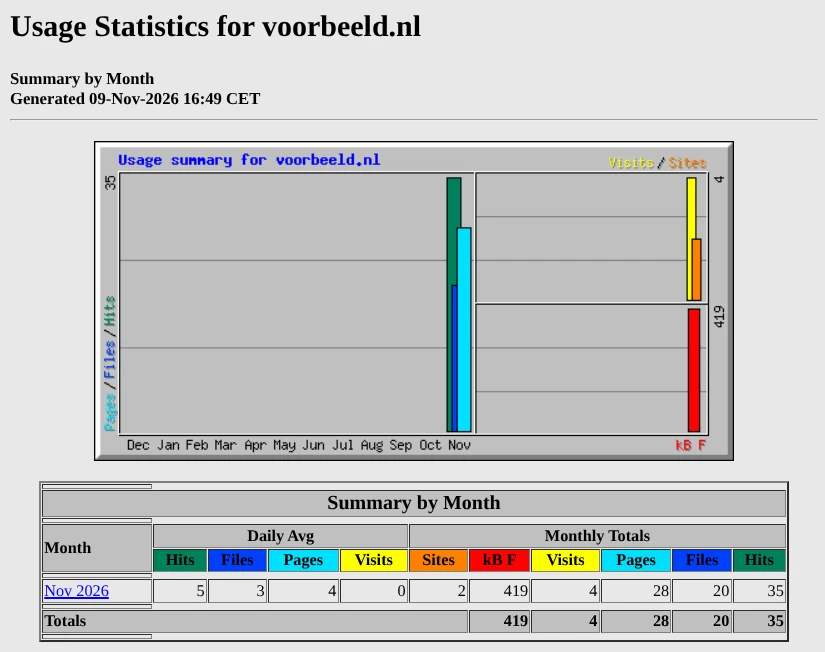
Webalizer starts with a chart of the last twelve months, followed by a table with the daily average (Daily Avg) and the total (Monthly Totals) per month. Click a month for daily and hourly figures, the most requested addresses (URLs), referring sites (Referrers), search terms (Search) and countries (Countries).
| Column | What it means |
|---|---|
| Hits | Every request to the server: each page, image, stylesheet and script counts. That is why this is always the highest number. |
| Files | Requests the server answered by sending back a file. |
| Pages | Requested pages, without the images and other parts inside them. This is the closest to page views. |
| Visits | A series of page requests from the same IP address. After 30 minutes without a request, the next page counts as a new visit. |
| Sites | The number of different IP addresses. This is the closest to the number of unique visitors. |
| kB F | The amount of data your website sent, in kilobytes. |
AWStats
AWStats reports Unique visitors, Number of visits, Pages, Hits and Bandwidth. It splits your traffic into Viewed traffic (what visitors saw in their browser) and Not viewed traffic: traffic from robots such as search engines, and replies with an error code. For your real visitors, look at Viewed traffic. Pages-URL lists your most viewed pages and Robots/Spiders visitors shows which robots came by.
Does Plesk show AWStats (Deprecated)? Its developer no longer maintains AWStats, so Plesk added that label. Your report keeps working.
GoAccess
GoAccess shows everything on one page in panels. Unique visitors counts each combination of IP address and browser once per day. You also see the most requested pages (Requested Files), addresses that do not exist (Not Found), operating systems, browsers, referring sites and the times visitors arrive.
Why are the numbers different from Google Analytics?
- Bots are counted. The web server sees every request, including search engines, monitoring services and other automated visitors. Webalizer includes them in its totals; AWStats lists them separately under Not viewed traffic.
- Visitors who block trackers are counted. Google Analytics only counts visitors whose browser runs its script. The log files see everyone who requests your website.
- Cached pages never reach the server. When a browser loads a page from its own cache, or a service such as Cloudflare delivers it, that request is not in your server's log.
- The numbers are one day behind, unless you refresh them yourself (see below).
The numbers in Plesk are therefore usually higher than in Google Analytics. Use them mainly to spot trends: more or fewer visitors than last month, which pages are popular and where your visitors come from.
How often are the statistics updated?
Plesk updates the statistics once a day. The top of the report shows when that last happened; in Webalizer it is the Generated line. To see today's numbers, click the circular arrows next to Statistics on your domain card (Refresh usage statistics). This can take a few minutes. Then reload the statistics window.
Turn statistics on or choose another program
- On your domain card, open the Hosting & DNS tab and click Hosting.
- Under Web statistics, Tool shows which program your website uses. If it says Disabled, Plesk does not build a report yet.
- Choose a program from the list and leave Protect access to your web statistics with your FTP username and password ticked.
- Click Save. Then click the circular arrows next to Statistics to build your first report.
Which programs appear in the list depends on the server. If you switch to another program while a report already exists, the old program's report disappears and the new program starts over. Only switch if you really want to use the other program.
Privacy: your statistics contain IP addresses
Every program also shows the IP addresses and hostnames your website was visited from: under Sites in Webalizer, in the hosts list in AWStats and under visitor hostnames and IPs in GoAccess. That is why Plesk protects the report with a password. Keep that protection in place: leave the box under Web statistics ticked and keep the /plesk-stat entry in Password-Protected Directories. Only give access to people who really need the numbers.
Looking for individual requests and error messages, for example during an outage? Those are in the log files; see view error logs in Plesk. For everything else on your domain, see the Plesk control panel guide. Need a hand? Create a support ticket in the customer portal and we will look into it with you.
Frequently asked questions
Why does my browser keep asking for a password when I open my web statistics?
Your statistics only open with the username and password of your website's system user, the same user as your main FTP account. Your customer portal or Plesk login does not work here. If you lost the password, go to Password-Protected Directories, click /plesk-stat and set a new password with the key icon next to the user.
Can I share my web statistics with my marketing agency?
Yes. In Plesk, go to Password-Protected Directories, click /plesk-stat and create a separate login with Add User. They can see your statistics, but this login gives them no FTP access to your files. Remove the user when the work is done.
Why can't I see today's visitors yet?
Plesk updates the statistics once a day. To see today's numbers, click the circular arrows next to Statistics on your domain card, wait a few minutes and reload your statistics window.
Why does Plesk show more visitors than Google Analytics?
The web statistics in Plesk come from the server's log files. They contain every request, including search engines, other bots and visitors who block trackers. Google Analytics only counts visitors whose browser runs its script. Use the Plesk numbers mainly to spot trends.
What does AWStats (Deprecated) mean in Plesk?
The developer of AWStats no longer maintains it, so Plesk adds the Deprecated label. Your report keeps working and is still updated every day.
Which pages of my website get the most views?
Your web statistics show this. In Webalizer, click a month and look at URLs; in AWStats, look at Pages-URL; in GoAccess, look at Requested Files.