How to put your website in maintenance mode in Plesk
Published on November 9, 2026 6 min read
Show visitors a proper maintenance page while you work. Use WP Toolkit maintenance mode for WordPress, or suspend any site in Plesk.

Need to take your website offline for a while and show visitors a proper maintenance page? Plesk gives you two ways to do it. For a WordPress site, turn on Maintenance mode in WP Toolkit and add your own message and an optional countdown. For any other site, set the website status to Suspended. Either way, visitors and search engines get a 503 status code (temporarily unavailable) and your email keeps working.
You open Plesk with one click from the customer portal.
Which option is right for your site?
| Maintenance mode in WP Toolkit | Suspended status in Plesk | |
|---|---|---|
| Works for | WordPress sites | Any site, with or without WordPress |
| Your own message | Page title, two text blocks, a countdown timer and social media links, set in a form | Your own HTML page in the error_docs folder |
| Keep working on the site | Log in to WordPress and carry on | Through Plesk: File Manager, databases and FTP. The WordPress dashboard shows the maintenance message too |
| Keeps working | Keeps working |
If your site runs on WordPress, go with WP Toolkit's maintenance mode. It is the quickest to set up and lets you keep working in WordPress.
How to turn on maintenance mode for a WordPress site
- Open Plesk from the customer portal: go to Services > Sites, open your site and click Log in to Plesk in the Site overview block. See how to open Plesk from the customer portal for details.
- You land on Websites & Domains. Expand your domain and open the WordPress tab. The Maintenance mode switch is under Tools. You get the same card through WordPress in the left-hand menu.
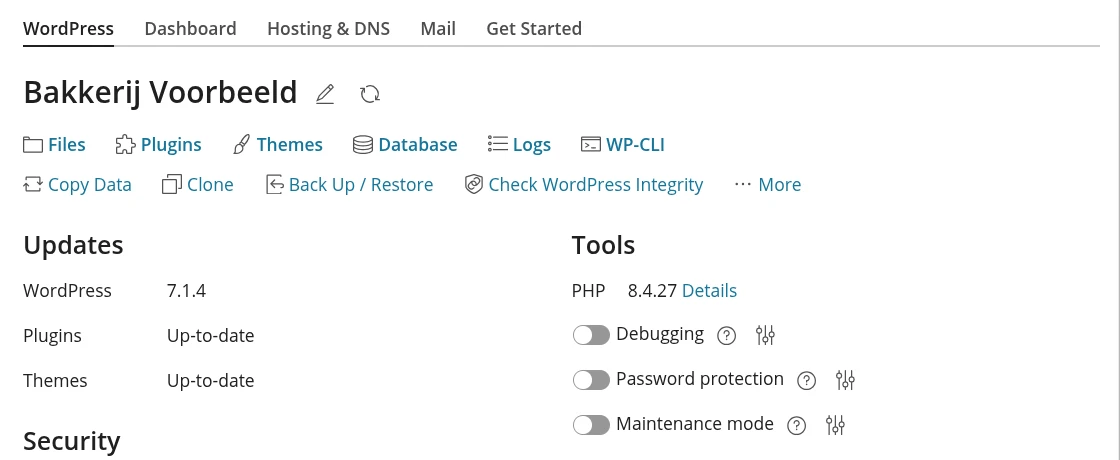
- Click the sliders icon to the right of Maintenance mode. A panel with the settings of your maintenance page slides open.
- Under Screen Text, write your message: Browser page title is the title in the browser tab, Text block 1 (bigger font) is the heading and Text block 2 (smaller font) the explanation. For example: "We are updating our website" and "We will be back on Monday at 9 am." You can use HTML, for instance to add a link to your email address.
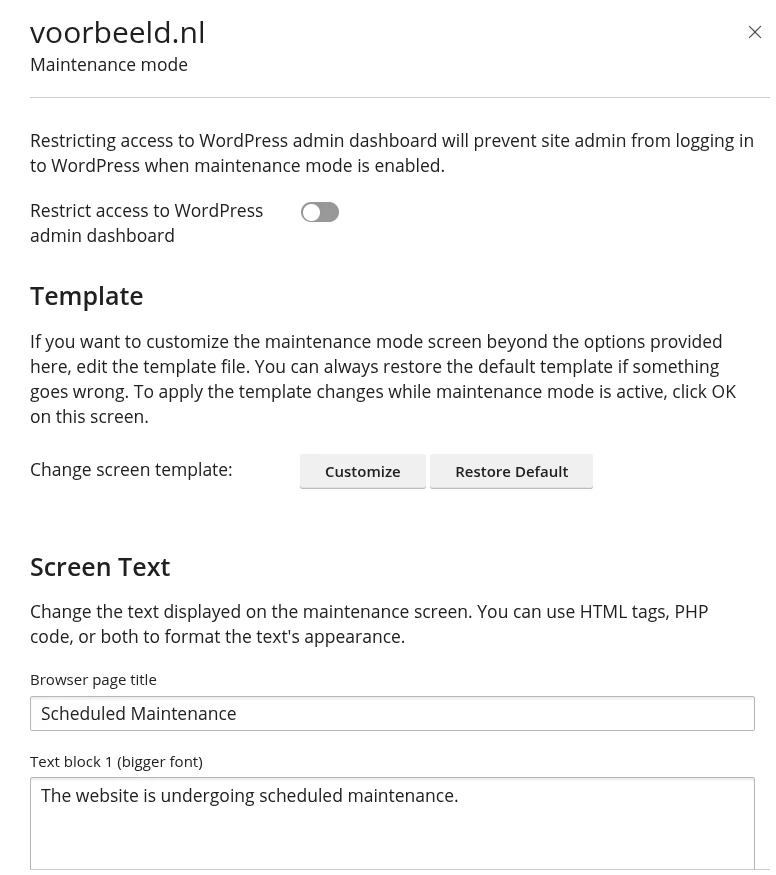
- To show when your site will be back, turn on Countdown timer and enter the number of days, hours and minutes. Visitors then see a clock counting down.
- Under Social Network Links, the defaults point to the Facebook and X pages of Plesk. Replace them with your own pages or click Remove. An empty field shows no link.
- Click Save.
- Turn on the Maintenance mode switch. From now on, visitors see your maintenance page.
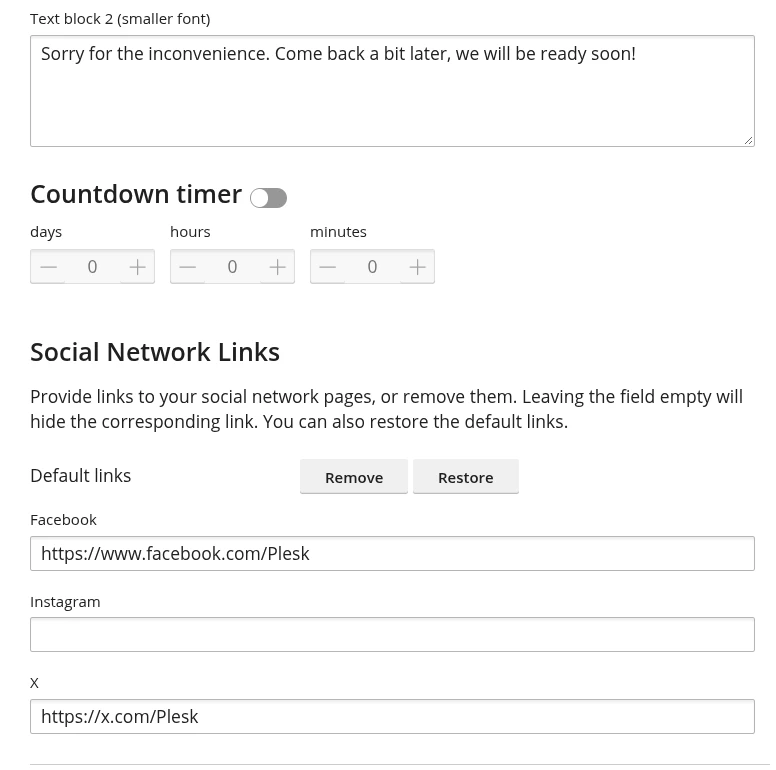
At the top of the panel you will find Restrict access to WordPress admin dashboard. Leave it off and you can still log in to WordPress and work on your site while visitors see the maintenance page. Turn it on and even the site administrator can no longer log in to WordPress.
Want to change more than the text, such as the background or your logo? Click Customize next to Change screen template. Plesk opens the template.phtml template from your site's wp-content/maintenance folder in the editor. Restore Default brings back the original template.
How to turn maintenance mode off
Done? Turn the Maintenance mode switch off and your website is visible again. The countdown timer is only a message for your visitors: maintenance mode stays on until you switch it off yourself.
Take any website offline with the Suspended status
If your site does not run on WordPress, or you also want to close the WordPress dashboard, set your website status to Suspended. Visitors get a page with a 503 status code, while your files, databases and email stay in place and keep working.
- Open Plesk from the customer portal and go to Websites & Domains.
- Click the Active status next to your domain name.
- Choose Suspended.
- Plesk asks you to confirm: visitors get an error page with a 503 code, the website stays on the server and your email remains available. Click Yes.
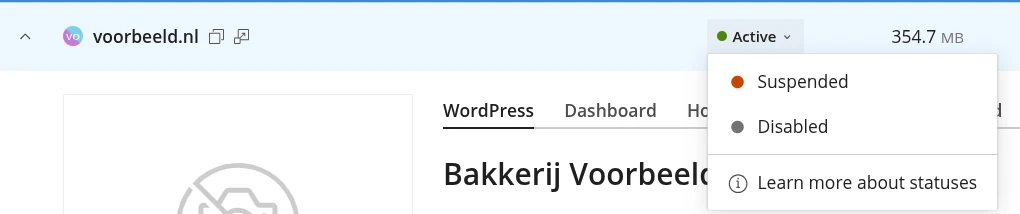
Pick Suspended, not Disabled. Suspended keeps your email running. Disabled stops your email as well and does not show visitors a maintenance message.
While the site is suspended, you work through Plesk: in File Manager, in your databases and over FTP. The WordPress login page and dashboard show the maintenance message too. When you are done, click the Suspended status and choose Active.
Show your own message on a suspended site
By default, visitors see a standard web server message: "Service Unavailable". To show your own page instead:
- In Websites & Domains, expand your domain, open the Hosting & DNS tab and click Hosting.
- Under Web scripting, tick Custom error documents and click Save. Plesk then creates an error_docs folder with ready-made error pages in your home folder, next to httpdocs.
- Open the error_docs folder through Files and edit maintenance.html. That is the page visitors see while your site is suspended. See the Plesk File Manager guide for how to edit a file.
- Then set your website status to Suspended as described above.
The same folder holds pages for other errors, such as not_found.html. You can edit those the same way.
What do visitors and search engines see?
With both options, visitors get the 503 Service Unavailable status code. It tells search engines your site is temporarily unavailable. WP Toolkit also tells them when to try again: after 10 minutes, or after the time on your countdown timer.
Google crawls your site less often during that time and keeps pages that are already in its search results for now. If your site keeps returning a 503 for a long time, those pages eventually drop out of the results (see Google's documentation). So keep maintenance as short as your work allows.
To see what your visitors see, open your site in a private browser window or on your phone. That way you check it without your own login.
Prefer to work on a copy instead?
If the work takes more than a few hours, or you are building a new design, a staging copy is often the better choice. You work on a copy of your WordPress site while visitors keep using the live site. See how to create a WordPress staging site. Before any big change, make a backup first: see how to back up your website.
Frequently asked questions
Can I keep working in WordPress while maintenance mode is on?
Yes. Leave Restrict access to WordPress admin dashboard turned off in the Maintenance mode settings. You can then log in to WordPress and keep working while visitors see your message. If you set the site to Suspended in Plesk instead, the WordPress dashboard shows the maintenance message too, so you work through Plesk, File Manager or FTP.
Does maintenance mode switch off when the countdown ends?
No. The countdown timer is a message for your visitors. Maintenance mode stays on until you turn the Maintenance mode switch in WP Toolkit off yourself.
Will my email keep working during maintenance?
Yes, with WP Toolkit maintenance mode and with the Suspended status. In the Plesk status menu, choose Suspended rather than Disabled, because Disabled stops your email as well.
Will maintenance mode hurt my Google rankings?
Short maintenance keeps your pages in the search results. The 503 status code tells Google your site is temporarily unavailable. If your site keeps returning a 503 for a long time, pages eventually drop out of the results. Keep maintenance short, or work on a staging copy of your site.
Why is my WordPress site suddenly in maintenance mode?
WP Toolkit puts a site in maintenance mode for a short while during an update through WP Toolkit and during Copy Data, and switches it off afterwards. If the message stays, turn off the Maintenance mode switch under Tools for your site in Plesk. If that does not work, create a support ticket in the customer portal.
I have several domain names on one website. Do visitors see my message on all of them?
With WP Toolkit maintenance mode, yes, because every domain name shows the same WordPress site. With the Suspended status, Plesk temporarily detaches the extra domain names (domain aliases) from your website, and visitors on those names get a certificate warning instead of your message. For a WordPress site with domain aliases, use WP Toolkit maintenance mode.