Apache and PHP handlers in Plesk: how to check which one your site uses
Published on November 11, 2026 7 min read
See which PHP handler your site uses in Plesk under run PHP as, what FPM and FastCGI mean, and where to find the Apache handlers setting.

To see which handler your website uses, open your domain in Plesk and, on the Dashboard tab under Dev Tools, click PHP. Next to the PHP version, run PHP as shows the PHP handler, for example FPM application served by Apache. The Apache handlers for other file types are on the Hosting & DNS tab under Apache & nginx, in the Handlers setting.
This article explains what a handler is, which handler fits your server and when you would change it. If you are new to the control panel, start with what is Plesk?
What is a handler?
A handler tells the web server what to do with a file when a visitor requests it. Most files, such as images, stylesheets and HTML pages, are sent to the browser as they are. A PHP file is executed first, and only the output goes to your visitor. The handler decides which component does that work.
Plesk uses the word in two places:
- The PHP handler, under run PHP as on the PHP Settings page: how the web server runs PHP, for example as an FPM or FastCGI application. This is the handler that plugins, error messages and setup guides usually ask about.
- Apache handlers, under Handlers on the Apache & nginx Settings page: which handler the web server uses for files with a given extension. These are the same mappings you create in an .htaccess file with AddHandler or SetHandler, as described in the Apache documentation on handlers.
The handler is not the same as the PHP version. The version is the PHP release itself, such as PHP 8.4; the handler decides how the web server runs that version. To pick a version, see change the PHP version in Plesk.
How to check which PHP handler your site uses
- Open Plesk from the customer portal: go to Services > Sites, open your site and click Log in to Plesk. See open Plesk from the customer portal for details.
- Go to Websites & Domains and click the Dashboard tab in your domain's card.
- Under Dev Tools, click PHP. This opens the PHP Settings page for your domain.
- Look at the PHP support line: PHP version shows the version and run PHP as shows the handler.
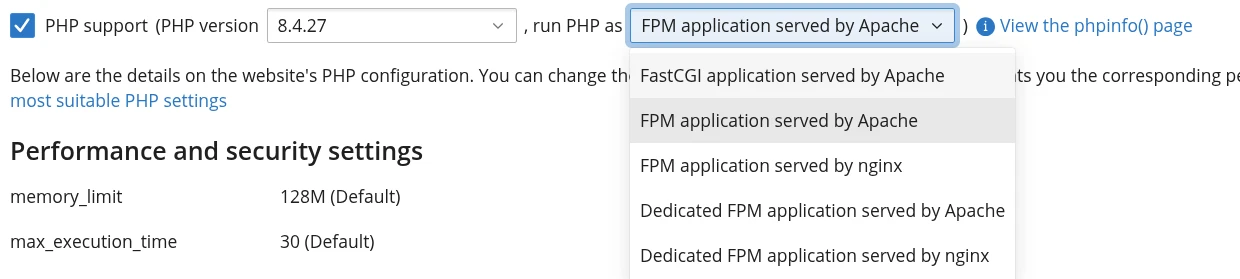
Open the run PHP as list to see which handlers are available on your server. The screenshot above was taken on a server running Apache. If you only want to look, leave the page without clicking OK. Every domain and subdomain has its own PHP settings, so check the one you are working on.
For the full picture, click View the phpinfo() page next to the setting. The Server API row shows how PHP runs, for example FPM/FastCGI. The page opens inside Plesk, so your server details are visible to you only.
Which handler fits your server?
Our hosting servers run either LiteSpeed or Apache. To find out which one serves your site, press F12 in your browser, open the Network tab, reload the page and click the first request. If the Response Headers show server: LiteSpeed, your site runs on LiteSpeed. If they show server: nginx, it runs on Apache with nginx in front.
| Your server | Handler under run PHP as | How PHP runs |
|---|---|---|
| LiteSpeed | FastCGI application served by Apache | LiteSpeed takes the place of Apache and runs PHP itself. With an FPM handler, every PHP file returns 403 Forbidden on these servers. |
| Apache with nginx in front | FPM application served by Apache (the default) | nginx sits in front and passes PHP requests to Apache, which hands them to PHP-FPM. Your .htaccess rules apply. |
Seeing served by Apache while your site runs on LiteSpeed is expected. LiteSpeed reads the same configuration as Apache, so Plesk keeps the Apache names. The error log is also called Apache error on LiteSpeed; see view error logs in Plesk.
The options on a server running Apache
| Option under run PHP as | What it means |
|---|---|
| FPM application served by Apache | The default on our Apache servers. PHP runs in PHP-FPM, Apache passes the PHP requests on and reads your .htaccess. |
| Dedicated FPM application served by Apache | Works the same way, with a separate set of PHP-FPM processes for your website. |
| FastCGI application served by Apache | Apache starts the PHP processes itself through FastCGI. |
| FPM application served by nginx and Dedicated FPM application served by nginx | nginx sends PHP requests straight to PHP-FPM, bypassing Apache. nginx does not read .htaccess files, so rules in them, such as redirects and access restrictions, stop working properly. |
Keep the handler as it is unless our support team advises otherwise. Plesk describes each handler in its documentation on choosing the PHP handler.
When should you change the handler?
Rarely. These are the situations where the handler matters:
- Every PHP file returns 403 Forbidden while images and HTML load fine. On a LiteSpeed server, run PHP as is then most likely set to an FPM option. See fix a 403 Forbidden error for how to spot and fix it.
- You want to change a PHP setting such as memory_limit or upload_max_filesize. Do that on the same PHP Settings page rather than with a php_value line in .htaccess: on our Apache servers such a line causes a 500 error, because PHP does not run as an Apache module there. See change PHP settings in Plesk.
- Your site shows an error after you changed the handler. Switch back to your previous choice, click OK and check the error log to see what went wrong.
Whether you can change the handler yourself depends on your hosting plan. If you cannot, contact our support team.
Where to find Apache handlers in Plesk
- In Websites & Domains, click the Hosting & DNS tab in your domain's card.
- Click Apache & nginx. This opens the Apache & nginx Settings page for your domain.
- Under Common Apache settings you find Handlers. With Default selected, your website uses the server's standard handlers.
With Enter custom value you add your own mappings in the form handler, space, extension. Plesk gives cgi-script .cgi as an example, for .cgi files that should run as CGI scripts. You rarely need this, because the handlers for common file types are already in place.
Below the field, Plesk also shows the example php-script .php. That is meant for servers where PHP runs as an Apache module. On our servers PHP runs as a separate application next to the web server, so you set PHP with run PHP as on the PHP Settings page, not in this field. Leave Handlers on Default unless you know exactly which handler you need. If you only want to look, click Cancel at the bottom.
AddHandler and SetHandler in .htaccess
In an .htaccess file, handlers appear as AddHandler, which maps a handler to an extension, and SetHandler, which gives every file in a directory, or every file matching a name, the same handler. If you are moving from a host that uses cPanel, your .htaccess often contains a block starting with # php -- BEGIN cPanel-generated handler, with a line such as AddHandler application/x-httpd-ea-php81 .php. That block selects the PHP version on your previous host's server.
With LJPc you choose the PHP version and handler in Plesk, so remove that block from your .htaccess and check that your website loads correctly. For safe .htaccess editing, see set up .htaccess: redirects, security and more. Moving your whole website? Also read migrate your website to LJPc.
What LJPc takes care of
Your website runs on a server managed by LJPc, with LiteSpeed or Apache as the web server and the PHP versions you see in Plesk. You choose the PHP version per domain and adjust your site's PHP settings. Unsure about a handler, or does your site show an error after a change? Call us on +31 85 130 6429, email support@ljpc.nl or open a support ticket in the customer portal. We are happy to help.
Frequently asked questions
Where can I see which handler my website uses?
In Plesk. On your domain's Dashboard tab, open PHP under Dev Tools: run PHP as shows the PHP handler, for example FPM application served by Apache. The Apache handlers for other file types are on the Hosting & DNS tab under Apache & nginx, in the Handlers setting.
What is the difference between the PHP version and the PHP handler?
The version is the PHP release itself, for example PHP 8.4. The handler, the run PHP as option in Plesk, decides how the web server runs that PHP. Both sit side by side on the PHP Settings page. Keep the handler as it is unless our support team advises otherwise.
Should I choose FPM or FastCGI?
That depends on your server. On our LiteSpeed servers the right choice is FastCGI application served by Apache; with an FPM option every PHP file returns 403 Forbidden there. On our Apache servers FPM application served by Apache is the default. Keep the handler as it is unless our support team advises otherwise.
Why does it say served by Apache when my site runs on LiteSpeed?
On our servers LiteSpeed takes the place of Apache and reads the same configuration, so Plesk keeps the Apache names, including for the error log. On a LiteSpeed server, FastCGI application served by Apache is the right choice.
Do my .htaccess rules work with every handler?
With an option named served by Apache they do, also on a LiteSpeed server. With an option named served by nginx, PHP requests bypass Apache and nginx does not read your .htaccess, so redirect and access rules stop working properly.
Should I keep the AddHandler line from my previous host?
No. A line such as AddHandler application/x-httpd-ea-php81 .php selects the PHP version on your previous host's server. With LJPc you choose the PHP version and handler in Plesk. Remove the line from your .htaccess and check that your website loads correctly.