Unexpected email from your WordPress site: password reset, technical issue or a hack?
Published on November 11, 2026 12 min read
Got a WordPress password reset email you didn't ask for? Nothing changes unless you click. What each site email means and how to reset in Plesk.

Did your WordPress site email you a password reset link you never asked for? Nothing changes unless you click the link: your password stays the same, and the link only went to your own inbox. Most of the time a bot is submitting the Lost your password? form on thousands of sites at once. You can safely ignore or delete the email.
Below you'll find what each email from your site means (password resets, technical issues, updates, new users and security plugins), when you should act, and how to change your WordPress password in Plesk when you can't log in.
Password reset email you didn't request: what happened?
Every WordPress login form has a Lost your password? link. Anyone who knows your username or email address can request a reset link there. WordPress always sends that link to the email address of the account, never to the person who asked for it. A typical reset email looks like this (made-up example):
Subject: [Your website] Password Reset
Someone has requested a password reset for the following account:
Site Name: Your website
Username: yournameIf this was a mistake, ignore this email and nothing will happen.
To reset your password, visit the following address:
https://yourdomain.com/wp-login.php?login=yourname&key=...&action=rpThis password reset request originated from the IP address 192.0.2.10.
What you need to know:
- No click, no change. Your current password keeps working, exactly as the email says.
- The link expires. By default a WordPress reset link expires after 24 hours. A new request replaces the previous link, and a link stops working once it has been used.
- The IP address at the bottom shows where the request came from. If you don't recognise it, for example because it's in another country, the request didn't come from you or your team. You still don't need to do anything.
- Your username isn't a secret. Bots often find it on your own site, for example through your author page. If these emails keep coming, use a strong, unique password and turn on two-factor authentication with a plugin.
Did you request the reset yourself? Click the link within 24 hours, choose a new password and click Save Password.
Real reset email or phishing? How to tell
Scammers also send emails that look like a reset email, hoping to steal your password. These signs help you spot a genuine email from your site:
| Genuine email from your WordPress site | Phishing |
|---|---|
| The subject starts with your site name in square brackets | A generic or threatening subject, such as "Your account will be closed" |
| The sender is wordpress@yourdomain.com by default, or the address set in your SMTP plugin | A sender on another domain |
| The link points to your own domain: yourdomain.com/wp-login.php | The link points to another domain |
| After clicking, WordPress only asks for a new password | You have to log in first or enter your current password |
| No deadline and no attachment | Urgency, an attachment or a payment request |
A real reset email never asks for your current password. When in doubt, don't click the link: go to yourdomain.com/wp-admin yourself and log in as usual. Read more about recognising phishing in email security against phishing, spam and abuse.
What does each WordPress email mean?
WordPress sends site notifications to the Administration Email Address (Settings > General in WordPress) and account notifications to the email address of that account. The subject always starts with your site name in square brackets. If your site runs in another language, the subjects are translated.
| Subject | What it means | What to do |
|---|---|---|
| [Your site] Password Reset | Someone requested a reset link for an account | Not you: nothing. You: click the link within 24 hours |
| [Your site] Password Changed, saying "This notice confirms that your password was changed" | The password of your account was changed | If you, a colleague or your web developer didn't do this, not even in Plesk, follow the steps under wasn't you? right away |
| [Your site] Password Changed, saying "Password changed for user: ..." | Another user of your site set a new password through a reset link. This email goes to the administration email address | If you know the user, such as a colleague or a customer of your online shop, all is well |
| [Your site] Email Changed | The email address of your account was changed | If you didn't do this, see wasn't you? |
| [Your site] New User Registration | A new account was created: someone registered, or an administrator added it | Check under Users who it is and which role the account has. An administrator you don't know: see wasn't you? |
| [Your site] Your Site is Experiencing a Technical Issue | A plugin or theme caused a fatal error | See the section below |
| [Your site] Your site has updated to WordPress ..., or Some plugins were automatically updated | An automatic update succeeded | Open your site and check that everything works |
| [Your site] Some plugins have failed to update, or URGENT: Your site may be down due to a failed update | An automatic update failed | Open your site and update the item manually, as described in how to update WordPress safely |
"Your Site is Experiencing a Technical Issue": what to do
WordPress watches for plugins and themes that cause a fatal error. When that happens, you get this email with the name of the plugin or theme, the page where the error occurred and a link to recovery mode. Visitors to that page may see "There has been a critical error on this website." It is an error on your site, not a sign of a hack.
- Open your site and the page mentioned in the email. If everything works, the error happened once, for example during an update. Check the error log in Plesk to see whether it comes back.
- If a page or your dashboard is broken, click the link in the email and log in. In recovery mode WordPress pauses the faulty plugin or theme for you only, so you can work in your dashboard.
- Go to Plugins (or Appearance > Themes) and update the item, or click Deactivate.
- Click Exit Recovery Mode at the top and open your site again.
By default the link in the email works for one day. If the error comes back after that, WordPress sends a new email, at most once a day. If the link doesn't get you into your dashboard either, disable the plugin in Plesk as described in view error logs in Plesk, or have a backup restored (see backups at LJPc hosting).
Emails from Wordfence and Limit Login Attempts Reloaded
Security plugins send their own emails. Most of them tell you the plugin stopped someone.
| Subject | What it means | What to do |
|---|---|---|
| [Wordfence Alert] yourdomain.com User locked out from signing in | Wordfence blocked an IP address from logging in and from the password reset form. The email states the reason, for example too many failed attempts | If you don't know the IP address, nothing. If it's you, see you can't log in |
| [Wordfence Alert] yourdomain.com Admin Login | Someone with administrator access signed in. The email shows the username and IP address | If it was you or a colleague, all is well. If not: wasn't you? |
| [Wordfence Alert] Problems found on yourdomain.com | The Wordfence scan found something, such as a file that doesn't belong, a plugin with a known vulnerability or a pending update | Review the list under Scan in Wordfence. For malicious files, see malware alert from LJPc |
| [Wordfence Alert] yourdomain.com Increased Attack Rate | The Wordfence firewall is blocking more attacks than usual | For your information. Keep WordPress and your plugins up to date |
| yourdomain.com - Login blocked from 192.0.2.10 (older versions: Failed login by IP ...) | Limit Login Attempts Reloaded blocked an IP address. The email shows the number of failed attempts and the username that was tried | Unknown IP address: nothing. If the username is a real account on your site, use a strong password and two-factor authentication |
By default Limit Login Attempts Reloaded blocks an IP address for 20 minutes after 4 failed attempts, and for 24 hours after 4 of those lockouts. Both plugins email the address in their own settings; in Wordfence that setting is called Where to email alerts.
On our servers fail2ban also watches the WordPress login. After a few failed attempts it blocks the IP address for every website on that server. Read how that works in what is fail2ban.
You suddenly can't log in to WordPress
| What you see | Likely cause | What to do |
|---|---|---|
| Your site doesn't load at all from your own network, but does over mobile data | Your IP address was blocked after failed login attempts | Have the block lifted, see IP address blocked |
| Error: Too many failed login attempts. | Limit Login Attempts Reloaded is blocking your IP address | Wait until the lockout ends (20 minutes by default), then try once |
| A Wordfence page saying you've been blocked | Wordfence is blocking your IP address | Enter the email address of your administrator account on that page, click Send Unlock Email and click the link in the email |
| Error: The password you entered for the username ... is incorrect. | The password is wrong, or someone changed it | Stop after one failed attempt. Click Lost your password? or change the password in Plesk (below) |
| Error: Unknown username. | The username doesn't exist, or no longer exists | Log in with your email address. If you're sure your account existed, see wasn't you? |
| The reset email never arrives | It's in your spam folder, or your site isn't sending email | Check your spam folder. If it isn't there, change the password in Plesk, then set up SMTP in WordPress |
| There's no Lost your password? link | A plugin or setting has turned off the reset form | Change the password in Plesk |
| There has been a critical error on this website. | A plugin or theme causes a fatal error | Use the link in the technical issue email |
How to change your WordPress password in Plesk
If you can't get into WordPress, or the reset email doesn't arrive, change the administrator password in Plesk with WP Toolkit. You don't need your old password or access to your mailbox.
- Open Plesk from the customer portal. See open Plesk from the customer portal.
- Go to Websites & Domains and open the WordPress tab in the card of your domain. If you don't see any WordPress details there, click WordPress in the left menu and then Scan, so WP Toolkit finds your site.
- On the left of the card, under Log in to WordPress, click Setup next to the Log in button.
- Choose the user under Administrator; if your site has one administrator, the name is already filled in. Enter a new password under New password, or click Generate and copy the password into your password manager with the button next to it. Leave the other fields as they are and click Change.
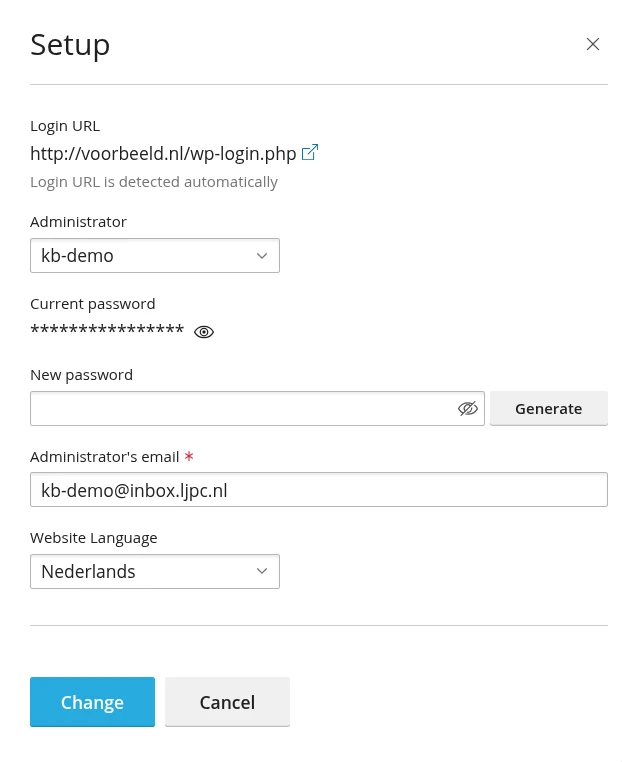
Then log in at yourdomain.com/wp-admin with the new password, or click Log in in the same card. WordPress emails the user that the password was changed. If you receive such an email without changing anything, first check whether a colleague or your web developer changed the password in Plesk.
A new password also signs out anyone who was still logged in with the old one. If you can still get into WordPress, change it there: go to Users > Profile, click Set New Password under Account Management, then Update Profile at the bottom.
Wasn't you? How to handle a possible break-in
A reset email on its own is not a break-in. Act right away if you see any of these:
- an email saying your password or email address was changed, when you and your colleagues didn't;
- an administrator login alert that wasn't you or a colleague;
- an administrator under Users you don't know;
- your password stops working although you're sure it was right.
- Change the password of your administrator account in Plesk, as described above. This works even if someone changed the email address of your account.
- In WordPress, go to Users > All Users. Delete accounts you don't recognise or give them a lower role, and check the email address of your own account.
- In your profile, revoke anything you don't recognise under Application Passwords. Those keep working after you change your normal password.
- Under Settings > General, check the Administration Email Address. Leave Anyone can register off unless visitors create their own accounts, and never set the New User Default Role to Administrator.
- Update WordPress, your plugins and your theme, and remove plugins you don't use. See how to update WordPress safely.
- Look for files on your site that don't belong, using the steps in malware alert from LJPc.
- Change other passwords that were the same, check Have I Been Pwned to see whether your email address appears in a data breach, and turn on two-factor authentication.
Want us to take a look, or restore a backup from before the break-in? Create a support ticket. Read which backups exist and how a restore works in backups at LJPc hosting.
What LJPc hosting takes care of
- On our servers fail2ban blocks IP addresses that try to guess WordPress passwords (see what is fail2ban).
- Plesk includes WP Toolkit, where you change passwords and update WordPress, plugins and themes.
- Our nightly malware scan emails you when it finds malicious files on your website (see malware alert from LJPc).
- Every night we back up your website, databases and email (see backups at LJPc hosting).
Frequently asked questions
I got a password reset email I didn't request. Should I change my password?
No. As long as nobody clicks the link, your password stays the same, and the link only went to your own inbox. Usually a bot is submitting the Lost your password? form on many sites at once. If these emails keep coming, use a strong, unique password and two-factor authentication.
Can someone get into my WordPress site with a reset email?
Only someone who has the link from the email. WordPress sends it to the email address of the account, not to the person who requested it, so protect your mailbox with a strong password too. A real reset email never asks for your current password: if it does, it is phishing.
How long does a WordPress password reset link work?
24 hours by default. If someone requests a new link, the previous one stops working, and a link that has been used does not work again.
Which address does WordPress send notifications to, and how do I change it?
Site notifications, such as a technical issue or an update, go to the Administration Email Address under Settings > General. Account notifications go to the email address in that profile. When you change the administration email address, WordPress first sends a confirmation email to the new address; the change takes effect once you click the link in it. Wordfence and Limit Login Attempts Reloaded have their own setting for their emails.
I get technical issue emails, but my site works. What now?
The error happened on one page or at one moment, for example during an update. The email names the plugin or theme and the page. Check the error log in Plesk to see whether it comes back, and update or replace that plugin or theme. WordPress sends at most one of these emails a day.
Can I change my WordPress password without logging in to WordPress?
Yes. Open Plesk from the customer portal, open the WordPress tab in the card of your domain and click Setup next to Log in. Choose the administrator, enter a new password and click Change. You don't need your old password or your mailbox for this.